* Allow re-assigning InventoryItem components
* Refactor logic for finding initial component assignment on InventoryItems
* PEP8 fix
* Fix wrong HTML causing tab list to extend past the end of the parent row
* Tweak form field labels
Co-authored-by: jeremystretch <jstretch@ns1.com>
* Make sure we bail out if field validation failed when importing modules
* Tweak form validation logic
Co-authored-by: jeremystretch <jstretch@ns1.com>
* Adds replication and adoption for module import
* Moves common Module form clean logic to new class
* Adds tests for replication and adoption for module import
* Fix test
Co-authored-by: jeremystretch <jstretch@ns1.com>
* Add interval to JobResult
* Accept a recurrence interval when executing scripts & reports
* Cleaned up jobs list display
* Schedule next job only if a reference start time can be determined
* Improve validation for scheduled jobs
* Show the Provider of the NetworkProvider
* Clean up form fields
Co-authored-by: Pieter Lambrecht <pieter.lambrecht@sentia.com>
Co-authored-by: jeremystretch <jstretch@ns1.com>
* 10653 log failed login attempts on INFO
* 10653 use signal to log failed login attempts
* 10653 use signal to log failed login attempts
* Update netbox/users/signals.py
Co-authored-by: Jeremy Stretch <jstretch@ns1.com>
* Update netbox/users/apps.py
Co-authored-by: Jeremy Stretch <jstretch@ns1.com>
Co-authored-by: Jeremy Stretch <jstretch@ns1.com>
* Fixes: #10356 Add interface type and cable for backplane connections
* Allow Backplone for front and readports , too.
* Correct tyo in port definition
* pep8 fix (blank lines)
* Remove port type and changed name/description of backplane cable
* Omit backplane cable type
Co-authored-by: Patrick Hurrelmann <patrick.hurrelmann@nfon.com>
Co-authored-by: jeremystretch <jstretch@ns1.com>
* Added Colors to SVG for Front and Reaer Ports
Fix for feature request 10904 thanks to @TheZackCodec
* Simplify termination color resolution
Co-authored-by: jeremystretch <jstretch@ns1.com>
* WIP
* Convert checkout() context manager to a class
* Misc cleanup
* Drop unique constraint from Change model
* Extend staging tests
* Misc cleanup
* Incorporate M2M changes
* Don't cancel wipe out creation records when an object is deleted
* Rename Change to StagedChange
* Add documentation for change staging
* Work on #7854
* Move to new URL scheme.
* Fix PEP8 errors
* Fix PEP8 errors
* Add GraphQL and fix primary_ip missing
* Fix PEP8 on GQL Type
* Fix missing NestedSerializer.
* Fix missing NestedSerializer & rename VDC to VDCs
* Fix migration
* Change Validation for identifier
* Fix missing migration
* Rebase to feature
* Post-review changes
* Remove VDC Type
* Remove M2M Enforcement logic
* Interface related changes
* Add filter fields to filterset for Interface filter
* Add form field to filterset form for Interface filter
* Add VDC display to interface detail template
* Remove VirtualDeviceContextTypeChoices
* Accommodate recent changes in feature branch
* Add tests
Add missing search()
* Update tests, and fix model form
* Update test_api
* Update test_api.InterfaceTest create_data
* Fix issue with tests
* Update interface serializer
* Update serializer and tests
* Update status to be required
* Remove error message for constraint
* Remove extraneous import
* Re-ordered devices menu to place VDC below virtual chassis
* Add helptext for `identifier` field
* Fix breadcrumb link
* Remove add interface link
* Add missing tenant and status fields
* Changes to tests as per Jeremy
* Change for #9623
Co-authored-by: Jeremy Stretch <jstretch@ns1.com>
* Update filterset form for status field
* Remove Rename View
* Change tabs to spaces
* Update netbox/dcim/tables/devices.py
Co-authored-by: Jeremy Stretch <jstretch@ns1.com>
* Update netbox/dcim/tables/devices.py
Co-authored-by: Jeremy Stretch <jstretch@ns1.com>
* Fix tenant in bulk_edit
* Apply suggestions from code review
Co-authored-by: Jeremy Stretch <jstretch@ns1.com>
* Add status field to table.
* Re-order table fields.
Co-authored-by: Jeremy Stretch <jstretch@ns1.com>
* 8853 hide api token
* 8853 hide key on edit
* 8853 add key display
* 8853 cleanup html
* 8853 make token view accessible only once on POST
* Clean up display of tokens in views
* Honor ALLOW_TOKEN_RETRIEVAL in API serializer
* Add docs & tweak default setting
* Include token key when provisioning with user credentials
Co-authored-by: jeremystretch <jstretch@ns1.com>
* 7961 add csv bulk update
* temp checkin - blocked
* 7961 bugfix and cleanup
* 7961 change to id, add docs
* 7961 add tests cases
* 7961 fix does not exist validation error
* 7961 fix does not exist validation error
* 7961 update tests
* 7961 update tests
* 7961 update tests
* 7961 update tests
* 7961 update tests
* 7961 update tests
* 7961 update tests
* 7961 update tests
* 7961 update tests
* 7961 make test cases more explicit
* 7961 make test cases more explicit
* 7961 make test cases more explicit
* 7961 make test cases more explicit
* 7961 make test cases more explicit
* 7961 make test cases more explicit
* 7961 make test cases more explicit
* 7961 optimize loading csv test data
* 7961 update tests remove redundant code
* 7961 avoid MPTT issue in test cases
* Initial work on new search backend
* Clean up search backends
* Return only the most relevant result per object
* Clear any pre-existing cached entries on cache()
* #6003: Implement global search functionality for custom field values
* Tweak field weights & document guidance
* Extend search() to accept a lookup type
* Move get_registry() out of SearchBackend
* Enforce object permissions when returning search results
* Add indexers for remaining models
* Avoid calling remove() on non-cacheable objects
* Use new search backend by default
* Extend search backend to filter by object type
* Clean up search view form
* Enable specifying lookup logic
* Add indexes for value field
* Remove object type selector from search bar
* Introduce SearchTable and enable HTMX for results
* Enable pagination
* Remove legacy search backend
* Cleanup
* Use a UUID for CachedValue primary key
* Refactoring search methods
* Define max search results limit
* Extend reindex command to support specifying particular models
* Add clear() and size to SearchBackend
* Optimize bulk caching performance
* Highlight matched portion of field value
* Performance improvements for reindexing
* Started on search tests
* Cleanup & docs
* Documentation updates
* Clean up SearchIndex
* Flatten search registry to register by app_label.model_name
* Clean up search backend classes
* Clean up RestrictedGenericForeignKey and RestrictedPrefetch
* Resolve migrations conflict
* change IP address accessor to parent object
* set IP assigned check to link to interface
* Fix Assigned not being orderable
Co-authored-by: Jeremy Stretch <jstretch@ns1.com>
Co-authored-by: Craig Pund <cpund@iuhealth.org>
Co-authored-by: Jeremy Stretch <jstretch@ns1.com>
As discussed in #10639, all three `COOKIE_PATH`s should be set accordingly with the netbox-`BASE_PATH` to improve coexistance with other Django-projects probably hosted on the same Host
* 10643 add fieldset to device role for improved add/edit form display
* 10643 update other forms
* 10643 update other forms
* Specify fieldsets for additional models
Co-authored-by: jeremystretch <jstretch@ns1.com>
* Added JobResult form filtersets
* Change housekeeping cleanup delete from `_raw_delete` to `delete` to make sure scheduled tasks are cancelled
* Change default sort of JobResult table to -created
* Added `delete` override to `JobResult` to remove scheduled tasks from RQ when a JobResult is deleted
* Updated js/css dist files. Will need to be redone when develop is merged to feature.
* Add javascript to disable empty form fields
* add js cleanGetUrl
* use addEventListener submit
* use addEventListener
* update collectstatics
* Use FormData to remove empty fields
* optimeze ts-ignore
* update ts-ignore comment
* oneline of ts-ignore
* one line of ts-ingnore
* fix tsc errors by adding types (as per kkthxbye)
Co-authored-by: Pieter Lambrecht <pieter.lambrecht@sentia.com>
* 10348 add decimal custom field
* 10348 fix tests
* 10348 add documentation
* Rearrange custom fields to be ordered consistently
* Rename number_field to integer_field for clarity
* Clean up validation logic
* Apply suggested changes from PR
* Store decimal custom field values natively
* Fix filter test
* Update custom field model migrations to use new encoder
Co-authored-by: jeremystretch <jstretch@ns1.com>
* #9045 - remove legacy fields from Provider
* Add safegaurd for legacy data to migration
* 9045 remove fields from forms and tables
* Update unrelated tests to use ASN model instead of Provider
* Fix migrations collision
Co-authored-by: jeremystretch <jstretch@ns1.com>
* Initial work on #10247
* Continued work on #10247
* Clean up component creation tests
* Move valdiation of replicated field to form
* Clean up ordering of fields in component creation forms
* Omit fieldset header if none
* Clean up ordering of fields in component template creation forms
* View tests should not move component templates to new device type
* Define replication_fields on VMInterfaceCreateForm
* Clean up expandable field help texts
* Update comments
* Update component bulk update forms & views to support new replication fields
* Fix ModularDeviceComponentForm parent class
* Fix bulk creation of VM interfaces (thanks @kkthxbye-code!)
Closes: #9906
- Adds `color` field to front and rearport template import forms
- Adds `color` field to `to_yaml` export for front and rearport
templates
Prefetch the Tenant Group in views which allows its table to be configured
by the user. This decreases the amount of database queries that are required
to fetch the data.
Configure the prefetch to also include the Tenant Group, avoids additional
database queries when the Tenant Group column is to be rendered.
NOTE: If no personalisation of the global search tables should be done,
this commit can be reverted.
Replaces all usages of the TenantColumn with the new TenancyColumnsMixin.
This enables the user to add a column for Tenant Group on all tables which
also has a column for Tenant.
Works the same as the existing TenantColumn, but displats the Tenant Group of
the Tenant.
Views should prefetch the Tenants Group for this to be efficient in large
tables.
* Closes#9396 - Added ability to query modules by module bay & installed_modules for module bay REST API endpoint
* Closes#9396 - Added ability to query modules by module bay & installed_modules for module bay REST API endpoint
* Closes#9396 - Added ability to query modules by module bay & installed_modules for module bay REST API endpoint
Fixes#8920
Limits the amount of non-racked devices on Site and Location view to 10 and provides a link to the device list this is pre-filtered to the relevant site or location.
When using permissions that use tags, a user may receive multiple permissions
of the same type if multiple tags are assigned to the device. This causes the
RestrictedQuerySet class to generate a query similar to this:
>>> dcim.models.Device.objects.filter(Q(tags__name='tag1')|Q(tags__name='tag2'))
<ConfigContextModelQuerySet [<Device: device1>, <Device: device1>]>
This query returns the same object twice if both tags are assigned to it. This
is due to the use of the django-taggit library. The library's documentation
describes this behavior as expected and suggests using an explicit distinct()
call in queries to avoid duplicates.
However, the use of DISTINCT in queries has a global side effect -
deduplication of responses, which may or may not be acceptable behavior
(depending on further use). Since it is not known how RestrictedQuerySet will
be used in the rest of the code, it was decided to dedupe using a subquery.
In the current documentation we have two seemingly conflicting sentences:
* REMOTE_AUTH_DEFAULT_GROUPS: (Requires REMOTE_AUTH_ENABLED.)
* REMOTE_AUTH_ENABLED: (REMOTE_AUTH_DEFAULT_GROUPS will not function if REMOTE_AUTH_ENABLED is enabled)
* Fixes#8398: Add ConfigParam.size to enlarge specific config fields
* Revert "Fixes #8398: Add ConfigParam.size to enlarge specific config fields"
This reverts commit 05e8fff458.
* Use forms.Textarea for the banner config fields
created & last_updated fields are missing from some REST API calls. Added missing fields to the following API calls
/api/dcim/virtual-chassis/
/api/dcim/cables/
/api/dcim/power-panels/
/api/dcim/rack-reservations/
/api/circuits/circuit-terminations/
/api/extras/webhooks/
/api/extras/custom-fields/
/api/extras/custom-links/
/api/extras/export-templates/
/api/extras/tags/
Adds two fields to all relevant tables to allow the addition of Created & Last Updated columns.
All tables with a Configure Table option were updated.
Some sections reformatted to comply with E501 line length as a result of changes
* Updating asdot computation to use an fstring
* Cleaning code. Custom property now returns either the ASN with ASDOT notation or just the ASN. asn_with_asdot can now be referenced in ASNTable & objet template.
Adds custom property to asn model to compute asdot notation if required.
Updates asn view to show asdot notation if one exists in the format xxxxx (yyy.yyy)
Adds a custom column renderer to asn table to display asdot notation if one exists
A device that is part of a VC that has no name should display [virtual-chassis name]:[virtual-chassis position] as opposed to [device_type] in the rack rendering.
Adds a custom column class to format the commit rate in the circuits table view using humanize_speed template helper. Export still exports the raw number.
Updating site location list to visually match the /dcim/locations list where child locations are "indtended" with mdi-circle-small.
Also removes the padding-left attribute on each row as it is no longer functional.
* Re-instates ASN field on Site model
* Re-instates ASN field on Site view
* Re-instates ASN field on edit form and API, except for where forms instances are new (add site) or instance does not have any existing AS data
* Does not re-instate asn field on SiteBulkEditForm
* Does not re-instate ASN field on SiteTable
* Does not re-instate filter for filterset, but does allow filtering by query (q=34342)
* Does not include tests for ASN field on Site model due to planned deprecation
fix incorrect assumption about when to run the group sync
Add documentation for new Settings
format to autopep8 compliance
add first set of basic testcases
format test to comply with pep8
rename SEPERATOR to SEPARATOR
remove accidentally carried over parameter
* Fixes#7035: Refactor APISelect query_param logic
* Add filter_fields to extras.ObjectVar & fix default value handling
* Update ObjectVar docs to reflect new filter_fields attribute
* Revert changes from 89b7f3f
* Maintain current `query_params` API for form fields, transform data structure in widget
* Revert changes from d0208d4
* Split object list and filters into tabs
* Use object_list template for connections, rack elevations
* Include custom field filters in grouped filter form
* Annotate number of applied filters on tab
* Rearrange table controls
* Incorporate local documentation build in upgrade script
* Add docs build to CI
* Include docs build path in revision control
* Update footer dcos link
* Changelog for #6328
* Clean up errant links
When users are authenticated with an API token not all permissions where
assigned to the session because the LDAP group memberships where not
available.
Now the information is loaded from the directory if the user is found.
If not the local group memberships are used.
This prevents a crash when the current user has authenticated himself
with an API token. In this case the user will not have the permissions
given to his LDAP groups.
When AUTH_LDAP_FIND_GROUP_PERMS is set to true the filter to find the
users permissions is extended to search for all permissions assigned to
groups in which the LDAP user is.
@jeremystretch:
> It'd be better to have the custom field return a date object than to
> accommodate string values in the template filter. Let's just omit custom
> field dates for now to keep this from getting any more complex.
This changes the text from: Updated 5 months, 1 week ago
to: Updated 2021-01-24 00:33 (5 months, 1 week ago)
Co-authored-by: Jeremy Stretch <jstretch@ns1.com>
With this commit all dates in the UI are now consistently displayed.
I changed the long date format as suggested by @xkilian and confirmed by my own
research.
* DATETIME_FORMAT
* Before July 20, 2020 4:52 p.m.
* Now 20th July, 2020 16:52
"20th July, 2020" would be spoken as "the 20th of July, 2020" but the "the" and
"of" are never written.
The only exception is `object_list.html`. I tried it but there it does not
work so easily because the dates are passed to Jinja as SafeString.
* Clean up & comment base templates
* Clean up login template & form
* Use SVG file for NetBox logo
* Simplify breadcrumbs
* Merge changelog.html into home.html
* Rename title_container block to header
* Move breadcrumbs block to object.html
* Attach names to endblock template tags
* Reorganize root-level templates into base/ and inc/
* Remove obsolete reference to Bootstrap 3.4.1
New validate_form method on ComponentCreateView handles validation generically, which any post() method on ComponentCreateView can use to validate the form but handle the response differently as needed.
There are situations in which it is convenient to be able to modify the name of the cookie that the application uses for storing the session token (conflicts with other cookies on the same domain, for example).
At present, a mix of link types are used in the Netbox
documentation from markdown file links to relative and
absolute anchor links.
Of the three types, linking to markdown files is the
most ideal because it allows navigation locally on disk,
as well as being translated into working links at render
time.
While not obvious, mkdocs handles converting markdown
links to valid URLs.
Signed-Off-by: Marcus Crane <marcu.crane@daimler.com>
* Initial work on #5892
* Add site group selection to object edit forms
* Add documentation for site groups
* Changelog for #5892
* Finish application of site groups to config context
* Initial work on #5913
* Provide per-line diff highlighting
* BulkDeteView should delete objects individually to secure a pre-change snapshot
* Add changelog tests for bulk operations
At least on ubuntu 20.04, the python3 package is now 3.8, but the package 'python3' points to the current best version of python available without needing to specialize a minor version and should require fewer changes to the document.
* Use HTTPS everywhere (mechanical edit using util from https-everywhere)
```Shell
node ~/src/EFForg/https-everywhere/utils/rewriter/rewriter.js .
git checkout netbox/project-static/
```
A few additional changes where reset manually before the commit.
* Use HTTPS everywhere (mechanical edit using util from opening_hours.js)
```Shell
make -f ~/src/opening-hours/opening_hours.js/Makefile qa-https-everywhere
git checkout netbox/project-static/
git checkout netbox/*/tests
```
* Convert circuits to use subqueries
* Convert dcim to use subqueries
* Convert extras to use subqueries
* Convert ipam to use subqueries
* Convert secrets to use subqueries
* Convert virtualization to use subqueries
* Update global search view to use subqueries where appropriate
* Remove extraneous order_by() calls
Since the CONNECTION_STATUS_PLANNED constant is gone from dcim.constants, the DeviceConnectionsReport script is no longer correct.
The suggested fix is based on the fact that console_port.connection_status and power_port.connection_status currently have the following set of values:
* None = A cable is not connected to a Console Server Port or it's connected to a Rear/Front Port;
* False = A cable is connected to a Console Server Port and marked as Planned;
* True = A cable is connected to a Console Server Port and marked as Installed.
Update the LDAP troubleshooting steps so that they are consistent with the rest of the documentaiton, which nowadays expects us to be running netbox via systemd instead of supervisord. Fixes#4504.
* Add tests for rack elevation filtering
* Add q variable to serializers for RackElevationDetailFilterSerializer
* Add code to allow filtering of position on the rack elevation
* Add email testing example
Includes an example provided by Jeremy
* Updated with suggestions
Co-authored-by: Jeremy Stretch <jeremy.stretch@networktocode.com>
There was no documentation to move back into the netbox folder after installing/configuring nginx. You would move into nginx on line 42 then try and figure out why you couldn't copy gunicorn on line 113.
[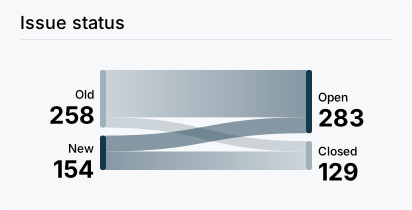](https://github.com/netbox-community/netbox/issues)
[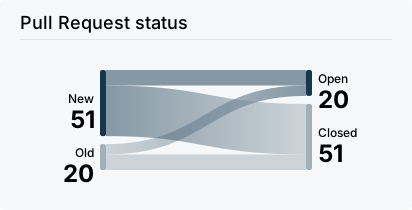](https://github.com/netbox-community/netbox/pulls)
* [GitHub Discussions](https://github.com/netbox-community/netbox/discussions) - Discussion forum hosted by GitHub; ideal for Q&A and other structured discussions
* [Slack](https://netdev.chat/) - Real-time chat hosted by the NetDev Community; best for unstructured discussion or just hanging out

### Installation

Please see [the documentation](https://docs.netbox.dev/) for
instructions on installing NetBox. To upgrade NetBox, please download the
[latest release](https://github.com/netbox-community/netbox/releases) and
run `upgrade.sh`.

### Providing Feedback
# Installation
Please see [the documentation](http://netbox.readthedocs.io/en/stable/) for
instructions on installing NetBox. To upgrade NetBox, please download the [latest release](https://github.com/netbox-community/netbox/releases)
and run `upgrade.sh`.
# Providing Feedback
Feature requests and bug reports must be submitted as GiHub issues. (Please be
sure to use the [appropriate template](https://github.com/netbox-community/netbox/issues/new/choose).)
For general discussion, please consider joining our [mailing list](https://groups.google.com/forum/#!forum/netbox-discuss).
The best platform for general feedback, assistance, and other discussion is our
Per the terms of the Apache 2 license, NetBox is offered "as is" and without any guarantee or warranty pertaining to its operation. While every reasonable effort is made by its maintainers to ensure the product remains free of security vulnerabilities, users are ultimately responsible for conducting their own evaluations of each software release.
## Recommendations
Administrators are encouraged to adhere to industry best practices concerning the secure operation of software, such as:
* Do not expose your NetBox installation to the public Internet
* Do not permit multiple users to share an account
* Enforce minimum password complexity requirements for local accounts
* Prohibit access to your database from clients other than the NetBox application
* Keep your deployment updated to the most recent stable release
## Reporting a Suspected Vulnerability
If you believe you've uncovered a security vulnerability and wish to report it confidentially, you may do so via email. Please note that any reported vulnerabilities **MUST** meet all the following conditions:
* Affects the most recent stable release of NetBox, or a current beta release
* Affects a NetBox instance installed and configured per the official documentation
* Is reproducible following a prescribed set of instructions
Please note that we **DO NOT** accept reports generated by automated tooling which merely suggest that a file or file(s) _may_ be vulnerable under certain conditions, as these are most often innocuous.
If you believe that you've found a vulnerability which meets all of these conditions, please email a brief description of the suspected bug and instructions for reproduction to **security@netbox.dev**. For any security concerns regarding NetBox deployed via Docker, please see the [netbox-docker](https://github.com/netbox-community/netbox-docker) project.
### Bug Bounties
As NetBox is provided as free open source software, we do not offer any monetary compensation for vulnerability or bug reports, however your contributions are greatly appreciated.
Every time an object in NetBox is created, updated, or deleted, a serialized copy of that object is saved to the database, along with meta data including the current time and the user associated with the change. These records form a running changelog both for each individual object as well as NetBox as a whole (Organization > Changelog).
A serialized representation is included for each object in JSON format. This is similar to how objects are conveyed within the REST API, but does not include any nested representations. For instance, the `tenant` field of a site will record only the tenant's ID, not a representation of the tenant.
When a request is made, a random request ID is generated and attached to any change records resulting from the request. For example, editing multiple objects in bulk will create a change record for each object, and each of those objects will be assigned the same request ID. This makes it easy to identify all the change records associated with a particular request.
Change records are exposed in the API via the read-only endpoint `/api/extras/object-changes/`. They may also be exported in CSV format.
Sometimes it is desirable to associate arbitrary data with a group of devices to aid in their configuration. For example, you might want to associate a set of syslog servers for all devices at a particular site. Context data enables the association of arbitrary data to devices and virtual machines grouped by region, site, role, platform, and/or tenant. Context data is arranged hierarchically, so that data with a higher weight can be entered to override more general lower-weight data. Multiple instances of data are automatically merged by NetBox to present a single dictionary for each object.
Devices and Virtual Machines may also have a local config context defined. This local context will always overwrite the rendered config context objects for the Device/VM. This is useful in situations were the device requires a one-off value different from the rest of the environment.
Each object in NetBox is represented in the database as a discrete table, and each attribute of an object exists as a column within its table. For example, sites are stored in the `dcim_site` table, which has columns named `name`, `facility`, `physical_address`, and so on. As new attributes are added to objects throughout the development of NetBox, tables are expanded to include new rows.
However, some users might want to associate with objects attributes that are somewhat esoteric in nature, and that would not make sense to include in the core NetBox database schema. For instance, suppose your organization needs to associate each device with a ticket number pointing to the support ticket that was opened to have it installed. This is certainly a legitimate use for NetBox, but it's perhaps not a common enough need to warrant expanding the internal data schema. Instead, you can create a custom field to hold this data.
Custom fields must be created through the admin UI under Extras > Custom Fields. To create a new custom field, select the object(s) to which you want it to apply, and the type of field it will be. NetBox supports six field types:
* Free-form text (up to 255 characters)
* Integer
* Boolean (true/false)
* Date
* URL
* Selection
Assign the field a name. This should be a simple database-friendly string, e.g. `tps_report`. You may optionally assign the field a human-friendly label (e.g. "TPS report") as well; the label will be displayed on forms. If a description is provided, it will appear beneath the field in a form.
Marking the field as required will require the user to provide a value for the field when creating a new object or when saving an existing object. A default value for the field may also be provided. Use "true" or "false" for boolean fields. (The default value has no effect for selection fields.)
When creating a selection field, you should create at least two choices. These choices will be arranged first by weight, with lower weights appearing higher in the list, and then alphabetically.
## Using Custom Fields
When a single object is edited, the form will include any custom fields which have been defined for the object type. These fields are included in the "Custom Fields" panel. On the backend, each custom field value is saved separately from the core object as an independent database call, so it's best to avoid adding too many custom fields per object.
When editing multiple objects, custom field values are saved in bulk. There is no significant difference in overhead when saving a custom field value for 100 objects versus one object. However, the bulk operation must be performed separately for each custom field.
Custom links allow users to place arbitrary hyperlinks within NetBox views. These are helpful for cross-referencing related records in external systems. For example, you might create a custom link on the device view which links to the current device in a network monitoring system.
Custom links are created under the admin UI. Each link is associated with a particular NetBox object type (site, device, prefix, etc.) and will be displayed on relevant views. Each link is assigned text and a URL, both of which support Jinja2 templating. The text and URL are rendered with the context variable `obj` representing the current object.
Custom links appear as buttons at the top right corner of the page. Numeric weighting can be used to influence the ordering of links.
## Conditional Rendering
Only links which render with non-empty text are included on the page. You can employ conditional Jinja2 logic to control the conditions under which a link gets rendered.
For example, if you only want to display a link for active devices, you could set the link text to
```
{% if obj.status == 1 %}View NMS{% endif %}
```
The link will not appear when viewing a device with any status other than "active."
Another example, if you want to only show an object of a certain manufacturer, you could set the link text to:
```
{% if obj.device_type.manufacturer.name == 'Cisco' %}View NMS {% endif %}
```
The link will only appear when viewing a device with a manufacturer name of "Cisco."
## Link Groups
You can specify a group name to organize links into related sets. Grouped links will render as a dropdown menu beneath a
Custom scripting was introduced to provide a way for users to execute custom logic from within the NetBox UI. Custom scripts enable the user to directly and conveniently manipulate NetBox data in a prescribed fashion. They can be used to accomplish myriad tasks, such as:
* Automatically populate new devices and cables in preparation for a new site deployment
* Create a range of new reserved prefixes or IP addresses
* Fetch data from an external source and import it to NetBox
Custom scripts are Python code and exist outside of the official NetBox code base, so they can be updated and changed without interfering with the core NetBox installation. And because they're written from scratch, a custom script can be used to accomplish just about anything.
## Writing Custom Scripts
All custom scripts must inherit from the `extras.scripts.Script` base class. This class provides the functionality necessary to generate forms and log activity.
```
from extras.scripts import Script
class MyScript(Script):
..
```
Scripts comprise two core components: variables and a `run()` method. Variables allow your script to accept user input via the NetBox UI. The `run()` method is where your script's execution logic lives. (Note that your script can have as many methods as needed: this is merely the point of invocation for NetBox.)
```
class MyScript(Script):
var1 = StringVar(...)
var2 = IntegerVar(...)
var3 = ObjectVar(...)
def run(self, data):
...
```
The `run()` method is passed a single argument: a dictionary containing all of the variable data passed via the web form. Your script can reference this data during execution.
Defining variables is optional: You may create a script with only a `run()` method if no user input is needed.
Returning output from your script is optional. Any raw output generated by the script will be displayed under the "output" tab in the UI.
## Module Attributes
### `name`
You can define `name` within a script module (the Python file which contains one or more scripts) to set the module name. If `name` is not defined, the filename will be used.
## Script Attributes
Script attributes are defined under a class named `Meta` within the script. These are optional, but encouraged.
### `name`
This is the human-friendly names of your script. If omitted, the class name will be used.
### `description`
A human-friendly description of what your script does.
### `field_order`
A list of field names indicating the order in which the form fields should appear. This is optional, however on Python 3.5 and earlier the fields will appear in random order. (Declarative ordering is preserved on Python 3.6 and above.) For example:
```
field_order = ['var1', 'var2', 'var3']
```
### `commit_default`
The checkbox to commit database changes when executing a script is checked by default. Set `commit_default` to False under the script's Meta class to leave this option unchecked by default.
```
commit_default = False
```
## Accessing Request Data
Details of the current HTTP request (the one being made to execute the script) are available as the instance attribute `self.request`. This can be used to infer, for example, the user executing the script and the client IP address:
self.log_info("Running as user {} (IP: {})...".format(username,ip_address))
```
For a complete list of available request parameters, please see the [Django documentation](https://docs.djangoproject.com/en/stable/ref/request-response/).
## Reading Data from Files
The Script class provides two convenience methods for reading data from files:
*`load_yaml`
*`load_json`
These two methods will load data in YAML or JSON format, respectively, from files within the local path (i.e. `SCRIPTS_ROOT`).
## Logging
The Script object provides a set of convenient functions for recording messages at different severity levels:
*`log_debug`
*`log_success`
*`log_info`
*`log_warning`
*`log_failure`
Log messages are returned to the user upon execution of the script. Markdown rendering is supported for log messages.
## Variable Reference
### StringVar
Stores a string of characters (i.e. a line of text). Options include:
*`min_length` - Minimum number of characters
*`max_length` - Maximum number of characters
*`regex` - A regular expression against which the provided value must match
Note: `min_length` and `max_length` can be set to the same number to effect a fixed-length field.
### TextVar
Arbitrary text of any length. Renders as multi-line text input field.
### IntegerVar
Stored a numeric integer. Options include:
*`min_value:` - Minimum value
*`max_value` - Maximum value
### BooleanVar
A true/false flag. This field has no options beyond the defaults.
### ChoiceVar
A set of choices from which the user can select one.
*`choices` - A list of `(value, label)` tuples representing the available choices. For example:
```python
CHOICES=(
('n','North'),
('s','South'),
('e','East'),
('w','West')
)
direction=ChoiceVar(choices=CHOICES)
```
### ObjectVar
A NetBox object. The list of available objects is defined by the queryset parameter. Each instance of this variable is limited to a single object type.
*`queryset` - A [Django queryset](https://docs.djangoproject.com/en/stable/topics/db/queries/)
### FileVar
An uploaded file. Note that uploaded files are present in memory only for the duration of the script's execution: They will not be save for future use.
### IPNetworkVar
An IPv4 or IPv6 network with a mask.
### Default Options
All variables support the following default options:
*`label` - The name of the form field
*`description` - A brief description of the field
*`default` - The field's default value
*`required` - Indicates whether the field is mandatory (default: true)
## Example
Below is an example script that creates new objects for a planned site. The user is prompted for three variables:
* The name of the new site
* The device model (a filtered list of defined device types)
* The number of access switches to create
These variables are presented as a web form to be completed by the user. Once submitted, the script's `run()` method is called to create the appropriate objects.
```
from django.utils.text import slugify
from dcim.constants import *
from dcim.models import Device, DeviceRole, DeviceType, Site
NetBox allows users to define custom templates that can be used when exporting objects. To create an export template, navigate to Extras > Export Templates under the admin interface.
Each export template is associated with a certain type of object. For instance, if you create an export template for VLANs, your custom template will appear under the "Export" button on the VLANs list.
Export templates are written in [Django's template language](https://docs.djangoproject.com/en/stable/ref/templates/language/), which is very similar to Jinja2. The list of objects returned from the database is stored in the `queryset` variable, which you'll typically want to iterate through using a `for` loop. Object properties can be access by name. For example:
```
{% for rack in queryset %}
Rack: {{ rack.name }}
Site: {{ rack.site.name }}
Height: {{ rack.u_height }}U
{% endfor %}
```
To access custom fields of an object within a template, use the `cf` attribute. For example, `{{ obj.cf.color }}` will return the value (if any) for a custom field named `color` on `obj`.
A MIME type and file extension can optionally be defined for each export template. The default MIME type is `text/plain`.
## Example
Here's an example device export template that will generate a simple Nagios configuration from a list of devices.
```
{% for device in queryset %}{% if device.status and device.primary_ip %}define host{
use generic-switch
host_name {{ device.name }}
address {{ device.primary_ip.address.ip }}
}
{% endif %}{% endfor %}
```
The generated output will look something like this:
NetBox does not have the ability to generate graphs natively, but this feature allows you to embed contextual graphs from an external resources (such as a monitoring system) inside the site, provider, and interface views. Each embedded graph must be defined with the following parameters:
* **Type:** Site, device, provider, or interface. This determines in which view the graph will be displayed.
* **Weight:** Determines the order in which graphs are displayed (lower weights are displayed first). Graphs with equal weights will be ordered alphabetically by name.
* **Name:** The title to display above the graph.
* **Source URL:** The source of the image to be embedded. The associated object will be available as a template variable named `obj`.
* **Link URL (optional):** A URL to which the graph will be linked. The associated object will be available as a template variable named `obj`.
Graph names and links can be rendered using the Django or Jinja2 template languages.
!!! warning
Support for the Django templating language will be removed in NetBox v2.8. Jinja2 is recommended.
## Examples
You only need to define one graph object for each graph you want to include when viewing an object. For example, if you want to include a graph of traffic through an interface over the past five minutes, your graph source might looks like this:
NetBox supports integration with the [NAPALM automation](https://napalm-automation.net/) library. NAPALM allows NetBox to fetch live data from devices and return it to a requester via its REST API.
!!! info
To enable the integration, the NAPALM library must be installed. See [installation steps](../../installation/2-netbox/#napalm-automation-optional) for more information.
```
GET /api/dcim/devices/1/napalm/?method=get_environment
{
"get_environment": {
...
}
}
```
## Authentication
By default, the [`NAPALM_USERNAME`](../../configuration/optional-settings/#napalm_username) and [`NAPALM_PASSWORD`](../../configuration/optional-settings/#napalm_password) are used for NAPALM authentication. They can be overridden for an individual API call through the `X-NAPALM-Username` and `X-NAPALM-Password` headers.
The list of supported NAPALM methods depends on the [NAPALM driver](https://napalm.readthedocs.io/en/latest/support/index.html#general-support-matrix) configured for the platform of a device. NetBox only supports [get](https://napalm.readthedocs.io/en/latest/support/index.html#getters-support-matrix) methods.
## Multiple Methods
More than one method in an API call can be invoked by adding multiple `method` parameters. For example:
```
GET /api/dcim/devices/1/napalm/?method=get_ntp_servers&method=get_ntp_peers
{
"get_ntp_servers": {
...
},
"get_ntp_peers": {
...
}
}
```
## Optional Arguments
The behavior of NAPALM drivers can be adjusted according to the [optional arguments](https://napalm.readthedocs.io/en/latest/support/index.html#optional-arguments). NetBox exposes those arguments using headers prefixed with `X-NAPALM-`.
For instance, the SSH port is changed to 2222 in this API call:
NetBox supports optionally exposing native Prometheus metrics from the application. [Prometheus](https://prometheus.io/) is a popular time series metric platform used for monitoring.
NetBox exposes metrics at the `/metrics` HTTP endpoint, e.g. `https://netbox.local/metrics`. Metric exposition can be toggled with the `METRICS_ENABLED` configuration setting. Metrics are not exposed by default.
## Metric Types
NetBox makes use of the [django-prometheus](https://github.com/korfuri/django-prometheus) library to export a number of different types of metrics, including:
- Per model insert, update, and delete counters
- Per view request counters
- Per view request latency histograms
- Request body size histograms
- Response body size histograms
- Response code counters
- Database connection, execution, and error counters
- Cache hit, miss, and invalidation counters
- Django middleware latency histograms
- Other Django related metadata metrics
For the exhaustive list of exposed metrics, visit the `/metrics` endpoint on your NetBox instance.
## Multi Processing Notes
When deploying NetBox in a multiprocess mannor--such as using Gunicorn as recomented in the installation docs--the Prometheus client library requires the use of a shared directory
to collect metrics from all the worker processes. This can be any arbitrary directory to which the processes have read/write access. This directory is then made available by use of the
`prometheus_multiproc_dir` environment variable.
This can be setup by first creating a shared directory and then adding this line (with the appropriate directory) to the `[program:netbox]` section of the supervisor config file.
A NetBox report is a mechanism for validating the integrity of data within NetBox. Running a report allows the user to verify that the objects defined within NetBox meet certain arbitrary conditions. For example, you can write reports to check that:
* All top-of-rack switches have a console connection
* Every router has a loopback interface with an IP address assigned
* Each interface description conforms to a standard format
* Every site has a minimum set of VLANs defined
* All IP addresses have a parent prefix
...and so on. Reports are completely customizable, so there's practically no limit to what you can test for.
## Writing Reports
Reports must be saved as files in the [`REPORTS_ROOT`](../../configuration/optional-settings/#reports_root) path (which defaults to `netbox/reports/`). Each file created within this path is considered a separate module. Each module holds one or more reports (Python classes), each of which performs a certain function. The logic of each report is broken into discrete test methods, each of which applies a small portion of the logic comprising the overall test.
!!! warning
The reports path includes a file named `__init__.py`, which registers the path as a Python module. Do not delete this file.
For example, we can create a module named `devices.py` to hold all of our reports which pertain to devices in NetBox. Within that module, we might define several reports. Each report is defined as a Python class inheriting from `extras.reports.Report`.
```
from extras.reports import Report
class DeviceConnectionsReport(Report):
description = "Validate the minimum physical connections for each device"
class DeviceIPsReport(Report):
description = "Check that every device has a primary IP address assigned"
```
Within each report class, we'll create a number of test methods to execute our report's logic. In DeviceConnectionsReport, for instance, we want to ensure that every live device has a console connection, an out-of-band management connection, and two power connections.
```
from dcim.constants import CONNECTION_STATUS_PLANNED, DEVICE_STATUS_ACTIVE
from dcim.models import ConsolePort, Device, PowerPort
from extras.reports import Report
class DeviceConnectionsReport(Report):
description = "Validate the minimum physical connections for each device"
def test_console_connection(self):
# Check that every console port for every active device has a connection defined.
for console_port in ConsolePort.objects.prefetch_related('device').filter(device__status=DEVICE_STATUS_ACTIVE):
if console_port.connected_endpoint is None:
self.log_failure(
console_port.device,
"No console connection defined for {}".format(console_port.name)
"Console connection for {} marked as planned".format(console_port.name)
)
else:
self.log_success(console_port.device)
def test_power_connections(self):
# Check that every active device has at least two connected power supplies.
for device in Device.objects.filter(status=DEVICE_STATUS_ACTIVE):
connected_ports = 0
for power_port in PowerPort.objects.filter(device=device):
if power_port.connected_endpoint is not None:
connected_ports += 1
if power_port.connection_status == CONNECTION_STATUS_PLANNED:
self.log_warning(
device,
"Power connection for {} marked as planned".format(power_port.name)
)
if connected_ports < 2:
self.log_failure(
device,
"{} connected power supplies found (2 needed)".format(connected_ports)
)
else:
self.log_success(device)
```
As you can see, reports are completely customizable. Validation logic can be as simple or as complex as needed.
!!! warning
Reports should never alter data: If you find yourself using the `create()`, `save()`, `update()`, or `delete()` methods on objects within reports, stop and re-evaluate what you're trying to accomplish. Note that there are no safeguards against the accidental alteration or destruction of data.
The following methods are available to log results within a report:
* log(message)
* log_success(object, message=None)
* log_info(object, message)
* log_warning(object, message)
* log_failure(object, message)
The recording of one or more failure messages will automatically flag a report as failed. It is advised to log a success for each object that is evaluated so that the results will reflect how many objects are being reported on. (The inclusion of a log message is optional for successes.) Messages recorded with `log()` will appear in a report's results but are not associated with a particular object or status.
To perform additional tasks, such as sending an email or calling a webhook, after a report has been run, extend the `post_run()` method. The status of the report is available as `self.failed` and the results object is `self.result`.
Once you have created a report, it will appear in the reports list. Initially, reports will have no results associated with them. To generate results, run the report.
## Running Reports
### Via the Web UI
Reports can be run via the web UI by navigating to the report and clicking the "run report" button at top right. Note that a user must have permission to create ReportResults in order to run reports. (Permissions can be assigned through the admin UI.)
Once a report has been run, its associated results will be included in the report view.
### Via the API
To run a report via the API, simply issue a POST request to its `run` endpoint. Reports are identified by their module and class name.
```
POST /api/extras/reports/<module>.<name>/run/
```
Our example report above would be called as:
```
POST /api/extras/reports/devices.DeviceConnectionsReport/run/
```
### Via the CLI
Reports can be run on the CLI by invoking the management command:
```
python3 manage.py runreport <module>
```
where ``<module>`` is the name of the python file in the ``reports`` directory without the ``.py`` extension. One or more report modules may be specified.
Tags are free-form text labels which can be applied to a variety of objects within NetBox. Tags are created on-demand as they are assigned to objects. Use commas to separate tags when adding multiple tags to an object (for example: `Inventoried, Monitored`). Use double quotes around a multi-word tag when adding only one tag, e.g. `"Core Switch"`.
Each tag has a label and a URL-friendly slug. For example, the slug for a tag named "Dunder Mifflin, Inc." would be `dunder-mifflin-inc`. The slug is generated automatically and makes tags easier to work with as URL parameters.
Objects can be filtered by the tags they have applied. For example, the following API request will retrieve all devices tagged as "monitored":
```
GET /api/dcim/devices/?tag=monitored
```
Tags are included in the API representation of an object as a list of plain strings:
A webhook defines an HTTP request that is sent to an external application when certain types of objects are created, updated, and/or deleted in NetBox. When a webhook is triggered, a POST request is sent to its configured URL. This request will include a full representation of the object being modified for consumption by the receiver. Webhooks are configured via the admin UI under Extras > Webhooks.
An optional secret key can be configured for each webhook. This will append a `X-Hook-Signature` header to the request, consisting of a HMAC (SHA-512) hex digest of the request body using the secret as the key. This digest can be used by the receiver to authenticate the request's content.
## Requests
The webhook POST request is structured as so (assuming `application/json` as the Content-Type):
`data` is the serialized representation of the model instance(s) from the event. The same serializers from the NetBox API are used. So an example of the payload for a Site delete event would be:
A request is considered successful if the response status code is any one of a list of "good" statuses defined in the [requests library](https://github.com/requests/requests/blob/205755834d34a8a6ecf2b0b5b2e9c3e6a7f4e4b6/requests/models.py#L688), otherwise the request is marked as having failed. The user may manually retry a failed request.
## Backend Status
Django-rq includes a status page in the admin site which can be used to view the result of processed webhooks and manually retry any failed webhooks. Access it from http://netbox.local/admin/webhook-backend-status/.
This guide explains how to configure single sign-on (SSO) support for NetBox using [Microsoft Azure Active Directory (AD)](https://azure.microsoft.com/en-us/services/active-directory/) as an authentication backend.
## Azure AD Configuration
### 1. Create a test user (optional)
Create a new user in AD to be used for testing. You can skip this step if you already have a suitable account created.
### 2. Create an app registration
Under the Azure Active Directory dashboard, navigate to **Add > App registration**.

Enter a name for the registration (e.g. "NetBox") and ensure that the "single tenant" option is selected.
Under "Redirect URI", select "Web" for the platform and enter the path to your NetBox installation, ending with `/oauth/complete/azuread-oauth2/`. Note that this URI **must** begin with `https://` unless you are referencing localhost (for development purposes).
NetBox also supports multitenant authentication via Azure AD, however it requires a different backend and an additional configuration parameter. Please see the [`python-social-auth` documentation](https://python-social-auth.readthedocs.io/en/latest/backends/azuread.html#tenant-support) for details concerning multitenant authentication.
### 3. Create a secret
When viewing the newly-created app registration, click the "Add a certificate or secret" link under "Client credentials". Under the "Client secrets" tab, click the "New client secret" button.

You can optionally specify a description and select a lifetime for the secret.
Restart the NetBox services so that the new configuration takes effect. This is typically done with the command below:
```no-highlight
sudo systemctl restart netbox
```
## Testing
Log out of NetBox if already authenticated, and click the "Log In" button at top right. You should see the normal login form as well as an option to authenticate using Azure AD. Click that link.

You should be redirected to Microsoft's authentication portal. Enter the username/email and password of your test account to continue. You may also be prompted to grant this application access to your account.

If successful, you will be redirected back to the NetBox UI, and will be logged in as the AD user. You can verify this by navigating to your profile (using the button at top right).
This user account has been replicated locally to NetBox, and can now be assigned groups and permissions within the NetBox admin UI.
## Troubleshooting
### Redirect URI does not Match
Azure requires that the authenticating client request a redirect URI that matches what you've configured for the app in step two. This URI **must** begin with `https://` (unless using `localhost` for the domain).
If Azure complains that the requested URI starts with `http://` (not HTTPS), it's likely that your HTTP server is misconfigured or sitting behind a load balancer, so NetBox is not aware that HTTPS is being use. To force the use of an HTTPS redirect URI, set `SOCIAL_AUTH_REDIRECT_IS_HTTPS = True` in `configuration.py` per the [python-social-auth docs](https://python-social-auth.readthedocs.io/en/latest/configuration/settings.html#processing-redirects-and-urlopen).
### Not Logged in After Authenticating
If you are redirected to the NetBox UI after authenticating successfully, but are _not_ logged in, double-check the configured backend and app registration. The instructions in this guide pertain only to the `azuread.AzureADOAuth2` backend using a single-tenant app registration.
This guide explains how to configure single sign-on (SSO) support for NetBox using [Okta](https://www.okta.com/) as an authentication backend.
## Okta Configuration
!!! tip "Okta developer account"
Okta offers free developer accounts at <https://developer.okta.com/>.
### 1. Create a test user (optional)
Create a new user in the Okta admin portal to be used for testing. You can skip this step if you already have a suitable account created.
### 2. Create an app registration
Within the Okta administration dashboard, navigate to **Applications > Applications**, and click the "Create App Integration" button. Select "OIDC" as the sign-in method, and "Web application" for the application type.

On the next page, give the app integration a name (e.g. "NetBox") and specify the sign-in and sign-out URIs. These URIs should follow the formats below:
Restart the NetBox services so that the new configuration takes effect. This is typically done with the command below:
```no-highlight
sudo systemctl restart netbox
```
## Testing
Log out of NetBox if already authenticated, and click the "Log In" button at top right. You should see the normal login form as well as an option to authenticate using Okta. Click that link.
You should be redirected to Okta's authentication portal. Enter the username/email and password of your test account to continue. You may also be prompted to grant this application access to your account.
If successful, you will be redirected back to the NetBox UI, and will be logged in as the Okta user. You can verify this by navigating to your profile (using the button at top right).
This user account has been replicated locally to NetBox, and can now be assigned groups and permissions within the NetBox admin UI.
Local user accounts and groups can be created in NetBox under the "Authentication and Authorization" section of the administrative user interface. This interface is available only to users with the "staff" permission enabled.
At a minimum, each user account must have a username and password set. User accounts may also denote a first name, last name, and email address. [Permissions](../permissions.md) may also be assigned to users and/or groups within the admin UI.
## Remote Authentication
NetBox may be configured to provide user authenticate via a remote backend in addition to local authentication. This is done by setting the `REMOTE_AUTH_BACKEND` configuration parameter to a suitable backend class. NetBox provides several options for remote authentication.
NetBox includes an authentication backend which supports LDAP. See the [LDAP installation docs](../../installation/6-ldap.md) for more detail about this backend.
Another option for remote authentication in NetBox is to enable HTTP header-based user assignment. The front end HTTP server (e.g. nginx or Apache) performs client authentication as a process external to NetBox, and passes information about the authenticated user via HTTP headers. By default, the user is assigned via the `REMOTE_USER` header, but this can be customized via the `REMOTE_AUTH_HEADER` configuration parameter.
NetBox supports single sign-on authentication via the [python-social-auth](https://github.com/python-social-auth) library. To enable SSO, specify the path to the desired authentication backend within the `social_core` Python package. Please see the complete list of [supported authentication backends](https://github.com/python-social-auth/social-core/tree/master/social_core/backends) for the available options.
Most remote authentication backends require some additional configuration through settings prefixed with `SOCIAL_AUTH_`. These will be automatically imported from NetBox's `configuration.py` file. Additionally, the [authentication pipeline](https://python-social-auth.readthedocs.io/en/latest/pipeline.html) can be customized via the `SOCIAL_AUTH_PIPELINE` parameter. (NetBox's default pipeline is defined in `netbox/settings.py` for your reference.)
NetBox v3.2.3 and later support native integration with [Sentry](https://sentry.io/) for automatic error reporting. To enable this functionality, simply set `SENTRY_ENABLED` to True in `configuration.py`. Errors will be sent to a Sentry ingestor maintained by the NetBox team for analysis.
```python
SENTRY_ENABLED=True
```
### Using a Custom DSN
If you prefer instead to use your own Sentry ingestor, you'll need to first create a new project under your Sentry account to represent your NetBox deployment and obtain its corresponding data source name (DSN). This looks like a URL similar to the example below:
```
https://examplePublicKey@o0.ingest.sentry.io/0
```
Once you have obtained a DSN, configure Sentry in NetBox's `configuration.py` file with the following parameters:
You can optionally attach one or more arbitrary tags to the outgoing error reports if desired by setting the `SENTRY_TAGS` parameter:
```python
SENTRY_TAGS={
"custom.foo":"123",
"custom.bar":"abc",
}
```
!!! warning "Reserved tag prefixes"
Avoid using any tag names which begin with `netbox.`, as this prefix is reserved by the NetBox application.
### Testing
Once the configuration has been saved, restart the NetBox service.
To test Sentry operation, try generating a 404 (page not found) error by navigating to an invalid URL, such as `https://netbox/404-error-testing`. (Be sure that debug mode has been disabled.) After receiving a 404 response from the NetBox server, you should see the issue appear shortly in Sentry.
NetBox includes a `housekeeping` management command that should be run nightly. This command handles:
* Clearing expired authentication sessions from the database
* Deleting changelog records older than the configured [retention time](../configuration/miscellaneous.md#changelog_retention)
* Deleting job result records older than the configured [retention time](../configuration/miscellaneous.md#jobresult_retention)
This command can be invoked directly, or by using the shell script provided at `/opt/netbox/contrib/netbox-housekeeping.sh`. This script can be linked from your cron scheduler's daily jobs directory (e.g. `/etc/cron.daily`) or referenced directly within the cron configuration file.
On Debian-based systems, be sure to omit the `.sh` file extension when linking to the script from within a cron directory. Otherwise, the task may not run.
The `housekeeping` command can also be run manually at any time: Running the command outside scheduled execution times will not interfere with its operation.
NetBox includes a Python shell within which objects can be directly queried, created, modified, and deleted. To enter the shell, run the following command:
# The NetBox Python Shell
NetBox includes a Python management shell within which objects can be directly queried, created, modified, and deleted. To enter the shell, run the following command:
```
./manage.py nbshell
```
This will launch a customized version of [the built-in Django shell](https://docs.djangoproject.com/en/stable/ref/django-admin/#shell) with all relevant NetBox models pre-loaded. (If desired, the stock Django shell is also available by executing `./manage.py shell`.)
This will launch a lightly customized version of [the built-in Django shell](https://docs.djangoproject.com/en/stable/ref/django-admin/#shell) with all relevant NetBox models pre-loaded. (If desired, the stock Django shell is also available by executing `./manage.py shell`.)
```
$ ./manage.py nbshell
### NetBox interactive shell (jstretch-laptop)
### Python 3.5.2 | Django 2.0.8 | NetBox 2.4.3
### NetBox interactive shell (localhost)
### Python 3.7.10 | Django 3.2.5 | NetBox 3.0
### lsmodels() will show available models. Use help(<model>) for more info.
```
@@ -26,13 +28,17 @@ DCIM:
...
```
!!! warning
The NetBox shell affords direct access to NetBox data and function with very little validation in place. As such, it is crucial to ensure that only authorized, knowledgeable users are ever granted access to it. Never perform any action in the management shell without having a full backup in place.
## Querying Objects
Objects are retrieved by forming a [Django queryset](https://docs.djangoproject.com/en/stable/topics/db/queries/#retrieving-objects). The base queryset for an object takes the form `<model>.objects.all()`, which will return a (truncated) list of all objects of that type.
Objects are retrieved from the database using a [Django queryset](https://docs.djangoproject.com/en/stable/topics/db/queries/#retrieving-objects). The base queryset for an object takes the form `<model>.objects.all()`, which will return a (truncated) list of all objects of that type.
<Device: TestDevice4>, <Device: TestDevice5>, '...(remaining elements truncated)...']>
```
Use a `for` loop to cycle through all objects in the list:
@@ -41,11 +47,11 @@ Use a `for` loop to cycle through all objects in the list:
>>> for device in Device.objects.all():
... print(device.name, device.device_type)
...
(u'TestDevice1', <DeviceType: PacketThingy 9000>)
(u'TestDevice2', <DeviceType: PacketThingy 9000>)
(u'TestDevice3', <DeviceType: PacketThingy 9000>)
(u'TestDevice4', <DeviceType: PacketThingy 9000>)
(u'TestDevice5', <DeviceType: PacketThingy 9000>)
('TestDevice1', <DeviceType: PacketThingy 9000>)
('TestDevice2', <DeviceType: PacketThingy 9000>)
('TestDevice3', <DeviceType: PacketThingy 9000>)
('TestDevice4', <DeviceType: PacketThingy 9000>)
('TestDevice5', <DeviceType: PacketThingy 9000>)
...
```
@@ -65,52 +71,53 @@ To retrieve a particular object (typically by its primary key or other unique fi
### Filtering Querysets
In most cases, you want to retrieve only a specific subset of objects. To filter a queryset, replace `all()` with `filter()` and pass one or more keyword arguments. For example:
In most cases, you will want to retrieve only a specific subset of objects. To filter a queryset, replace `all()` with `filter()` and pass one or more keyword arguments. For example:
Relationships with other models can be traversed by concatenating field names with a double-underscore. For example, the following will return all devices assigned to the tenant named "Pied Piper."
Relationships with other models can be traversed by concatenating attribute names with a double-underscore. For example, the following will return all devices assigned to the tenant named "Pied Piper."
While the above query is functional, it is very inefficient. There are ways to optimize such requests, however they are out of the scope of this document. For more information, see the [Django queryset method reference](https://docs.djangoproject.com/en/stable/ref/models/querysets/) documentation.
While the above query is functional, it's not very efficient. There are ways to optimize such requests, however they are out of scope for this document. For more information, see the [Django queryset method reference](https://docs.djangoproject.com/en/stable/ref/models/querysets/) documentation.
Reverse relationships can be traversed as well. For example, the following will find all devices with an interface named "em0":
```
>>> Device.objects.filter(interfaces__name='em0')
>>> Device.objects.filter(interfaces__name="em0")
```
Character fields can be filtered against partial matches using the `contains` or `icontains` field lookup (the later of which is case-insensitive).
The examples above are intended only to provide a cursory introduction to queryset filtering. For an exhaustive list of the available filters, please consult the [Django queryset API docs](https://docs.djangoproject.com/en/stable/ref/models/querysets/).
The examples above are intended only to provide a cursory introduction to queryset filtering. For an exhaustive list of the available filters, please consult the [Django queryset API documentation](https://docs.djangoproject.com/en/stable/ref/models/querysets/).
## Creating and Updating Objects
New objects can be created by instantiating the desired model, defining values for all required attributes, and calling `save()` on the instance.
New objects can be created by instantiating the desired model, defining values for all required attributes, and calling `save()` on the instance. For example, we can create a new VLAN by specifying its numeric ID, name, and assigned site:
```
>>> lab1 = Site.objects.get(pk=7)
@@ -149,22 +156,22 @@ New objects can be created by instantiating the desired model, defining values f
>>> myvlan.save()
```
Alternatively, the above can be performed as a single operation:
Alternatively, the above can be performed as a single operation. (Note, however, that `save()` does _not_ return the new instance for reuse.)
To delete multiple objects at once, call `delete()` on a filtered queryset. It's a good idea to always sanity-check the count of selected objects _before_ deleting them.
@@ -187,8 +194,10 @@ To delete multiple objects at once, call `delete()` on a filtered queryset. It's
Deletions are immediate and irreversible. Always think very carefully before calling `delete()` on an instance or queryset.
Deletions are immediate and irreversible. Always consider the impact of deleting objects carefully before calling `delete()` on an instance or queryset.
NetBox v2.9 introduced a new object-based permissions framework, which replaces Django's built-in permissions model. Object-based permissions enable an administrator to grant users or groups the ability to perform an action on arbitrary subsets of objects in NetBox, rather than all objects of a certain type. For example, it is possible to grant a user permission to view only sites within a particular region, or to modify only VLANs with a numeric ID within a certain range.
A permission in NetBox represents a relationship shared by several components:
* Object type(s) - One or more types of object in NetBox
* User(s)/Group(s) - One or more users or groups of users
* Action(s) - The action(s) that can be performed on an object
* Constraints - An arbitrary filter used to limit the granted action(s) to a specific subset of objects
At a minimum, a permission assignment must specify one object type, one user or group, and one action. The specification of constraints is optional: A permission without any constraints specified will apply to all instances of the selected model(s).
## Actions
There are four core actions that can be permitted for each type of object within NetBox, roughly analogous to the CRUD convention (create, read, update, and delete):
* **View** - Retrieve an object from the database
* **Add** - Create a new object
* **Change** - Modify an existing object
* **Delete** - Delete an existing object
In addition to these, permissions can also grant custom actions that may be required by a specific model or plugin. For example, the `napalm_read` permission on the device model allows a user to execute NAPALM queries on a device via NetBox's REST API. These can be specified when granting a permission in the "additional actions" field.
!!! note
Internally, all actions granted by a permission (both built-in and custom) are stored as strings in an array field named `actions`.
## Constraints
Constraints are expressed as a JSON object or list representing a [Django query filter](https://docs.djangoproject.com/en/stable/ref/models/querysets/#field-lookups). This is the same syntax that you would pass to the QuerySet `filter()` method when performing a query using the Django ORM. As with query filters, double underscores can be used to traverse related objects or invoke lookup expressions. Some example queries and their corresponding definitions are shown below.
All attributes defined within a single JSON object are applied with a logical AND. For example, suppose you assign a permission for the site model with the following constraints.
```json
{
"status":"active",
"region__name":"Americas"
}
```
The permission will grant access only to sites which have a status of "active" **and** which are assigned to the "Americas" region.
To achieve a logical OR with a different set of constraints, define multiple objects within a list. For example, if you want to constrain the permission to VLANs with an ID between 100 and 199 _or_ a status of "reserved," do the following:
```json
[
{
"vid__gte":100,
"vid__lt":200
},
{
"status":"reserved"
}
]
```
Additionally, where multiple permissions have been assigned for an object type, their collective constraints will be merged using a logical "OR" operation.
### User Token
!!! info "This feature was introduced in NetBox v3.3"
When defining a permission constraint, administrators may use the special token `$user` to reference the current user at the time of evaluation. This can be helpful to restrict users to editing only their own journal entries, for example. Such a constraint might be defined as:
```json
{
"created_by":"$user"
}
```
The `$user` token can be used only as a constraint value, or as an item within a list of values. It cannot be modified or extended to reference specific user attributes.
#### Example Constraint Definitions
| Constraints | Description |
| ----------- | ----------- |
| `{"status": "active"}` | Status is active |
| `{"status__in": ["planned", "reserved"]}` | Status is active **OR** reserved |
| `{"status": "active", "role": "testing"}` | Status is active **AND** role is testing |
| `{"name__startswith": "Foo"}` | Name starts with "Foo" (case-sensitive) |
| `{"name__iendswith": "bar"}` | Name ends with "bar" (case-insensitive) |
| `{"vid__gte": 100, "vid__lt": 200}` | VLAN ID is greater than or equal to 100 **AND** less than 200 |
| `[{"vid__lt": 200}, {"status": "reserved"}]` | VLAN ID is less than 200 **OR** status is reserved |
## Permissions Enforcement
### Viewing Objects
Object-based permissions work by filtering the database query generated by a user's request to restrict the set of objects returned. When a request is received, NetBox first determines whether the user is authenticated and has been granted to perform the requested action. For example, if the requested URL is `/dcim/devices/`, NetBox will check for the `dcim.view_device` permission. If the user has not been assigned this permission (either directly or via a group assignment), NetBox will return a 403 (forbidden) HTTP response.
If the permission _has_ been granted, NetBox will compile any specified constraints for the model and action. For example, suppose two permissions have been assigned to the user granting view access to the device model, with the following constraints:
```json
[
{"site__name__in":["NYC1","NYC2"]},
{"status":"offline","tenant__isnull":true}
]
```
This grants the user access to view any device that is assigned to a site named NYC1 or NYC2, **or** which has a status of "offline" and has no tenant assigned. These constraints are equivalent to the following ORM query:
```no-highlight
Site.objects.filter(
Q(site__name__in=['NYC1', 'NYC2']),
Q(status='active', tenant__isnull=True)
)
```
### Creating and Modifying Objects
The same sort of logic is in play when a user attempts to create or modify an object in NetBox, with a twist. Once validation has completed, NetBox starts an atomic database transaction to facilitate the change, and the object is created or saved normally. Next, still within the transaction, NetBox issues a second query to retrieve the newly created/updated object, filtering the restricted queryset with the object's primary key. If this query fails to return the object, NetBox knows that the new revision does not match the constraints imposed by the permission. The transaction is then rolled back, leaving the database in its original state prior to the change, and the user is informed of the violation.
NetBox uses [PostgreSQL](https://www.postgresql.org/) for its database, so general PostgreSQL best practices will apply to NetBox. You can dump and restore the database using the `pg_dump` and `psql` utilities, respectively.
## Replicating the Database
NetBox employs a [PostgreSQL](https://www.postgresql.org/) database, so general PostgreSQL best practices apply here. The database can be written to a file and restored using the `pg_dump` and `psql` utilities, respectively.
!!! note
The examples below assume that your database is named `netbox`.
## Export the Database
### Export the Database
Use the `pg_dump` utility to export the entire database to a file:
You may need to change the username, host, and/or database in the command above to match your installation.
When replicating a production database for development purposes, you may find it convenient to exclude changelog data, which can easily account for the bulk of a database's size. To do this, exclude the `extras_objectchange` table data from the export. The table will still be included in the output file, but will not be populated with any data.
When restoring a database from a file, it's recommended to delete any existing database first to avoid potential conflicts.
!!! warning
This will destroy and replace any existing instance of the database.
The following will destroy and replace any existing instance of the database.
```no-highlight
psql -c 'drop database netbox'
@@ -32,26 +39,24 @@ psql netbox < netbox.sql
Keep in mind that PostgreSQL user accounts and permissions are not included with the dump: You will need to create those manually if you want to fully replicate the original database (see the [installation docs](../installation/1-postgresql.md)). When setting up a development instance of NetBox, it's strongly recommended to use different credentials anyway.
## Export the Database Schema
### Export the Database Schema
If you want to export only the database schema, and not the data itself (e.g. for development reference), do the following:
```no-highlight
pg_dump -s netbox > netbox_schema.sql
```
If you are migrating your instance of NetBox to a different machine, please make sure you invalidate the cache by performing this command:
NetBox stored uploaded files (such as image attachments) in its media directory. To fully replicate an instance of NetBox, you'll need to copy both the database and the media files.
By default, NetBox stores uploaded files (such as image attachments) in its media directory. To fully replicate an instance of NetBox, you'll need to copy both the database and the media files.
## Archive the Media Directory
!!! note
These operations are not necessary if your installation is utilizing a [remote storage backend](../../configuration/optional-settings/#storage_backend).
### Archive the Media Directory
Execute the following command from the root of the NetBox installation path (typically `/opt/netbox`):
@@ -59,7 +64,7 @@ Execute the following command from the root of the NetBox installation path (typ
tar -czf netbox_media.tar.gz netbox/media/
```
## Restore the Media Directory
### Restore the Media Directory
To extract the saved archive into a new installation, run the following from the installation root:
The NetBox API employs token-based authentication. For convenience, cookie authentication can also be used when navigating the browsable API.
# Tokens
A token is a unique identifier that identifies a user to the API. Each user in NetBox may have one or more tokens which he or she can use to authenticate to the API. To create a token, navigate to the API tokens page at `/user/api-tokens/`.
!!! note
The creation and modification of API tokens can be restricted per user by an administrator. If you don't see an option to create an API token, ask an administrator to grant you access.
Each token contains a 160-bit key represented as 40 hexadecimal characters. When creating a token, you'll typically leave the key field blank so that a random key will be automatically generated. However, NetBox allows you to specify a key in case you need to restore a previously deleted token to operation.
By default, a token can be used for all operations available via the API. Deselecting the "write enabled" option will restrict API requests made with the token to read operations (e.g. GET) only.
Additionally, a token can be set to expire at a specific time. This can be useful if an external client needs to be granted temporary access to NetBox.
# Authenticating to the API
By default, read operations will be available without authentication. In this case, a token may be included in the request, but is not necessary.
However, if the [`LOGIN_REQUIRED`](../../configuration/optional-settings/#login_required) configuration setting has been set to `True`, all requests must be authenticated.
Additionally, the browsable interface to the API (which can be seen by navigating to the API root `/api/` in a web browser) will attempt to authenticate requests using the same cookie that the normal NetBox front end uses. Thus, if you have logged into NetBox, you will be logged into the browsable API as well.
Send a `POST` request to the site list endpoint with token authentication and JSON-formatted data. Only mandatory fields are required. This example includes one non required field, "region."
```
$ curl -X POST -H "Authorization: Token d2f763479f703d80de0ec15254237bc651f9cdc0" -H "Content-Type: application/json" -H "Accept: application/json; indent=4" http://localhost:8000/api/dcim/sites/ --data '{"name": "My New Site", "slug": "my-new-site", "region": 5}'
{
"id": 16,
"name": "My New Site",
"slug": "my-new-site",
"region": 5,
"tenant": null,
"facility": "",
"asn": null,
"physical_address": "",
"shipping_address": "",
"contact_name": "",
"contact_phone": "",
"contact_email": "",
"comments": ""
}
```
Note that in this example we are creating a site bound to a region with the ID of 5. For write API actions (`POST`, `PUT`, and `PATCH`) the integer ID value is used for `ForeignKey` (related model) relationships, instead of the nested representation that is used in the `GET` (list) action.
### Modify an existing site
Make an authenticated `PUT` request to the site detail endpoint. As with a create (`POST`) request, all mandatory fields must be included.
Make an authenticated `PATCH` request to the device endpoint. With `PATCH`, unlike `POST` and `PUT`, we only specify the field that is being changed. In this example, we add a serial number to a device.
REST stands for [representational state transfer](https://en.wikipedia.org/wiki/Representational_state_transfer). It's a particular type of API which employs HTTP to create, retrieve, update, and delete objects from a database. (This set of operations is commonly referred to as CRUD.) Each type of operation is associated with a particular HTTP verb:
*`GET`: Retrieve an object or list of objects
*`POST`: Create an object
*`PUT` / `PATCH`: Modify an existing object. `PUT` requires all mandatory fields to be specified, while `PATCH` only expects the field that is being modified to be specified.
*`DELETE`: Delete an existing object
The NetBox API represents all objects in [JavaScript Object Notation (JSON)](http://www.json.org/). This makes it very easy to interact with NetBox data on the command line with common tools. For example, we can request an IP address from NetBox and output the JSON using `curl` and `jq`. (Piping the output through `jq` isn't strictly required but makes it much easier to read.)
Each attribute of the NetBox object is expressed as a field in the dictionary. Fields may include their own nested objects, as in the case of the `status` field above. Every object includes a primary key named `id` which uniquely identifies it in the database.
# Interactive Documentation
Comprehensive, interactive documentation of all API endpoints is available on a running NetBox instance at `/api/docs/`. This interface provides a convenient sandbox for researching and experimenting with NetBox's various API endpoints and different request types.
# URL Hierarchy
NetBox's entire API is housed under the API root at `https://<hostname>/api/`. The URL structure is divided at the root level by application: circuits, DCIM, extras, IPAM, secrets, and tenancy. Within each application, each model has its own path. For example, the provider and circuit objects are located under the "circuits" application:
* /api/circuits/providers/
* /api/circuits/circuits/
Likewise, the site, rack, and device objects are located under the "DCIM" application:
* /api/dcim/sites/
* /api/dcim/racks/
* /api/dcim/devices/
The full hierarchy of available endpoints can be viewed by navigating to the API root in a web browser.
Each model generally has two views associated with it: a list view and a detail view. The list view is used to request a list of multiple objects or to create a new object. The detail view is used to retrieve, update, or delete an existing object. All objects are referenced by their numeric primary key (`id`).
* /api/dcim/devices/ - List devices or create a new device
* /api/dcim/devices/123/ - Retrieve, update, or delete the device with ID 123
Lists of objects can be filtered using a set of query parameters. For example, to find all interfaces belonging to the device with ID 123:
```
GET /api/dcim/interfaces/?device_id=123
```
# Serialization
The NetBox API employs three types of serializers to represent model data:
* Base serializer
* Nested serializer
* Writable serializer
The base serializer is used to represent the default view of a model. This includes all database table fields which comprise the model, and may include additional metadata. A base serializer includes relationships to parent objects, but **does not** include child objects. For example, the `VLANSerializer` includes a nested representation its parent VLANGroup (if any), but does not include any assigned Prefixes.
Related objects (e.g. `ForeignKey` fields) are represented using a nested serializer. A nested serializer provides a minimal representation of an object, including only its URL and enough information to display the object to a user. When performing write API actions (`POST`, `PUT`, and `PATCH`), related objects may be specified by either numeric ID (primary key), or by a set of attributes sufficiently unique to return the desired object.
For example, when creating a new device, its rack can be specified by NetBox ID (PK):
```
{
"name": "MyNewDevice",
"rack": 123,
...
}
```
Or by a set of nested attributes used to identify the rack:
```
{
"name": "MyNewDevice",
"rack": {
"site": {
"name": "Equinix DC6"
},
"name": "R204"
},
...
}
```
Note that if the provided parameters do not return exactly one object, a validation error is raised.
## Brief Format
Most API endpoints support an optional "brief" format, which returns only a minimal representation of each object in the response. This is useful when you need only a list of the objects themselves without any related data, such as when populating a drop-down list in a form.
For example, the default (complete) format of an IP address looks like this:
The brief format is much more terse, but includes a link to the object's full representation:
```
GET /api/ipam/prefixes/13980/?brief=1
{
"id": 13980,
"url": "https://netbox/api/ipam/prefixes/13980/",
"family": 4,
"prefix": "192.0.2.0/24"
}
```
The brief format is supported for both lists and individual objects.
## Static Choice Fields
Some model fields, such as the `status` field in the above example, utilize static integers corresponding to static choices. The available choices can be retrieved from the read-only `_choices` endpoint within each app. A specific `model:field` tuple may optionally be specified in the URL.
Each choice includes a human-friendly label and its corresponding numeric value. For example, `GET /api/ipam/_choices/prefix:status/` will return:
```
[
{
"value": 0,
"label": "Container"
},
{
"value": 1,
"label": "Active"
},
{
"value": 2,
"label": "Reserved"
},
{
"value": 3,
"label": "Deprecated"
}
]
```
Thus, to set a prefix's status to "Reserved," it would be assigned the integer `2`.
A request for `GET /api/ipam/_choices/` will return choices for _all_ fields belonging to models within the IPAM app.
# Pagination
API responses which contain a list of objects (for example, a request to `/api/dcim/devices/`) will be paginated to avoid unnecessary overhead. The root JSON object will contain the following attributes:
*`count`: The total count of all objects matching the query
*`next`: A hyperlink to the next page of results (if applicable)
*`previous`: A hyperlink to the previous page of results (if applicable)
The default page size derives from the [`PAGINATE_COUNT`](../../configuration/optional-settings/#paginate_count) configuration setting, which defaults to 50. However, this can be overridden per request by specifying the desired `offset` and `limit` query parameters. For example, if you wish to retrieve a hundred devices at a time, you would make a request for:
```
http://localhost:8000/api/dcim/devices/?limit=100
```
The response will return devices 1 through 100. The URL provided in the `next` attribute of the response will return devices 101 through 200:
The maximum number of objects that can be returned is limited by the [`MAX_PAGE_SIZE`](../../configuration/optional-settings/#max_page_size) setting, which is 1000 by default. Setting this to `0` or `None` will remove the maximum limit. An API consumer can then pass `?limit=0` to retrieve _all_ matching objects with a single request.
!!! warning
Disabling the page size limit introduces a potential for very resource-intensive requests, since one API request can effectively retrieve an entire table from the database.
# Filtering
A list of objects retrieved via the API can be filtered by passing one or more query parameters. The same parameters used by the web UI work for the API as well. For example, to return only prefixes with a status of "Active" (`1`):
```
GET /api/ipam/prefixes/?status=1
```
The choices available for fixed choice fields such as `status` are exposed in the API under a special `_choices` endpoint for each NetBox app. For example, the available choices for `Prefix.status` are listed at `/api/ipam/_choices/` under the key `prefix:status`:
```
"prefix:status": [
{
"label": "Container",
"value": 0
},
{
"label": "Active",
"value": 1
},
{
"label": "Reserved",
"value": 2
},
{
"label": "Deprecated",
"value": 3
}
],
```
For most fields, when a filter is passed multiple times, objects matching _any_ of the provided values will be returned. For example, `GET /api/dcim/sites/?name=Foo&name=Bar` will return all sites named "Foo" _or_ "Bar". The exception to this rule is ManyToManyFields which may have multiple values assigned. Tags are the most common example of a ManyToManyField. For example, `GET /api/dcim/sites/?tag=foo&tag=bar` will return only sites tagged with both "foo" _and_ "bar".
## Custom Fields
To filter on a custom field, prepend `cf_` to the field name. For example, the following query will return only sites where a custom field named `foo` is equal to 123:
```
GET /api/dcim/sites/?cf_foo=123
```
!!! note
Full versus partial matching when filtering is configurable per custom field. Filtering can be toggled (or disabled) for a custom field in the admin UI.
As with most other objects, the NetBox API can be used to create, modify, and delete secrets. However, additional steps are needed to encrypt or decrypt secret data.
# Generating a Session Key
In order to encrypt or decrypt secret data, a session key must be attached to the API request. To generate a session key, send an authenticated request to the `/api/secrets/get-session-key/` endpoint with the private RSA key which matches your [UserKey](../../core-functionality/secrets/#user-keys). The private key must be POSTed with the name `private_key`.
```
$ curl -X POST http://localhost:8000/api/secrets/get-session-key/ \
To read the private key from a file, use the convention above. Alternatively, the private key can be read from an environment variable using `--data-urlencode "private_key=$PRIVATE_KEY"`.
The request uses your private key to unlock your stored copy of the master key and generate a session key which can be attached in the `X-Session-Key` header of future API requests.
# Retrieving Secrets
A session key is not needed to retrieve unencrypted secrets: The secret is returned like any normal object with its `plaintext` field set to null.
This is a mapping of models to [custom validators](../customization/custom-validation.md) that have been defined locally to enforce custom validation logic. An example is provided below:
```python
CUSTOM_VALIDATORS={
"dcim.site":[
{
"name":{
"min_length":5,
"max_length":30
}
},
"my_plugin.validators.Validator1"
],
"dim.device":[
"my_plugin.validators.Validator1"
]
}
```
---
## FIELD_CHOICES
Some static choice fields on models can be configured with custom values. This is done by defining `FIELD_CHOICES` as a dictionary mapping model fields to their choices. Each choice in the list must have a database value and a human-friendly label, and may optionally specify a color. (A list of available colors is provided below.)
The choices provided can either replace the stock choices provided by NetBox, or append to them. To _replace_ the available choices, specify the app, model, and field name separated by dots. For example, the site model would be referenced as `dcim.Site.status`. To _extend_ the available choices, append a plus sign to the end of this string (e.g. `dcim.Site.status+`).
For example, the following configuration would replace the default site status choices with the options Foo, Bar, and Baz:
```python
FIELD_CHOICES={
'dcim.Site.status':(
('foo','Foo','red'),
('bar','Bar','green'),
('baz','Baz','blue'),
)
}
```
Appending a plus sign to the field identifier would instead _add_ these choices to the ones already offered:
```python
FIELD_CHOICES={
'dcim.Site.status+':(
...
)
}
```
The following model fields support configurable choices:
The time zone NetBox will use when dealing with dates and times. It is recommended to use UTC time unless you have a specific need to use a local time zone. Please see the [list of available time zones](https://en.wikipedia.org/wiki/List_of_tz_database_time_zones).
## Date and Time Formatting
You may define custom formatting for date and times. For detailed instructions on writing format strings, please see [the Django documentation](https://docs.djangoproject.com/en/stable/ref/templates/builtins/#date). Default formats are listed below.
```python
DATE_FORMAT='N j, Y'# June 26, 2016
SHORT_DATE_FORMAT='Y-m-d'# 2016-06-26
TIME_FORMAT='g:i a'# 1:23 p.m.
SHORT_TIME_FORMAT='H:i:s'# 13:23:00
DATETIME_FORMAT='N j, Y g:i a'# June 26, 2016 1:23 p.m.
This is a dictionary defining the default preferences to be set for newly-created user accounts. For example, to set the default page size for all users to 100, define the following:
```python
DEFAULT_USER_PREFERENCES={
"pagination":{
"per_page":100
}
}
```
For a complete list of available preferences, log into NetBox and navigate to `/user/preferences/`. A period in a preference name indicates a level of nesting in the JSON data. The example above maps to `pagination.per_page`.
---
## PAGINATE_COUNT
!!! tip "Dynamic Configuration Parameter"
Default: 50
The default maximum number of objects to display per page within each list of objects.
---
## POWERFEED_DEFAULT_AMPERAGE
!!! tip "Dynamic Configuration Parameter"
Default: 15
The default value for the `amperage` field when creating new power feeds.
---
## POWERFEED_DEFAULT_MAX_UTILIZATION
!!! tip "Dynamic Configuration Parameter"
Default: 80
The default value (percentage) for the `max_utilization` field when creating new power feeds.
---
## POWERFEED_DEFAULT_VOLTAGE
!!! tip "Dynamic Configuration Parameter"
Default: 120
The default value for the `voltage` field when creating new power feeds.
---
## RACK_ELEVATION_DEFAULT_UNIT_HEIGHT
!!! tip "Dynamic Configuration Parameter"
Default: 22
Default height (in pixels) of a unit within a rack elevation. For best results, this should be approximately one tenth of `RACK_ELEVATION_DEFAULT_UNIT_WIDTH`.
---
## RACK_ELEVATION_DEFAULT_UNIT_WIDTH
!!! tip "Dynamic Configuration Parameter"
Default: 220
Default width (in pixels) of a unit within a rack elevation.
This setting enables debugging. Debugging should be enabled only during development or troubleshooting. Note that only
clients which access NetBox from a recognized [internal IP address](#internal_ips) will see debugging tools in the user
interface.
!!! warning
Never enable debugging on a production system, as it can expose sensitive data to unauthenticated users and impose a
substantial performance penalty.
---
## DEVELOPER
Default: False
This parameter serves as a safeguard to prevent some potentially dangerous behavior, such as generating new database schema migrations. Set this to `True`**only** if you are actively developing the NetBox code base.
Set to True to enable automatic error reporting via [Sentry](https://sentry.io/).
---
## SENTRY_SAMPLE_RATE
Default: 1.0 (all)
The sampling rate for errors. Must be a value between 0 (disabled) and 1.0 (report on all errors).
---
## SENTRY_TAGS
An optional dictionary of tag names and values to apply to Sentry error reports.For example:
```
SENTRY_TAGS = {
"custom.foo": "123",
"custom.bar": "abc",
}
```
!!! warning "Reserved tag prefixes"
Avoid using any tag names which begin with `netbox.`, as this prefix is reserved by the NetBox application.
---
## SENTRY_TRACES_SAMPLE_RATE
Default: 0 (disabled)
The sampling rate for transactions. Must be a value between 0 (disabled) and 1.0 (report on all transactions).
!!! warning "Consider performance implications"
A high sampling rate for transactions can induce significant performance penalties. If transaction reporting is desired, it is recommended to use a relatively low sample rate of 10% to 20% (0.1 to 0.2).
NetBox's local configuration is stored in `netbox/netbox/configuration.py`. An example configuration is provided at `netbox/netbox/configuration.example.py`. You may copy or rename the example configuration and make changes as appropriate. NetBox will not run without a configuration file.
## Configuration File
While NetBox has many configuration settings, only a few of them must be defined at the time of installation.
NetBox's configuration file contains all the important parameters which control how NetBox functions: database settings, security controls, user preferences, and so on. While the default configuration suffices out of the box for most use cases, there are a few [required parameters](./required-parameters.md) which **must** be defined during installation.
* [Required settings](required-settings.md)
* [Optional settings](optional-settings.md)
The configuration file is loaded from `$INSTALL_ROOT/netbox/netbox/configuration.py` by default. An example configuration is provided at `configuration_example.py`, which you may copy to use as your default config. Note that a configuration file must be defined; NetBox will not run without one.
## Changing the Configuration
!!! info "Customizing the Configuration Module"
A custom configuration module may be specified by setting the `NETBOX_CONFIGURATION` environment variable. This must be a dotted path to the desired Python module. For example, a file named `my_config.py` in the same directory as `settings.py` would be referenced as `netbox.my_config`.
Configuration settings may be changed at any time. However, the NetBox service must be restarted before the changes will take effect:
To keep things simple, the NetBox documentation refers to the configuration file simply as `configuration.py`.
Some configuration parameters may alternatively be defined either in `configuration.py` or within the administrative section of the user interface. Settings which are "hard-coded" in the configuration file take precedence over those defined via the UI.
## Dynamic Configuration Parameters
Some configuration parameters are primarily controlled via NetBox's admin interface (under Admin > Extras > Configuration Revisions). These are noted where applicable in the documentation. These settings may also be overridden in `configuration.py` to prevent them from being modified via the UI. A complete list of supported parameters is provided below:
NetBox will email details about critical errors to the administrators listed here. This should be a list of (name, email) tuples. For example:
```python
ADMINS=[
['Hank Hill','hhill@example.com'],
['Dale Gribble','dgribble@example.com'],
]
```
---
## BANNER_BOTTOM
!!! tip "Dynamic Configuration Parameter"
Sets content for the bottom banner in the user interface.
---
## BANNER_LOGIN
!!! tip "Dynamic Configuration Parameter"
This defines custom content to be displayed on the login page above the login form. HTML is allowed.
---
## BANNER_TOP
!!! tip "Dynamic Configuration Parameter"
Sets content for the top banner in the user interface.
!!! tip
If you'd like the top and bottom banners to match, set the following:
```python
BANNER_TOP = 'Your banner text'
BANNER_BOTTOM = BANNER_TOP
```
---
## CHANGELOG_RETENTION
!!! tip "Dynamic Configuration Parameter"
Default: 90
The number of days to retain logged changes (object creations, updates, and deletions). Set this to `0` to retain
changes in the database indefinitely.
!!! warning
If enabling indefinite changelog retention, it is recommended to periodically delete old entries. Otherwise, the database may eventually exceed capacity.
---
## ENFORCE_GLOBAL_UNIQUE
!!! tip "Dynamic Configuration Parameter"
Default: False
By default, NetBox will permit users to create duplicate prefixes and IP addresses in the global table (that is, those which are not assigned to any VRF). This behavior can be disabled by setting `ENFORCE_GLOBAL_UNIQUE` to True.
---
## GRAPHQL_ENABLED
!!! tip "Dynamic Configuration Parameter"
Default: True
Setting this to False will disable the GraphQL API.
---
## JOBRESULT_RETENTION
!!! tip "Dynamic Configuration Parameter"
Default: 90
The number of days to retain job results (scripts and reports). Set this to `0` to retain
job results in the database indefinitely.
!!! warning
If enabling indefinite job results retention, it is recommended to periodically delete old entries. Otherwise, the database may eventually exceed capacity.
---
## MAINTENANCE_MODE
!!! tip "Dynamic Configuration Parameter"
Default: False
Setting this to True will display a "maintenance mode" banner at the top of every page. Additionally, NetBox will no longer update a user's "last active" time upon login. This is to allow new logins when the database is in a read-only state. Recording of login times will resume when maintenance mode is disabled.
This specifies the URL to use when presenting a map of a physical location by street address or GPS coordinates. The URL must accept either a free-form street address or a comma-separated pair of numeric coordinates appended to it.
---
## MAX_PAGE_SIZE
!!! tip "Dynamic Configuration Parameter"
Default: 1000
A web user or API consumer can request an arbitrary number of objects by appending the "limit" parameter to the URL (e.g. `?limit=1000`). This parameter defines the maximum acceptable limit. Setting this to `0` or `None` will allow a client to retrieve _all_ matching objects at once with no limit by specifying `?limit=0`.
---
## METRICS_ENABLED
Default: False
Toggle the availability Prometheus-compatible metrics at `/metrics`. See the [Prometheus Metrics](../integrations/prometheus-metrics.md) documentation for more details.
---
## PREFER_IPV4
!!! tip "Dynamic Configuration Parameter"
Default: False
When determining the primary IP address for a device, IPv6 is preferred over IPv4 by default. Set this to True to prefer IPv4 instead.
---
## QUEUE_MAPPINGS
Allows changing which queues are used internally for background tasks.
```python
QUEUE_MAPPINGS = {
'webhook': 'low',
'report': 'high',
'script': 'high',
}
```
If no queue is defined the queue named `default` will be used.
---
## RELEASE_CHECK_URL
Default: None (disabled)
This parameter defines the URL of the repository that will be checked for new NetBox releases. When a new release is detected, a message will be displayed to administrative users on the home page. This can be set to the official repository (`'https://api.github.com/repos/netbox-community/netbox/releases'`) or a custom fork. Set this to `None` to disable automatic update checks.
!!! note
The URL provided **must** be compatible with the [GitHub REST API](https://docs.github.com/en/rest).
---
## RQ_DEFAULT_TIMEOUT
Default: `300`
The maximum execution time of a background task (such as running a custom script), in seconds.
NetBox will use these credentials when authenticating to remote devices via the supported [NAPALM integration](../integrations/napalm.md), if installed. Both parameters are optional.
!!! note
If SSH public key authentication has been set up on the remote device(s) for the system account under which NetBox runs, these parameters are not needed.
---
## NAPALM_ARGS
!!! tip "Dynamic Configuration Parameter"
A dictionary of optional arguments to pass to NAPALM when instantiating a network driver. See the NAPALM documentation for a [complete list of optional arguments](https://napalm.readthedocs.io/en/latest/support/#optional-arguments). An example:
```python
NAPALM_ARGS={
'api_key':'472071a93b60a1bd1fafb401d9f8ef41',
'port':2222,
}
```
Some platforms (e.g. Cisco IOS) require an argument named `secret` to be passed in addition to the normal password. If desired, you can use the configured `NAPALM_PASSWORD` as the value for this argument:
```python
NAPALM_USERNAME='username'
NAPALM_PASSWORD='MySecretPassword'
NAPALM_ARGS={
'secret':NAPALM_PASSWORD,
# Include any additional args here
}
```
---
## NAPALM_TIMEOUT
!!! tip "Dynamic Configuration Parameter"
Default: 30 seconds
The amount of time (in seconds) to wait for NAPALM to connect to a device.
NetBox will email details about critical errors to the administrators listed here. This should be a list of (name, email) tuples. For example:
```
ADMINS = [
['Hank Hill', 'hhill@example.com'],
['Dale Gribble', 'dgribble@example.com'],
]
```
---
## BANNER_TOP
## BANNER_BOTTOM
Setting these variables will display content in a banner at the top and/or bottom of the page, respectively. HTML is allowed. To replicate the content of the top banner in the bottom banner, set:
```
BANNER_TOP = 'Your banner text'
BANNER_BOTTOM = BANNER_TOP
```
---
## BANNER_LOGIN
The value of this variable will be displayed on the login page above the login form. HTML is allowed.
---
## BASE_PATH
Default: None
The base URL path to use when accessing NetBox. Do not include the scheme or domain name. For example, if installed at http://example.com/netbox/, set:
```
BASE_PATH = 'netbox/'
```
---
## CACHE_TIMEOUT
Default: 900
The number of seconds to retain cache entries before automatically invalidating them.
---
## CHANGELOG_RETENTION
Default: 90
The number of days to retain logged changes (object creations, updates, and deletions). Set this to `0` to retain changes in the database indefinitely. (Warning: This will greatly increase database size over time.)
---
## CORS_ORIGIN_ALLOW_ALL
Default: False
If True, cross-origin resource sharing (CORS) requests will be accepted from all origins. If False, a whitelist will be used (see below).
---
## CORS_ORIGIN_WHITELIST
## CORS_ORIGIN_REGEX_WHITELIST
These settings specify a list of origins that are authorized to make cross-site API requests. Use `CORS_ORIGIN_WHITELIST` to define a list of exact hostnames, or `CORS_ORIGIN_REGEX_WHITELIST` to define a set of regular expressions. (These settings have no effect if `CORS_ORIGIN_ALLOW_ALL` is True.) For example:
```
CORS_ORIGIN_WHITELIST = [
'https://example.com',
]
```
---
## DEBUG
Default: False
This setting enables debugging. This should be done only during development or troubleshooting. Never enable debugging on a production system, as it can expose sensitive data to unauthenticated users.
---
## EMAIL
In order to send email, NetBox needs an email server configured. The following items can be defined within the `EMAIL` setting:
* SERVER - Host name or IP address of the email server (use `localhost` if running locally)
* PORT - TCP port to use for the connection (default: 25)
* USERNAME - Username with which to authenticate
* PASSSWORD - Password with which to authenticate
* TIMEOUT - Amount of time to wait for a connection (seconds)
* FROM_EMAIL - Sender address for emails sent by NetBox
---
## EXEMPT_VIEW_PERMISSIONS
Default: Empty list
A list of models to exempt from the enforcement of view permissions. Models listed here will be viewable by all users and by anonymous users.
List models in the form `<app>.<model>`. For example:
```
EXEMPT_VIEW_PERMISSIONS = [
'dcim.site',
'dcim.region',
'ipam.prefix',
]
```
To exempt _all_ models from view permission enforcement, set the following. (Note that `EXEMPT_VIEW_PERMISSIONS` must be an iterable.)
```
EXEMPT_VIEW_PERMISSIONS = ['*']
```
---
# ENFORCE_GLOBAL_UNIQUE
Default: False
Enforcement of unique IP space can be toggled on a per-VRF basis. To enforce unique IP space within the global table (all prefixes and IP addresses not assigned to a VRF), set `ENFORCE_GLOBAL_UNIQUE` to True.
---
## LOGGING
By default, all messages of INFO severity or higher will be logged to the console. Additionally, if `DEBUG` is False and email access has been configured, ERROR and CRITICAL messages will be emailed to the users defined in `ADMINS`.
The Django framework on which NetBox runs allows for the customization of logging, e.g. to write logs to file. Please consult the [Django logging documentation](https://docs.djangoproject.com/en/stable/topics/logging/) for more information on configuring this setting. Below is an example which will write all INFO and higher messages to a file:
```
LOGGING = {
'version': 1,
'disable_existing_loggers': False,
'handlers': {
'file': {
'level': 'INFO',
'class': 'logging.FileHandler',
'filename': '/var/log/netbox.log',
},
},
'loggers': {
'django': {
'handlers': ['file'],
'level': 'INFO',
},
},
}
```
---
## LOGIN_REQUIRED
Default: False
Setting this to True will permit only authenticated users to access any part of NetBox. By default, anonymous users are permitted to access most data in NetBox (excluding secrets) but not make any changes.
---
## LOGIN_TIMEOUT
Default: 1209600 seconds (14 days)
The liftetime (in seconds) of the authentication cookie issued to a NetBox user upon login.
---
## MAINTENANCE_MODE
Default: False
Setting this to True will display a "maintenance mode" banner at the top of every page.
---
## MAX_PAGE_SIZE
Default: 1000
An API consumer can request an arbitrary number of objects by appending the "limit" parameter to the URL (e.g. `?limit=1000`). This setting defines the maximum limit. Setting it to `0` or `None` will allow an API consumer to request all objects by specifying `?limit=0`.
---
## MEDIA_ROOT
Default: $BASE_DIR/netbox/media/
The file path to the location where media files (such as image attachments) are stored. By default, this is the `netbox/media/` directory within the base NetBox installation path.
---
## METRICS_ENABLED
Default: False
Toggle exposing Prometheus metrics at `/metrics`. See the [Prometheus Metrics](../../additional-features/prometheus-metrics/) documentation for more details.
---
## NAPALM_USERNAME
## NAPALM_PASSWORD
NetBox will use these credentials when authenticating to remote devices via the [NAPALM library](https://napalm-automation.net/), if installed. Both parameters are optional.
Note: If SSH public key authentication has been set up for the system account under which NetBox runs, these parameters are not needed.
---
## NAPALM_ARGS
A dictionary of optional arguments to pass to NAPALM when instantiating a network driver. See the NAPALM documentation for a [complete list of optional arguments](http://napalm.readthedocs.io/en/latest/support/#optional-arguments). An example:
```
NAPALM_ARGS = {
'api_key': '472071a93b60a1bd1fafb401d9f8ef41',
'port': 2222,
}
```
Note: Some platforms (e.g. Cisco IOS) require an argument named `secret` to be passed in addition to the normal password. If desired, you can use the configured `NAPALM_PASSWORD` as the value for this argument:
```
NAPALM_USERNAME = 'username'
NAPALM_PASSWORD = 'MySecretPassword'
NAPALM_ARGS = {
'secret': NAPALM_PASSWORD,
# Include any additional args here
}
```
---
## NAPALM_TIMEOUT
Default: 30 seconds
The amount of time (in seconds) to wait for NAPALM to connect to a device.
---
## PAGINATE_COUNT
Default: 50
Determine how many objects to display per page within each list of objects.
---
## PREFER_IPV4
Default: False
When determining the primary IP address for a device, IPv6 is preferred over IPv4 by default. Set this to True to prefer IPv4 instead.
---
## REPORTS_ROOT
Default: $BASE_DIR/netbox/reports/
The file path to the location where custom reports will be kept. By default, this is the `netbox/reports/` directory within the base NetBox installation path.
---
## SCRIPTS_ROOT
Default: $BASE_DIR/netbox/scripts/
The file path to the location where custom scripts will be kept. By default, this is the `netbox/scripts/` directory within the base NetBox installation path.
---
## SESSION_FILE_PATH
Default: None
Session data is used to track authenticated users when they access NetBox. By default, NetBox stores session data in the PostgreSQL database. However, this inhibits authentication to a standby instance of NetBox without write access to the database. Alternatively, a local file path may be specified here and NetBox will store session data as files instead of using the database. Note that the user as which NetBox runs must have read and write permissions to this path.
---
## STORAGE_BACKEND
Default: None (local storage)
The backend storage engine for handling uploaded files (e.g. image attachments). NetBox supports integration with the [`django-storages`](https://django-storages.readthedocs.io/en/stable/) package, which provides backends for several popular file storage services. If not configured, local filesystem storage will be used.
The configuration parameters for the specified storage backend are defined under the `STORAGE_CONFIG` setting.
---
## STORAGE_CONFIG
Default: Empty
A dictionary of configuration parameters for the storage backend configured as `STORAGE_BACKEND`. The specific parameters to be used here are specific to each backend; see the [`django-storages` documentation](https://django-storages.readthedocs.io/en/stable/) for more detail.
If `STORAGE_BACKEND` is not defined, this setting will be ignored.
---
## TIME_ZONE
Default: UTC
The time zone NetBox will use when dealing with dates and times. It is recommended to use UTC time unless you have a specific need to use a local time zone. [List of available time zones](https://en.wikipedia.org/wiki/List_of_tz_database_time_zones).
---
## Date and Time Formatting
You may define custom formatting for date and times. For detailed instructions on writing format strings, please see [the Django documentation](https://docs.djangoproject.com/en/stable/ref/templates/builtins/#date).
Defaults:
```
DATE_FORMAT = 'N j, Y' # June 26, 2016
SHORT_DATE_FORMAT = 'Y-m-d' # 2016-06-27
TIME_FORMAT = 'g:i a' # 1:23 p.m.
SHORT_TIME_FORMAT = 'H:i:s' # 13:23:00
DATETIME_FORMAT = 'N j, Y g:i a' # June 26, 2016 1:23 p.m.
A list of installed [NetBox plugins](../../plugins/) to enable. Plugins will not take effect unless they are listed here.
!!! warning
Plugins extend NetBox by allowing external code to run with the same access and privileges as NetBox itself. Only install plugins from trusted sources. The NetBox maintainers make absolutely no guarantees about the integrity or security of your installation with plugins enabled.
---
## PLUGINS_CONFIG
Default: Empty
This parameter holds configuration settings for individual NetBox plugins. It is defined as a dictionary, with each key using the name of an installed plugin. The specific parameters supported are unique to each plugin: Reference the plugin's documentation to determine the supported parameters. An example configuration is shown below:
```python
PLUGINS_CONFIG={
'plugin1':{
'foo':123,
'bar':True
},
'plugin2':{
'foo':456,
},
}
```
Note that a plugin must be listed in `PLUGINS` for its configuration to take effect.
The configuration parameters listed here control remote authentication for NetBox. Note that `REMOTE_AUTH_ENABLED` must be true in order for these settings to take effect.
---
## REMOTE_AUTH_AUTO_CREATE_USER
Default: `False`
If true, NetBox will automatically create local accounts for users authenticated via a remote service. (Requires `REMOTE_AUTH_ENABLED`.)
This is the Python path to the custom [Django authentication backend](https://docs.djangoproject.com/en/stable/topics/auth/customizing/) to use for external user authentication. NetBox provides two built-in backends (listed below), though custom authentication backends may also be provided by other packages or plugins.
*`netbox.authentication.RemoteUserBackend`
*`netbox.authentication.LDAPBackend`
---
## REMOTE_AUTH_DEFAULT_GROUPS
Default: `[]` (Empty list)
The list of groups to assign a new user account when created using remote authentication. (Requires `REMOTE_AUTH_ENABLED`.)
---
## REMOTE_AUTH_DEFAULT_PERMISSIONS
Default: `{}` (Empty dictionary)
A mapping of permissions to assign a new user account when created using remote authentication. Each key in the dictionary should be set to a dictionary of the attributes to be applied to the permission, or `None` to allow all objects. (Requires `REMOTE_AUTH_ENABLED` as True and `REMOTE_AUTH_GROUP_SYNC_ENABLED` as False.)
---
## REMOTE_AUTH_ENABLED
Default: `False`
NetBox can be configured to support remote user authentication by inferring user authentication from an HTTP header set by the HTTP reverse proxy (e.g. nginx or Apache). Set this to `True` to enable this functionality. (Local authentication will still take effect as a fallback.) (`REMOTE_AUTH_DEFAULT_GROUPS` will not function if `REMOTE_AUTH_ENABLED` is disabled)
---
## REMOTE_AUTH_GROUP_HEADER
Default: `'HTTP_REMOTE_USER_GROUP'`
When remote user authentication is in use, this is the name of the HTTP header which informs NetBox of the currently authenticated user. For example, to use the request header `X-Remote-User-Groups` it needs to be set to `HTTP_X_REMOTE_USER_GROUPS`. (Requires `REMOTE_AUTH_ENABLED` and `REMOTE_AUTH_GROUP_SYNC_ENABLED` )
---
## REMOTE_AUTH_GROUP_SEPARATOR
Default: `|` (Pipe)
The Seperator upon which `REMOTE_AUTH_GROUP_HEADER` gets split into individual Groups. This needs to be coordinated with your authentication Proxy. (Requires `REMOTE_AUTH_ENABLED` and `REMOTE_AUTH_GROUP_SYNC_ENABLED` )
---
## REMOTE_AUTH_GROUP_SYNC_ENABLED
Default: `False`
NetBox can be configured to sync remote user groups by inferring user authentication from an HTTP header set by the HTTP reverse proxy (e.g. nginx or Apache). Set this to `True` to enable this functionality. (Local authentication will still take effect as a fallback.) (Requires `REMOTE_AUTH_ENABLED`.)
---
## REMOTE_AUTH_HEADER
Default: `'HTTP_REMOTE_USER'`
When remote user authentication is in use, this is the name of the HTTP header which informs NetBox of the currently authenticated user. For example, to use the request header `X-Remote-User` it needs to be set to `HTTP_X_REMOTE_USER`. (Requires `REMOTE_AUTH_ENABLED`.)
---
## REMOTE_AUTH_SUPERUSER_GROUPS
Default: `[]` (Empty list)
The list of groups that promote an remote User to Superuser on Login. If group isn't present on next Login, the Role gets revoked. (Requires `REMOTE_AUTH_ENABLED` and `REMOTE_AUTH_GROUP_SYNC_ENABLED` )
---
## REMOTE_AUTH_SUPERUSERS
Default: `[]` (Empty list)
The list of users that get promoted to Superuser on Login. If user isn't present in list on next Login, the Role gets revoked. (Requires `REMOTE_AUTH_ENABLED` and `REMOTE_AUTH_GROUP_SYNC_ENABLED` )
---
## REMOTE_AUTH_STAFF_GROUPS
Default: `[]` (Empty list)
The list of groups that promote an remote User to Staff on Login. If group isn't present on next Login, the Role gets revoked. (Requires `REMOTE_AUTH_ENABLED` and `REMOTE_AUTH_GROUP_SYNC_ENABLED` )
---
## REMOTE_AUTH_STAFF_USERS
Default: `[]` (Empty list)
The list of users that get promoted to Staff on Login. If user isn't present in list on next Login, the Role gets revoked. (Requires `REMOTE_AUTH_ENABLED` and `REMOTE_AUTH_GROUP_SYNC_ENABLED` )
This is a list of valid fully-qualified domain names (FQDNs) and/or IP addresses that can be used to reach the NetBox service. Usually this is the same as the hostname for the NetBox server, but can also be different; for example, when using a reverse proxy serving the NetBox website under a different FQDN than the hostname of the NetBox server. To help guard against [HTTP Host header attackes](https://docs.djangoproject.com/en/3.0/topics/security/#host-headers-virtual-hosting), NetBox will not permit access to the server via any other hostnames (or IPs).
!!! note
This parameter must always be defined as a list or tuple, even if only a single value is provided.
The value of this option is also used to set `CSRF_TRUSTED_ORIGINS`, which restricts POST requests to the same set of hosts (more about this [here](https://docs.djangoproject.com/en/stable/ref/settings/#std:setting-CSRF_TRUSTED_ORIGINS)). Keep in mind that NetBox, by default, sets `USE_X_FORWARDED_HOST` to true, which means that if you're using a reverse proxy, it's the FQDN used to reach that reverse proxy which needs to be in this list (more about this [here](https://docs.djangoproject.com/en/stable/ref/settings/#allowed-hosts)).
If you are not yet sure what the domain name and/or IP address of the NetBox installation will be, and are comfortable accepting the risks in doing so, you can set this to a wildcard (asterisk) to allow all host values:
```
ALLOWED_HOSTS = ['*']
```
---
## DATABASE
NetBox requires access to a PostgreSQL 11 or later database service to store data. This service can run locally on the NetBox server or on a remote system. The following parameters must be defined within the `DATABASE` dictionary:
*`NAME` - Database name
*`USER` - PostgreSQL username
*`PASSWORD` - PostgreSQL password
*`HOST` - Name or IP address of the database server (use `localhost` if running locally)
*`PORT` - TCP port of the PostgreSQL service; leave blank for default port (TCP/5432)
*`CONN_MAX_AGE` - Lifetime of a [persistent database connection](https://docs.djangoproject.com/en/stable/ref/databases/#persistent-connections), in seconds (300 is the default)
'PORT':'',# Database port (leave blank for default)
'CONN_MAX_AGE':300,# Max database connection age
}
```
!!! note
NetBox supports all PostgreSQL database options supported by the underlying Django framework. For a complete list of available parameters, please see [the Django documentation](https://docs.djangoproject.com/en/stable/ref/settings/#databases).
---
## REDIS
[Redis](https://redis.io/) is an in-memory data store similar to memcached. While Redis has been an optional component of
NetBox since the introduction of webhooks in version 2.4, it is required starting in 2.6 to support NetBox's caching
functionality (as well as other planned features). In 2.7, the connection settings were broken down into two sections for
task queuing and caching, allowing the user to connect to different Redis instances/databases per feature.
Redis is configured using a configuration setting similar to `DATABASE` and these settings are the same for both of the `tasks` and `caching` subsections:
*`HOST` - Name or IP address of the Redis server (use `localhost` if running locally)
*`PORT` - TCP port of the Redis service; leave blank for default port (6379)
*`USERNAME` - Redis username (if set)
*`PASSWORD` - Redis password (if set)
*`DATABASE` - Numeric database ID
*`SSL` - Use SSL connection to Redis
*`INSECURE_SKIP_TLS_VERIFY` - Set to `True` to **disable** TLS certificate verification (not recommended)
An example configuration is provided below:
```python
REDIS={
'tasks':{
'HOST':'redis.example.com',
'PORT':1234,
'USERNAME':'netbox'
'PASSWORD':'foobar',
'DATABASE':0,
'SSL':False,
},
'caching':{
'HOST':'localhost',
'PORT':6379,
'USERNAME':''
'PASSWORD':'',
'DATABASE':1,
'SSL':False,
}
}
```
!!! note
If you are upgrading from a NetBox release older than v2.7.0, please note that the Redis connection configuration
settings have changed. Manual modification to bring the `REDIS` section inline with the above specification is
necessary
!!! warning
It is highly recommended to keep the task and cache databases separate. Using the same database number on the
same Redis instance for both may result in queued background tasks being lost during cache flushing events.
### Using Redis Sentinel
If you are using [Redis Sentinel](https://redis.io/topics/sentinel) for high-availability purposes, there is minimal
configuration necessary to convert NetBox to recognize it. It requires the removal of the `HOST` and `PORT` keys from
above and the addition of three new keys.
*`SENTINELS`: List of tuples or tuple of tuples with each inner tuple containing the name or IP address
of the Redis server and port for each sentinel instance to connect to
*`SENTINEL_SERVICE`: Name of the master / service to connect to
*`SENTINEL_TIMEOUT`: Connection timeout, in seconds
It is permissible to use Sentinel for only one database and not the other.
---
## SECRET_KEY
This is a secret, random string used to assist in the creation new cryptographic hashes for passwords and HTTP cookies. The key defined here should not be shared outside of the configuration file. `SECRET_KEY` can be changed at any time, however be aware that doing so will invalidate all existing sessions.
Please note that this key is **not** used directly for hashing user passwords or for the encrypted storage of secret data in NetBox.
`SECRET_KEY` should be at least 50 characters in length and contain a random mix of letters, digits, and symbols. The script located at `$INSTALL_ROOT/netbox/generate_secret_key.py` may be used to generate a suitable key.
This is a list of valid fully-qualified domain names (FQDNs) that is used to reach the NetBox service. Usually this is the same as the hostname for the NetBox server, but can also be different (e.g. when using a reverse proxy serving the NetBox website under a different FQDN than the hostname of the NetBox server). NetBox will not permit access to the server via any other hostnames (or IPs). The value of this option is also used to set `CSRF_TRUSTED_ORIGINS`, which restricts `HTTP POST` to the same set of hosts (more about this [here](https://docs.djangoproject.com/en/stable/ref/settings/#std:setting-CSRF_TRUSTED_ORIGINS)). Keep in mind that NetBox, by default, has `USE_X_FORWARDED_HOST = True` (in `netbox/netbox/settings.py`) which means that if you're using a reverse proxy, it's the FQDN used to reach that reverse proxy which needs to be in this list (more about this [here](https://docs.djangoproject.com/en/stable/ref/settings/#allowed-hosts)).
NetBox requires access to a PostgreSQL database service to store data. This service can run locally or on a remote system. The following parameters must be defined within the `DATABASE` dictionary:
*`NAME` - Database name
*`USER` - PostgreSQL username
*`PASSWORD` - PostgreSQL password
*`HOST` - Name or IP address of the database server (use `localhost` if running locally)
*`PORT` - TCP port of the PostgreSQL service; leave blank for default port (5432)
*`CONN_MAX_AGE` - Number in seconds for Netbox to keep database connections open. 150-300 seconds is typically a good starting point ([more info](https://docs.djangoproject.com/en/stable/ref/databases/#persistent-connections)).
'PORT':'',# Database port (leave blank for default)
'CONN_MAX_AGE':300,# Max database connection age
}
```
---
## REDIS
[Redis](https://redis.io/) is an in-memory data store similar to memcached. While Redis has been an optional component of
NetBox since the introduction of webhooks in version 2.4, it is required starting in 2.6 to support NetBox's caching
functionality (as well as other planned features). In 2.7, the connection settings were broken down into two sections for
webhooks and caching, allowing the user to connect to different Redis instances/databases per feature.
Redis is configured using a configuration setting similar to `DATABASE` and these settings are the same for both of the `webhooks` and `caching` subsections:
*`HOST` - Name or IP address of the Redis server (use `localhost` if running locally)
*`PORT` - TCP port of the Redis service; leave blank for default port (6379)
*`PASSWORD` - Redis password (if set)
*`DATABASE` - Numeric database ID
*`DEFAULT_TIMEOUT` - Connection timeout in seconds
*`SSL` - Use SSL connection to Redis
Example:
```python
REDIS={
'webhooks':{
'HOST':'redis.example.com',
'PORT':1234,
'PASSWORD':'foobar',
'DATABASE':0,
'DEFAULT_TIMEOUT':300,
'SSL':False,
},
'caching':{
'HOST':'localhost',
'PORT':6379,
'PASSWORD':'',
'DATABASE':1,
'DEFAULT_TIMEOUT':300,
'SSL':False,
}
}
```
!!! note:
If you are upgrading from a version prior to v2.7, please note that the Redis connection configuration settings have
changed. Manual modification to bring the `REDIS` section inline with the above specification is necessary
!!! warning:
It is highly recommended to keep the webhook and cache databases separate. Using the same database number on the
same Redis instance for both may result in webhook processing data being lost during cache flushing events.
---
## SECRET_KEY
This is a secret cryptographic key is used to improve the security of cookies and password resets. The key defined here should not be shared outside of the configuration file. `SECRET_KEY` can be changed at any time, however be aware that doing so will invalidate all existing sessions.
Please note that this key is **not** used for hashing user passwords or for the encrypted storage of secret data in NetBox.
`SECRET_KEY` should be at least 50 characters in length and contain a random mix of letters, digits, and symbols. The script located at `netbox/generate_secret_key.py` may be used to generate a suitable key.
If disabled, the values of API tokens will not be displayed after each token's initial creation. A user **must** record the value of a token immediately upon its creation, or it will be lost. Note that this affects _all_ users, regardless of assigned permissions.
A list of permitted URL schemes referenced when rendering links within NetBox. Note that only the schemes specified in this list will be accepted: If adding your own, be sure to replicate all the default values as well (excluding those schemes which are not desirable).
---
## AUTH_PASSWORD_VALIDATORS
This parameter acts as a pass-through for configuring Django's built-in password validators for local user accounts. If configured, these will be applied whenever a user's password is updated to ensure that it meets minimum criteria such as length or complexity. An example is provided below. For more detail on the available options, please see [the Django documentation](https://docs.djangoproject.com/en/stable/topics/auth/passwords/#password-validation).
If True, cross-origin resource sharing (CORS) requests will be accepted from all origins. If False, a whitelist will be used (see below).
---
## CORS_ORIGIN_WHITELIST
## CORS_ORIGIN_REGEX_WHITELIST
These settings specify a list of origins that are authorized to make cross-site API requests. Use
`CORS_ORIGIN_WHITELIST` to define a list of exact hostnames, or `CORS_ORIGIN_REGEX_WHITELIST` to define a set of regular
expressions. (These settings have no effect if `CORS_ORIGIN_ALLOW_ALL` is True.) For example:
```python
CORS_ORIGIN_WHITELIST=[
'https://example.com',
]
```
---
## CSRF_COOKIE_NAME
Default: `csrftoken`
The name of the cookie to use for the cross-site request forgery (CSRF) authentication token. See the [Django documentation](https://docs.djangoproject.com/en/stable/ref/settings/#csrf-cookie-name) for more detail.
---
---
## CSRF_TRUSTED_ORIGINS
Default: `[]`
Defines a list of trusted origins for unsafe (e.g. `POST`) requests. This is a pass-through to Django's [`CSRF_TRUSTED_ORIGINS`](https://docs.djangoproject.com/en/4.0/ref/settings/#std:setting-CSRF_TRUSTED_ORIGINS) setting. Note that each host listed must specify a scheme (e.g. `http://` or `https://).
```python
CSRF_TRUSTED_ORIGINS = (
'http://netbox.local',
'https://netbox.local',
)
```
---
## EXEMPT_VIEW_PERMISSIONS
Default: Empty list
A list of NetBox models to exempt from the enforcement of view permissions. Models listed here will be viewable by all users, both authenticated and anonymous.
List models in the form `<app>.<model>`. For example:
```python
EXEMPT_VIEW_PERMISSIONS = [
'dcim.site',
'dcim.region',
'ipam.prefix',
]
```
To exempt _all_ models from view permission enforcement, set the following. (Note that `EXEMPT_VIEW_PERMISSIONS` must be an iterable.)
```python
EXEMPT_VIEW_PERMISSIONS = ['*']
```
!!! note
Using a wildcard will not affect certain potentially sensitive models, such as user permissions. If there is a need to exempt these models, they must be specified individually.
---
## LOGIN_PERSISTENCE
Default: False
If true, the lifetime of a user's authentication session will be automatically reset upon each valid request. For example, if [`LOGIN_TIMEOUT`](#login_timeout) is configured to 14 days (the default), and a user whose session is due to expire in five days makes a NetBox request (with a valid session cookie), the session's lifetime will be reset to 14 days.
Note that enabling this setting causes NetBox to update a user's session in the database (or file, as configured per [`SESSION_FILE_PATH`](#session_file_path)) with each request, which may introduce significant overhead in very active environments. It also permits an active user to remain authenticated to NetBox indefinitely.
---
## LOGIN_REQUIRED
Default: False
Setting this to True will permit only authenticated users to access any part of NetBox. By default, anonymous users are permitted to access most data in NetBox but not make any changes.
---
## LOGIN_TIMEOUT
Default: 1209600 seconds (14 days)
The lifetime (in seconds) of the authentication cookie issued to a NetBox user upon login.
---
## LOGOUT_REDIRECT_URL
Default: `'home'`
The view name or URL to which a user is redirected after logging out.
---
## SESSION_COOKIE_NAME
Default: `sessionid`
The name used for the session cookie. See the [Django documentation](https://docs.djangoproject.com/en/stable/ref/settings/#session-cookie-name) for more detail.
---
## SESSION_FILE_PATH
Default: None
HTTP session data is used to track authenticated users when they access NetBox. By default, NetBox stores session data in its PostgreSQL database. However, this inhibits authentication to a standby instance of NetBox without write access to the database. Alternatively, a local file path may be specified here and NetBox will store session data as files instead of using the database. Note that the NetBox system user must have read and write permissions to this path.
The base URL path to use when accessing NetBox. Do not include the scheme or domain name. For example, if installed at https://example.com/netbox/, set:
```python
BASE_PATH='netbox/'
```
---
## DEFAULT_LANGUAGE
Default: `en-us` (US English)
Defines the default preferred language/locale for requests that do not specify one. This is used to alter e.g. the display of dates and numbers to fit the user's locale. See [this list](http://www.i18nguy.com/unicode/language-identifiers.html) of standard language codes. (This parameter maps to Django's [`LANGUAGE_CODE`](https://docs.djangoproject.com/en/stable/ref/settings/#language-code) internal setting.)
!!! note
Altering this parameter will *not* change the language used in NetBox. We hope to provide translation support in a future NetBox release.
---
## DOCS_ROOT
Default: `$INSTALL_ROOT/docs/`
The filesystem path to NetBox's documentation. This is used when presenting context-sensitive documentation in the web UI. By default, this will be the `docs/` directory within the root NetBox installation path. (Set this to `None` to disable the embedded documentation.)
---
## EMAIL
In order to send email, NetBox needs an email server configured. The following items can be defined within the `EMAIL` configuration parameter:
*`SERVER` - Hostname or IP address of the email server (use `localhost` if running locally)
*`PORT` - TCP port to use for the connection (default: `25`)
*`USERNAME` - Username with which to authenticate
*`PASSSWORD` - Password with which to authenticate
*`USE_SSL` - Use SSL when connecting to the server (default: `False`)
*`USE_TLS` - Use TLS when connecting to the server (default: `False`)
*`SSL_CERTFILE` - Path to the PEM-formatted SSL certificate file (optional)
*`SSL_KEYFILE` - Path to the PEM-formatted SSL private key file (optional)
*`TIMEOUT` - Amount of time to wait for a connection, in seconds (default: `10`)
*`FROM_EMAIL` - Sender address for emails sent by NetBox
!!! note
The `USE_SSL` and `USE_TLS` parameters are mutually exclusive.
Email is sent from NetBox only for critical events or if configured for [logging](#logging). If you would like to test the email server configuration, Django provides a convenient [send_mail()](https://docs.djangoproject.com/en/stable/topics/email/#send-mail) function accessible within the NetBox shell:
```no-highlight
# python ./manage.py nbshell
>>> from django.core.mail import send_mail
>>> send_mail(
'Test Email Subject',
'Test Email Body',
'noreply-netbox@example.com',
['users@example.com'],
fail_silently=False
)
```
---
## ENABLE_LOCALIZATION
Default: False
Determines if localization features are enabled or not. This should only be enabled for development or testing purposes as netbox is not yet fully localized. Turning this on will localize numeric and date formats (overriding what is set for DATE_FORMAT) based on the browser locale as well as translate certain strings from third party modules.
---
## HTTP_PROXIES
Default: None
A dictionary of HTTP proxies to use for outbound requests originating from NetBox (e.g. when sending webhook requests). Proxies should be specified by schema (HTTP and HTTPS) as per the [Python requests library documentation](https://requests.readthedocs.io/en/latest/user/advanced/#proxies). For example:
```python
HTTP_PROXIES = {
'http': 'http://10.10.1.10:3128',
'https': 'http://10.10.1.10:1080',
}
```
---
## INTERNAL_IPS
Default: `('127.0.0.1', '::1')`
A list of IP addresses recognized as internal to the system, used to control the display of debugging output. For
example, the debugging toolbar will be viewable only when a client is accessing NetBox from one of the listed IP
addresses (and [`DEBUG`](#debug) is true).
---
## JINJA2_FILTERS
Default: `{}`
A dictionary of custom jinja2 filters with the key being the filter name and the value being a callable. For more information see the [Jinja2 documentation](https://jinja.palletsprojects.com/en/3.1.x/api/#custom-filters). For example:
```python
def uppercase(x):
return str(x).upper()
JINJA2_FILTERS = {
'uppercase': uppercase,
}
```
---
## LOGGING
By default, all messages of INFO severity or higher will be logged to the console. Additionally, if [`DEBUG`](#debug) is False and email access has been configured, ERROR and CRITICAL messages will be emailed to the users defined in [`ADMINS`](#admins).
The Django framework on which NetBox runs allows for the customization of logging format and destination. Please consult the [Django logging documentation](https://docs.djangoproject.com/en/stable/topics/logging/) for more information on configuring this setting. Below is an example which will write all INFO and higher messages to a local file:
```python
LOGGING = {
'version': 1,
'disable_existing_loggers': False,
'handlers': {
'file': {
'level': 'INFO',
'class': 'logging.FileHandler',
'filename': '/var/log/netbox.log',
},
},
'loggers': {
'django': {
'handlers': ['file'],
'level': 'INFO',
},
},
}
```
### Available Loggers
* `netbox.<app>.<model>` - Generic form for model-specific log messages
* `netbox.auth.*` - Authentication events
* `netbox.api.views.*` - Views which handle business logic for the REST API
* `netbox.views.*` - Views which handle business logic for the web UI
---
## MEDIA_ROOT
Default: $INSTALL_ROOT/netbox/media/
The file path to the location where media files (such as image attachments) are stored. By default, this is the `netbox/media/` directory within the base NetBox installation path.
---
## REPORTS_ROOT
Default: `$INSTALL_ROOT/netbox/reports/`
The file path to the location where [custom reports](../customization/reports.md) will be kept. By default, this is the `netbox/reports/` directory within the base NetBox installation path.
---
## SCRIPTS_ROOT
Default: `$INSTALL_ROOT/netbox/scripts/`
The file path to the location where [custom scripts](../customization/custom-scripts.md) will be kept. By default, this is the `netbox/scripts/` directory within the base NetBox installation path.
The dotted path to the desired search backend class. `CachedValueSearchBackend` is currently the only search backend provided in NetBox, however this setting can be used to enable a custom backend.
---
## STORAGE_BACKEND
Default: None (local storage)
The backend storage engine for handling uploaded files (e.g. image attachments). NetBox supports integration with the [`django-storages`](https://django-storages.readthedocs.io/en/stable/) package, which provides backends for several popular file storage services. If not configured, local filesystem storage will be used.
The configuration parameters for the specified storage backend are defined under the `STORAGE_CONFIG` setting.
---
## STORAGE_CONFIG
Default: Empty
A dictionary of configuration parameters for the storage backend configured as `STORAGE_BACKEND`. The specific parameters to be used here are specific to each backend; see the [`django-storages` documentation](https://django-storages.readthedocs.io/en/stable/) for more detail.
If `STORAGE_BACKEND` is not defined, this setting will be ignored.
A provider is any entity which provides some form of connectivity. While this obviously includes carriers which offer Internet and private transit service, it might also include Internet exchange (IX) points and even organizations with whom you peer directly.
Each provider may be assigned an autonomous system number (ASN), an account number, and relevant contact information.
---
# Circuits
A circuit represents a single _physical_ link connecting exactly two endpoints. (A circuit with more than two endpoints is a virtual circuit, which is not currently supported by NetBox.) Each circuit belongs to a provider and must be assigned a circuit ID which is unique to that provider.
## Circuit Types
Circuits are classified by type. For example, you might define circuit types for:
* Internet transit
* Out-of-band connectivity
* Peering
* Private backhaul
Circuit types are fully customizable.
## Circuit Terminations
A circuit may have one or two terminations, annotated as the "A" and "Z" sides of the circuit. A single-termination circuit can be used when you don't know (or care) about the far end of a circuit (for example, an Internet access circuit which connects to a transit provider). A dual-termination circuit is useful for tracking circuits which connect two sites.
Each circuit termination is tied to a site, and may optionally be connected via a cable to a specific device interface or pass-through port. Each termination can be assigned a separate downstream and upstream speed independent from one another. Fields are also available to track cross-connect and patch panel details.
!!! note
A circuit represents a physical link, and cannot have more than two endpoints. When modeling a multi-point topology, each leg of the topology must be defined as a discrete circuit.
!!! note
A circuit may terminate only to a physical interface. Circuits may not terminate to LAG interfaces, which are virtual interfaces: You must define each physical circuit within a service bundle separately and terminate it to its actual physical interface.
A device type represents a particular make and model of hardware that exists in the real world. Device types define the physical attributes of a device (rack height and depth) and its individual components (console, power, and network interfaces).
Device types are instantiated as devices installed within racks. For example, you might define a device type to represent a Juniper EX4300-48T network switch with 48 Ethernet interfaces. You can then create multiple devices of this type named "switch1," "switch2," and so on. Each device will inherit the components (such as interfaces) of its device type at the time of creation. (However, changes made to a device type will **not** apply to instances of that device type retroactively.)
Some devices house child devices which share physical resources, like space and power, but which functional independently from one another. A common example of this is blade server chassis. Each device type is designated as one of the following:
* A parent device (which has device bays)
* A child device (which must be installed in a device bay)
* Neither
!!! note
This parent/child relationship is **not** suitable for modeling chassis-based devices, wherein child members share a common control plane.
For that application you should create a single Device for the chassis, and add Interfaces directly to it. Interfaces can be created in bulk using range patterns, e.g. "Gi1/[1-24]".
Add Inventory Items if you want to record the line cards themselves as separate entities. There is no explicit relationship between each interface and its line card, but it may be implied by the naming (e.g. interfaces "Gi1/x" are on line card 1)
## Manufacturers
Each device type must be assigned to a manufacturer. The model number of a device type must be unique to its manufacturer.
## Component Templates
Each device type is assigned a number of component templates which define the physical components within a device. These are:
* Console ports
* Console server ports
* Power ports
* Power outlets
* Network interfaces
* Front ports
* Rear ports
* Device bays (which house child devices)
Whenever a new device is created, its components are automatically created per the templates assigned to its device type. For example, a Juniper EX4300-48T device type might have the following component templates defined:
* One template for a console port ("Console")
* Two templates for power ports ("PSU0" and "PSU1")
* 48 templates for 1GE interfaces ("ge-0/0/0" through "ge-0/0/47")
* Four templates for 10GE interfaces ("xe-0/2/0" through "xe-0/2/3")
Once component templates have been created, every new device that you create as an instance of this type will automatically be assigned each of the components listed above.
!!! note
Assignment of components from templates occurs only at the time of device creation. If you modify the templates of a device type, it will not affect devices which have already been created. However, you always have the option of adding, modifying, or deleting components on existing devices.
---
# Devices
Every piece of hardware which is installed within a rack exists in NetBox as a device. Devices are measured in rack units (U) and can be half depth or full depth. A device may have a height of 0U: These devices do not consume vertical rack space and cannot be assigned to a particular rack unit. A common example of a 0U device is a vertically-mounted PDU.
When assigning a multi-U device to a rack, it is considered to be mounted in the lowest-numbered rack unit which it occupies. For example, a 3U device which occupies U8 through U10 is said to be mounted in U8. This logic applies to racks with both ascending and descending unit numbering.
A device is said to be full depth if its installation on one rack face prevents the installation of any other device on the opposite face within the same rack unit(s). This could be either because the device is physically too deep to allow a device behind it, or because the installation of an opposing device would impede airflow.
## Device Components
There are eight types of device components which comprise all of the interconnection logic with NetBox:
* Console ports
* Console server ports
* Power ports
* Power outlets
* Network interfaces
* Front ports
* Rear ports
* Device bays
### Console
Console ports connect only to console server ports. Console connections can be marked as either *planned* or *connected*.
### Power
Power ports connect only to power outlets. Power connections can be marked as either *planned* or *connected*.
### Interfaces
Interfaces connect to one another in a symmetric manner: If interface A connects to interface B, interface B therefore connects to interface A. Each type of connection can be classified as either *planned* or *connected*.
Each interface is a assigned a type denoting its physical properties. Two special types exist: the "virtual" type can be used to designate logical interfaces (such as SVIs), and the "LAG" type can be used to desinate link aggregation groups to which physical interfaces can be assigned.
Each interface can also be enabled or disabled, and optionally designated as management-only (for out-of-band management). Fields are also provided to store an interface's MTU and MAC address.
VLANs can be assigned to each interface as either tagged or untagged. (An interface may have only one untagged VLAN.)
### Pass-through Ports
Pass-through ports are used to model physical terminations which comprise part of a longer path, such as a cable terminated to a patch panel. Each front port maps to a position on a rear port. A 24-port UTP patch panel, for instance, would have 24 front ports and 24 rear ports. Although this relationship is typically one-to-one, a rear port may have multiple front ports mapped to it. This can be useful for modeling instances where multiple paths share a common cable (for example, six different fiber connections sharing a 12-strand MPO cable).
Pass-through ports can also be used to model "bump in the wire" devices, such as a media convertor or passive tap.
### Device Bays
Device bays represent the ability of a device to house child devices. For example, you might install four blade servers into a 2U chassis. The chassis would appear in the rack elevation as a 2U device with four device bays. Each server within it would be defined as a 0U device installed in one of the device bays. Child devices do not appear within rack elevations or the "Non-Racked Devices" list within the rack view.
Child devices are first-class Devices in their own right: that is, fully independent managed entities which don't share any control plane with the parent. Just like normal devices, child devices have their own platform (OS), role, tags, and interfaces. You cannot create a LAG between interfaces in different child devices.
Therefore, Device bays are **not** suitable for modeling chassis-based switches and routers. These should instead be modeled as a single Device, with the line cards as Inventory Items.
## Device Roles
Devices can be organized by functional roles. These roles are fully customizable. For example, you might create roles for core switches, distribution switches, and access switches.
---
# Platforms
A platform defines the type of software running on a device or virtual machine. This can be helpful when it is necessary to distinguish between, for instance, different feature sets. Note that two devices of the same type may be assigned different platforms: for example, one Juniper MX240 running Junos 14 and another running Junos 15.
The platform model is also used to indicate which [NAPALM](https://napalm-automation.net/) driver NetBox should use when connecting to a remote device. The name of the driver along with optional parameters are stored with the platform.
The assignment of platforms to devices is an optional feature, and may be disregarded if not desired.
---
# Inventory Items
Inventory items represent hardware components installed within a device, such as a power supply or CPU or line card. Currently, these are used merely for inventory tracking, although future development might see their functionality expand. Like device types, each item can optionally be assigned a manufacturer.
---
# Virtual Chassis
A virtual chassis represents a set of devices which share a single control plane: a stack of switches which are managed as a single device, for example. Each device in the virtual chassis is assigned a position and (optionally) a priority. Exactly one device is designated the virtual chassis master: This device will typically be assigned a name, secrets, services, and other attributes related to its management.
It's important to recognize the distinction between a virtual chassis and a chassis-based device. For instance, a virtual chassis is not used to model a chassis switch with removable line cards such as the Juniper EX9208, as its line cards are _not_ physically separate devices capable of operating independently.
---
# Cables
A cable represents a physical connection between two termination points, such as between a console port and a patch panel port, or between two network interfaces. Cables can be traced through pass-through ports to form a complete path between two endpoints. In the example below, three individual cables comprise a path between the two connected endpoints.
All connections between device components in NetBox are represented using cables. However, defining the actual cable plant is optional: Components can be be directly connected using cables with no type or other attributes assigned.
Cables are also used to associated ports and interfaces with circuit terminations. To do this, first create the circuit termination, then navigate the desired component and connect a cable between the two.
The first step to documenting your IP space is to define its scope by creating aggregates. Aggregates establish the root of your IP address hierarchy by defining the top-level allocations that you're interested in managing. Most organizations will want to track some commonly-used private IP spaces, such as:
* 10.0.0.0/8 (RFC 1918)
* 100.64.0.0/10 (RFC 6598)
* 172.16.0.0/12 (RFC 1918)
* 192.168.0.0/16 (RFC 1918)
* One or more /48s within fd00::/8 (IPv6 unique local addressing)
In addition to one or more of these, you'll want to create an aggregate for each globally-routable space your organization has been allocated. These aggregates should match the allocations recorded in public WHOIS databases.
Each IP prefix will be automatically arranged under its parent aggregate if one exists. Note that it's advised to create aggregates only for IP ranges actually allocated to your organization (or marked for private use): There is no need to define aggregates for provider-assigned space which is only used on Internet circuits, for example.
Aggregates cannot overlap with one another: They can only exist side-by-side. For instance, you cannot define both 10.0.0.0/8 and 10.16.0.0/16 as aggregates, because they overlap. 10.16.0.0/16 in this example would be created as a prefix and automatically grouped under 10.0.0.0/8. Remember, the purpose of aggregates is to establish the root of your IP addressing hierarchy.
## Regional Internet Registries (RIRs)
[Regional Internet registries](https://en.wikipedia.org/wiki/Regional_Internet_registry) are responsible for the allocation of globally-routable address space. The five RIRs are ARIN, RIPE, APNIC, LACNIC, and AFRINIC. However, some address space has been set aside for internal use, such as defined in RFCs 1918 and 6598. NetBox considers these RFCs as a sort of RIR as well; that is, an authority which "owns" certain address space. There also exist lower-tier registries which serve a particular geographic area.
Each aggregate must be assigned to one RIR. You are free to define whichever RIRs you choose (or create your own). The RIR model includes a boolean flag which indicates whether the RIR allocates only private IP space.
For example, suppose your organization has been allocated 104.131.0.0/16 by ARIN. It also makes use of RFC 1918 addressing internally. You would first create RIRs named ARIN and RFC 1918, then create an aggregate for each of these top-level prefixes, assigning it to its respective RIR.
---
# Prefixes
A prefix is an IPv4 or IPv6 network and mask expressed in CIDR notation (e.g. 192.0.2.0/24). A prefix entails only the "network portion" of an IP address: All bits in the address not covered by the mask must be zero. (In other words, a prefix cannot be a specific IP address.)
Prefixes are automatically arranged by their parent aggregates. Additionally, each prefix can be assigned to a particular site and VRF (routing table). All prefixes not assigned to a VRF will appear in the "global" table.
Each prefix can be assigned a status and a role. These terms are often used interchangeably so it's important to recognize the difference between them. The **status** defines a prefix's operational state. Statuses are hard-coded in NetBox and can be one of the following:
* Container - A summary of child prefixes
* Active - Provisioned and in use
* Reserved - Designated for future use
* Deprecated - No longer in use
On the other hand, a prefix's **role** defines its function. Role assignment is optional and roles are fully customizable. For example, you might create roles to differentiate between production and development infrastructure.
A prefix may also be assigned to a VLAN. This association is helpful for identifying which prefixes are included when reviewing a list of VLANs.
The prefix model include a "pool" flag. If enabled, NetBox will treat this prefix as a range (such as a NAT pool) wherein every IP address is valid and assignable. This logic is used for identifying available IP addresses within a prefix. If this flag is disabled, NetBox will assume that the first and last (broadcast) address within the prefix are unusable.
---
# IP Addresses
An IP address comprises a single host address (either IPv4 or IPv6) and its subnet mask. Its mask should match exactly how the IP address is configured on an interface in the real world.
Like prefixes, an IP address can optionally be assigned to a VRF (otherwise, it will appear in the "global" table). IP addresses are automatically organized under parent prefixes within their respective VRFs.
Also like prefixes, each IP address can be assigned a status and a role. Statuses are hard-coded in NetBox and include the following:
* Active
* Reserved
* Deprecated
* DHCP
Each IP address can optionally be assigned a special role. Roles are used to indicate some special attribute of an IP address: for example, it is used as a loopback, or is a virtual IP maintained using VRRP. (Note that this differs in purpose from a _functional_ role, and thus cannot be customized.) Available roles include:
* Loopback
* Secondary
* Anycast
* VIP
* VRRP
* HSRP
* GLBP
An IP address can be assigned to a device or virtual machine interface, and an interface may have multiple IP addresses assigned to it. Further, each device and virtual machine may have one of its interface IPs designated as its primary IP address (one for IPv4 and one for IPv6).
## Network Address Translation (NAT)
An IP address can be designated as the network address translation (NAT) inside IP address for exactly one other IP address. This is useful primarily to denote a translation between public and private IP addresses. This relationship is followed in both directions: For example, if 10.0.0.1 is assigned as the inside IP for 192.0.2.1, 192.0.2.1 will be displayed as the outside IP for 10.0.0.1.
!!! note
NetBox does not support tracking one-to-many NAT relationships (also called port address translation). This type of policy requires additional logic to model and cannot be fully represented by IP address alone.
---
# Virtual Routing and Forwarding (VRF)
A VRF object in NetBox represents a virtual routing and forwarding (VRF) domain. Each VRF is essentially a separate routing table. VRFs are commonly used to isolate customers or organizations from one another within a network, or to route overlapping address space (e.g. multiple instances of the 10.0.0.0/8 space).
Each VRF is assigned a unique name and an optional route distinguisher (RD). The RD is expected to take one of the forms prescribed in [RFC 4364](https://tools.ietf.org/html/rfc4364#section-4.2), however its formatting is not strictly enforced.
Each prefix and IP address may be assigned to one (and only one) VRF. If you have a prefix or IP address which exists in multiple VRFs, you will need to create a separate instance of it in NetBox for each VRF. Any IP prefix or address not assigned to a VRF is said to belong to the "global" table.
By default, NetBox will allow duplicate prefixes to be assigned to a VRF. This behavior can be disabled by setting the "enforce unique" flag on the VRF model.
!!! note
Enforcement of unique IP space can be toggled for global table (non-VRF prefixes) using the `ENFORCE_GLOBAL_UNIQUE` configuration setting.
A power panel represents the distribution board where power circuits – and their circuit breakers – terminate on. If you have multiple power panels in your data center, you should model them as such in NetBox to assist you in determining the redundancy of your power allocation.
# Power Feed
A power feed identifies the power outlet/drop that goes to a rack and is terminated to a power panel. Power feeds have a supply type (AC/DC), voltage, amperage, and phase type (single/three).
Power feeds are optionally assigned to a rack. In addition, a power port – and only one – can connect to a power feed; in the context of a PDU, the power feed is analogous to the power outlet that a PDU's power port/inlet connects to.
!!! info
The power usage of a rack is calculated when a power feed (or multiple) is assigned to that rack and connected to a power port.
# Power Outlet
Power outlets represent the ports on a PDU that supply power to other devices. Power outlets are downstream-facing towards power ports. A power outlet can be associated with a power port on the same device and a feed leg (i.e. in a case of a three-phase supply). This indicates which power port supplies power to a power outlet.
# Power Port
A power port is the inlet of a device where it draws its power. Power ports are upstream-facing towards power outlets. Alternatively, a power port can connect to a power feed – as mentioned in the power feed section – to indicate the power source of a PDU's inlet.
!!! info
If the draw of a power port is left empty, it will be dynamically calculated based on the power outlets associated with that power port. This is usually the case on the power ports of devices that supply power, like a PDU.
# Example
Below is a simple diagram demonstrating how power is modelled in NetBox.
!!! note
The power feeds are connected to the same power panel for illustrative purposes; usually, you would have such feeds diversely connected to panels to avoid the single point of failure.
A secret represents a single credential or other sensitive string of characters which must be stored securely. Each secret is assigned to a device within NetBox. The plaintext value of a secret is encrypted to a ciphertext immediately prior to storage within the database using a 256-bit AES master key. A SHA256 hash of the plaintext is also stored along with each ciphertext to validate the decrypted plaintext.
Each secret can also store an optional name parameter, which is not encrypted. This may be useful for storing user names.
## Roles
Each secret is assigned a functional role which indicates what it is used for. Secret roles are customizable. Typical roles might include:
* Login credentials
* SNMP community strings
* RADIUS/TACACS+ keys
* IKE key strings
* Routing protocol shared secrets
Roles are also used to control access to secrets. Each role is assigned an arbitrary number of groups and/or users. Only the users associated with a role have permission to decrypt the secrets assigned to that role. (A superuser has permission to decrypt all secrets, provided they have an active user key.)
---
# User Keys
Each user within NetBox can associate his or her account with an RSA public key. If activated by an administrator, this user key will contain a unique, encrypted copy of the AES master key needed to retrieve secret data.
User keys may be created by users individually, however they are of no use until they have been activated by a user who already possesses an active user key.
## Supported Key Format
Public key formats supported
- PKCS#1 RSAPublicKey* (PEM header: BEGIN RSA PUBLIC KEY)
- X.509 SubjectPublicKeyInfo** (PEM header: BEGIN PUBLIC KEY)
- **OpenSSH line format is not supported.**
Private key formats supported (unencrypted)
- PKCS#1 RSAPrivateKey** (PEM header: BEGIN RSA PRIVATE KEY)
- PKCS#8 PrivateKeyInfo* (PEM header: BEGIN PRIVATE KEY)
## Creating the First User Key
When NetBox is first installed, it contains no encryption keys. Before it can store secrets, a user (typically the superuser) must create a user key. This can be done by navigating to Profile > User Key.
To create a user key, you can either generate a new RSA key pair, or upload the public key belonging to a pair you already have. If generating a new key pair, **you must save the private key** locally before saving your new user key. Once your user key has been created, its public key will be displayed under your profile.
When the first user key is created in NetBox, a random master encryption key is generated automatically. This key is then encrypted using the public key provided and stored as part of your user key. **The master key cannot be recovered** without your private key.
Once a user key has been assigned an encrypted copy of the master key, it is considered activated and can now be used to encrypt and decrypt secrets.
## Creating Additional User Keys
Any user can create his or her user key by generating or uploading a public RSA key. However, a user key cannot be used to encrypt or decrypt secrets until it has been activated with an encrypted copy of the master key.
Only an administrator with an active user key can activate other user keys. To do so, access the NetBox admin UI and navigate to Secrets > User Keys. Select the user key(s) to be activated, and select "activate selected user keys" from the actions dropdown. You will need to provide your private key in order to decrypt the master key. A copy of the master key is then encrypted using the public key associated with the user key being activated.
A service represents a layer four TCP or UDP service available on a device or virtual machine. For example, you might want to document that an HTTP service is running on a device. Each service includes a name, protocol, and port number; for example, "SSH (TCP/22)" or "DNS (UDP/53)."
A service may optionally be bound to one or more specific IP addresses belonging to its parent device or VM. (If no IP addresses are bound, the service is assumed to be reachable via any assigned IP address.)
How you choose to use sites will depend on the nature of your organization, but typically a site will equate to a building or campus. For example, a chain of banks might create a site to represent each of its branches, a site for its corporate headquarters, and two additional sites for its presence in two colocation facilities.
Each site must be assigned one of the following operational statuses:
* Active
* Planned
* Retired
The site model provides a facility ID field which can be used to annotate a facility ID (such as a datacenter name) associated with the site. Each site may also have an autonomous system (AS) number and time zone associated with it. (Time zones are provided by the [pytz](https://pypi.org/project/pytz/) package.)
The site model also includes several fields for storing contact and address information.
## Regions
Sites can be arranged geographically using regions. A region might represent a continent, country, city, campus, or other area depending on your use case. Regions can be nested recursively to construct a hierarchy. For example, you might define several country regions, and within each of those several state or city regions to which sites are assigned.
---
# Racks
The rack model represents a physical two- or four-post equipment rack in which equipment is mounted. Each rack must be assigned to a site. Rack height is measured in *rack units* (U); racks are commonly between 42U and 48U tall, but NetBox allows you to define racks of arbitrary height. A toggle is provided to indicate whether rack units are in ascending or descending order.
Each rack is assigned a name and (optionally) a separate facility ID. This is helpful when leasing space in a data center your organization does not own: The facility will often assign a seemingly arbitrary ID to a rack (for example, "M204.313") whereas internally you refer to is simply as "R113." A unique serial number may also be associated with each rack.
A rack must be designated as one of the following types:
* 2-post frame
* 4-post frame
* 4-post cabinet
* Wall-mounted frame
* Wall-mounted cabinet
Each rack has two faces (front and rear) on which devices can be mounted. Rail-to-rail width may be 19 or 23 inches.
## Rack Groups
Racks can be arranged into groups. As with sites, how you choose to designate rack groups will depend on the nature of your organization. For example, if each site represents a campus, each group might represent a building within a campus. If each site represents a building, each rack group might equate to a floor or room.
Each rack group must be assigned to a parent site. Hierarchical recursion of rack groups is not currently supported.
The name and facility ID of each rack within a group must be unique. (Racks not assigned to the same rack group may have identical names and/or facility IDs.)
## Rack Roles
Each rack can optionally be assigned a functional role. For example, you might designate a rack for compute or storage resources, or to house colocated customer devices. Rack roles are fully customizable.
## Rack Space Reservations
Users can reserve units within a rack for future use. Multiple non-contiguous rack units can be associated with a single reservation (but reservations cannot span multiple racks). A rack reservation may optionally designate a specific tenant.
A tenant represents a discrete entity for administrative purposes. Typically, tenants are used to represent individual customers or internal departments within an organization. The following objects can be assigned to tenants:
* Sites
* Racks
* Rack reservations
* Devices
* VRFs
* Prefixes
* IP addresses
* VLANs
* Circuits
* Virtual machines
Tenant assignment is used to signify ownership of an object in NetBox. As such, each object may only be owned by a single tenant. For example, if you have a firewall dedicated to a particular customer, you would assign it to the tenant which represents that customer. However, if the firewall serves multiple customers, it doesn't *belong* to any particular customer, so tenant assignment would not be appropriate.
### Tenant Groups
Tenants can be organized by custom groups. For instance, you might create one group called "Customers" and one called "Acquisitions." The assignment of tenants to groups is optional.
A cluster is a logical grouping of physical resources within which virtual machines run. A cluster must be assigned a type, and may optionally be assigned to a group and/or site.
Physical devices may be associated with clusters as hosts. This allows users to track on which host(s) a particular VM may reside. However, NetBox does not support pinning a specific VM within a cluster to a particular host device.
## Cluster Types
A cluster type represents a technology or mechanism by which a cluster is formed. For example, you might create a cluster type named "VMware vSphere" for a locally hosted cluster or "DigitalOcean NYC3" for one hosted by a cloud provider.
## Cluster Groups
Cluster groups may be created for the purpose of organizing clusters. The assignment of clusters to groups is optional.
---
# Virtual Machines
A virtual machine represents a virtual compute instance hosted within a cluster. Each VM must be associated with exactly one cluster.
Like devices, each VM can be assigned a platform and have interfaces created on it. VM interfaces behave similarly to device interfaces, and can be assigned IP addresses, VLANs, and services. However, given their virtual nature, they cannot be connected to other interfaces. Unlike physical devices, VMs cannot be assigned console or power ports, device bays, or inventory items.
The following resources can be defined for each VM:
A VLAN represents an isolated layer two domain, identified by a name and a numeric ID (1-4094) as defined in [IEEE 802.1Q](https://en.wikipedia.org/wiki/IEEE_802.1Q). Each VLAN may be assigned to a site and/or VLAN group.
Each VLAN must be assigned one of the following operational statuses:
* Active
* Reserved
* Deprecated
Each VLAN may also be assigned a functional role. Prefixes and VLANs share the same set of customizable roles.
## VLAN Groups
VLAN groups can be used to organize VLANs within NetBox. Groups can also be used to enforce uniqueness: Each VLAN within a group must have a unique ID and name. VLANs which are not assigned to a group may have overlapping names and IDs (including VLANs which belong to a common site). For example, you can create two VLANs with ID 123, but they cannot both be assigned to the same group.
Each model in NetBox is represented in the database as a discrete table, and each attribute of a model exists as a column within its table. For example, sites are stored in the `dcim_site` table, which has columns named `name`, `facility`, `physical_address`, and so on. As new attributes are added to objects throughout the development of NetBox, tables are expanded to include new rows.
However, some users might want to store additional object attributes that are somewhat esoteric in nature, and that would not make sense to include in the core NetBox database schema. For instance, suppose your organization needs to associate each device with a ticket number correlating it with an internal support system record. This is certainly a legitimate use for NetBox, but it's not a common enough need to warrant including a field for _every_ NetBox installation. Instead, you can create a custom field to hold this data.
Within the database, custom fields are stored as JSON data directly alongside each object. This alleviates the need for complex queries when retrieving objects.
## Creating Custom Fields
Custom fields may be created by navigating to Customization > Custom Fields. NetBox supports many types of custom field:
* Text: Free-form text (intended for single-line use)
* Long text: Free-form of any length; supports Markdown rendering
* Integer: A whole number (positive or negative)
* Decimal: A fixed-precision decimal number (4 decimal places)
* Boolean: True or false
* Date: A date in ISO 8601 format (YYYY-MM-DD)
* URL: This will be presented as a link in the web UI
* JSON: Arbitrary data stored in JSON format
* Selection: A selection of one of several pre-defined custom choices
* Multiple selection: A selection field which supports the assignment of multiple values
* Object: A single NetBox object of the type defined by `object_type`
* Multiple object: One or more NetBox objects of the type defined by `object_type`
Each custom field must have a name. This should be a simple database-friendly string (e.g. `tps_report`) and may contain only alphanumeric characters and underscores. You may also assign a corresponding human-friendly label (e.g. "TPS report"); the label will be displayed on web forms. A weight is also required: Higher-weight fields will be ordered lower within a form. (The default weight is 100.) If a description is provided, it will appear beneath the field in a form.
Marking a field as required will force the user to provide a value for the field when creating a new object or when saving an existing object. A default value for the field may also be provided. Use "true" or "false" for boolean fields, or the exact value of a choice for selection fields.
A custom field must be assigned to one or more object types, or models, in NetBox. Once created, custom fields will automatically appear as part of these models in the web UI and REST API. Note that not all models support custom fields.
### Filtering
The filter logic controls how values are matched when filtering objects by the custom field. Loose filtering (the default) matches on a partial value, whereas exact matching requires a complete match of the given string to a field's value. For example, exact filtering with the string "red" will only match the exact value "red", whereas loose filtering will match on the values "red", "red-orange", or "bored". Setting the filter logic to "disabled" disables filtering by the field entirely.
### Grouping
!!! note
This feature was introduced in NetBox v3.3.
Related custom fields can be grouped together within the UI by assigning each the same group name. When at least one custom field for an object type has a group defined, it will appear under the group heading within the custom fields panel under the object view. All custom fields with the same group name will appear under that heading. (Note that the group names must match exactly, or each will appear as a separate heading.)
This parameter has no effect on the API representation of custom field data.
### Visibility
!!! note
This feature was introduced in NetBox v3.3.
When creating a custom field, there are three options for UI visibility. These control how and whether the custom field is displayed within the NetBox UI.
* **Read/write** (default): The custom field is included when viewing and editing objects.
* **Read-only**: The custom field is displayed when viewing an object, but it cannot be edited via the UI. (It will appear in the form as a read-only field.)
* **Hidden**: The custom field will never be displayed within the UI. This option is recommended for fields which are not intended for use by human users.
Note that this setting has no impact on the REST or GraphQL APIs: Custom field data will always be available via either API.
### Validation
NetBox supports limited custom validation for custom field values. Following are the types of validation enforced for each field type:
* Text: Regular expression (optional)
* Integer: Minimum and/or maximum value (optional)
* Selection: Must exactly match one of the prescribed choices
### Custom Selection Fields
Each custom selection field must have at least two choices. These are specified as a comma-separated list. Choices appear in forms in the order they are listed. Note that choice values are saved exactly as they appear, so it's best to avoid superfluous punctuation or symbols where possible.
If a default value is specified for a selection field, it must exactly match one of the provided choices. The value of a multiple selection field will always return a list, even if only one value is selected.
### Custom Object Fields
An object or multi-object custom field can be used to refer to a particular NetBox object or objects as the "value" for a custom field. These custom fields must define an `object_type`, which determines the type of object to which custom field instances point.
## Custom Fields in Templates
Several features within NetBox, such as export templates and webhooks, utilize Jinja2 templating. For convenience, objects which support custom field assignment expose custom field data through the `cf` property. This is a bit cleaner than accessing custom field data through the actual field (`custom_field_data`).
For example, a custom field named `foo123` on the Site model is accessible on an instance as `{{ site.cf.foo123 }}`.
## Custom Fields and the REST API
When retrieving an object via the REST API, all of its custom data will be included within the `custom_fields` attribute. For example, below is the partial output of a site with two custom fields defined:
Custom links allow users to display arbitrary hyperlinks to external content within NetBox object views. These are helpful for cross-referencing related records in systems outside NetBox. For example, you might create a custom link on the device view which links to the current device in a Network Monitoring System (NMS).
Custom links are created by navigating to Customization > Custom Links. Each link is associated with a particular NetBox object type (site, device, prefix, etc.) and will be displayed on relevant views. Each link has display text and a URL, and data from the NetBox item being viewed can be included in the link using [Jinja2 template code](https://jinja2docs.readthedocs.io/en/stable/) through the variable `obj`, and custom fields through `obj.cf`.
Custom links appear as buttons in the top right corner of the page. Numeric weighting can be used to influence the ordering of links, and each link can be enabled or disabled individually.
!!! warning
Custom links rely on user-created code to generate arbitrary HTML output, which may be dangerous. Only grant permission to create or modify custom links to trusted users.
## Context Data
The following context data is available within the template when rendering a custom link's text or URL.
| `obj` | Same as `object`; maintained for backward compatability until NetBox v3.5 |
| `debug` | A boolean indicating whether debugging is enabled |
| `request` | The current WSGI request |
| `user` | The current user (if authenticated) |
| `perms` | The [permissions](https://docs.djangoproject.com/en/stable/topics/auth/default/#permissions) assigned to the user |
While most of the context variables listed above will have consistent attributes, the object will be an instance of the specific object being viewed when the link is rendered. Different models have different fields and properties, so you may need to some research to determine the attributes available for use within your template for a specific object type.
Checking the REST API representation of an object is generally a convenient way to determine what attributes are available. You can also reference the NetBox source code directly for a comprehensive list.
## Conditional Rendering
Only links which render with non-empty text are included on the page. You can employ conditional Jinja2 logic to control the conditions under which a link gets rendered.
For example, if you only want to display a link for active devices, you could set the link text to
```jinja2
{% if obj.status == 'active' %}View NMS{% endif %}
```
The link will not appear when viewing a device with any status other than "active."
As another example, if you wanted to show only devices belonging to a certain manufacturer, you could do something like this:
```jinja2
{% if obj.device_type.manufacturer.name == 'Cisco' %}View NMS{% endif %}
```
The link will only appear when viewing a device with a manufacturer name of "Cisco."
## Link Groups
Group names can be specified to organize links into groups. Links with the same group name will render as a dropdown menu beneath a single button bearing the name of the group.
## Table Columns
Custom links can also be included in object tables by selecting the desired links from the table configuration form. When displayed, each link will render as a hyperlink for its corresponding object. When exported (e.g. as CSV data), each link render only its URL.
Custom scripting was introduced to provide a way for users to execute custom logic from within the NetBox UI. Custom scripts enable the user to directly and conveniently manipulate NetBox data in a prescribed fashion. They can be used to accomplish myriad tasks, such as:
* Automatically populate new devices and cables in preparation for a new site deployment
* Create a range of new reserved prefixes or IP addresses
* Fetch data from an external source and import it to NetBox
Custom scripts are Python code and exist outside of the official NetBox code base, so they can be updated and changed without interfering with the core NetBox installation. And because they're completely custom, there is no inherent limitation on what a script can accomplish.
## Writing Custom Scripts
All custom scripts must inherit from the `extras.scripts.Script` base class. This class provides the functionality necessary to generate forms and log activity.
```python
fromextras.scriptsimportScript
classMyScript(Script):
...
```
Scripts comprise two core components: a set of variables and a `run()` method. Variables allow your script to accept user input via the NetBox UI, but they are optional: If your script does not require any user input, there is no need to define any variables.
The `run()` method is where your script's execution logic lives. (Note that your script can have as many methods as needed: this is merely the point of invocation for NetBox.)
```python
classMyScript(Script):
var1=StringVar(...)
var2=IntegerVar(...)
var3=ObjectVar(...)
defrun(self,data,commit):
...
```
The `run()` method should accept two arguments:
*`data` - A dictionary containing all of the variable data passed via the web form.
*`commit` - A boolean indicating whether database changes will be committed.
!!! note
The `commit` argument was introduced in NetBox v2.7.8. Backward compatibility is maintained for scripts which accept only the `data` argument, however beginning with v2.10 NetBox will require the `run()` method of every script to accept both arguments. (Either argument may still be ignored within the method.)
Defining script variables is optional: You may create a script with only a `run()` method if no user input is needed.
Any output generated by the script during its execution will be displayed under the "output" tab in the UI.
By default, scripts within a module are ordered alphabetically in the scripts list page. To return scripts in a specific order, you can define the `script_order` variable at the end of your module. The `script_order` variable is a tuple which contains each Script class in the desired order. Any scripts that are omitted from this list will be listed last.
```python
fromextras.scriptsimportScript
classMyCustomScript(Script):
...
classAnotherCustomScript(Script):
...
script_order=(MyCustomScript,AnotherCustomScript)
```
## Module Attributes
### `name`
You can define `name` within a script module (the Python file which contains one or more scripts) to set the module name. If `name` is not defined, the module's file name will be used.
## Script Attributes
Script attributes are defined under a class named `Meta` within the script. These are optional, but encouraged.
### `name`
This is the human-friendly names of your script. If omitted, the class name will be used.
### `description`
A human-friendly description of what your script does.
### `field_order`
By default, script variables will be ordered in the form as they are defined in the script. `field_order` may be defined as an iterable of field names to determine the order in which variables are rendered. Any fields not included in this iterable be listed last.
### `commit_default`
The checkbox to commit database changes when executing a script is checked by default. Set `commit_default` to False under the script's Meta class to leave this option unchecked by default.
```python
commit_default=False
```
### `job_timeout`
Set the maximum allowed runtime for the script. If not set, `RQ_DEFAULT_TIMEOUT` will be used.
!!! info "This feature was introduced in v3.2.1"
## Accessing Request Data
Details of the current HTTP request (the one being made to execute the script) are available as the instance attribute `self.request`. This can be used to infer, for example, the user executing the script and the client IP address:
self.log_info(f"Running as user {username} (IP: {ip_address})...")
```
For a complete list of available request parameters, please see the [Django documentation](https://docs.djangoproject.com/en/stable/ref/request-response/).
## Reading Data from Files
The Script class provides two convenience methods for reading data from files:
*`load_yaml`
*`load_json`
These two methods will load data in YAML or JSON format, respectively, from files within the local path (i.e. `SCRIPTS_ROOT`).
## Logging
The Script object provides a set of convenient functions for recording messages at different severity levels:
*`log_debug`
*`log_success`
*`log_info`
*`log_warning`
*`log_failure`
Log messages are returned to the user upon execution of the script. Markdown rendering is supported for log messages.
## Change Logging
To generate the correct change log data when editing an existing object, a snapshot of the object must be taken before making any changes to the object.
```python
ifobj.pkandhasattr(obj,'snapshot'):
obj.snapshot()
obj.property="New Value"
obj.full_clean()
obj.save()
```
## Variable Reference
### Default Options
All custom script variables support the following default options:
*`default` - The field's default value
*`description` - A brief user-friendly description of the field
*`label` - The field name to be displayed in the rendered form
*`required` - Indicates whether the field is mandatory (all fields are required by default)
*`widget` - The class of form widget to use (see the [Django documentation](https://docs.djangoproject.com/en/stable/ref/forms/widgets/))
### StringVar
Stores a string of characters (i.e. text). Options include:
*`min_length` - Minimum number of characters
*`max_length` - Maximum number of characters
*`regex` - A regular expression against which the provided value must match
Note that `min_length` and `max_length` can be set to the same number to effect a fixed-length field.
### TextVar
Arbitrary text of any length. Renders as a multi-line text input field.
### IntegerVar
Stores a numeric integer. Options include:
*`min_value` - Minimum value
*`max_value` - Maximum value
### BooleanVar
A true/false flag. This field has no options beyond the defaults listed above.
### ChoiceVar
A set of choices from which the user can select one.
*`choices` - A list of `(value, label)` tuples representing the available choices. For example:
```python
CHOICES=(
('n','North'),
('s','South'),
('e','East'),
('w','West')
)
direction=ChoiceVar(choices=CHOICES)
```
In the example above, selecting the choice labeled "North" will submit the value `n`.
### MultiChoiceVar
Similar to `ChoiceVar`, but allows for the selection of multiple choices.
### ObjectVar
A particular object within NetBox. Each ObjectVar must specify a particular model, and allows the user to select one of the available instances. ObjectVar accepts several arguments, listed below.
*`model` - The model class
*`query_params` - A dictionary of query parameters to use when retrieving available options (optional)
*`null_option` - A label representing a "null" or empty choice (optional)
To limit the selections available within the list, additional query parameters can be passed as the `query_params` dictionary. For example, to show only devices with an "active" status:
```python
device=ObjectVar(
model=Device,
query_params={
'status':'active'
}
)
```
Multiple values can be specified by assigning a list to the dictionary key. It is also possible to reference the value of other fields in the form by prepending a dollar sign (`$`) to the variable's name.
```python
region=ObjectVar(
model=Region
)
site=ObjectVar(
model=Site,
query_params={
'region_id':'$region'
}
)
```
### MultiObjectVar
Similar to `ObjectVar`, but allows for the selection of multiple objects.
### FileVar
An uploaded file. Note that uploaded files are present in memory only for the duration of the script's execution: They will not be automatically saved for future use. The script is responsible for writing file contents to disk where necessary.
### IPAddressVar
An IPv4 or IPv6 address, without a mask. Returns a `netaddr.IPAddress` object.
### IPAddressWithMaskVar
An IPv4 or IPv6 address with a mask. Returns a `netaddr.IPNetwork` object which includes the mask.
### IPNetworkVar
An IPv4 or IPv6 network with a mask. Returns a `netaddr.IPNetwork` object. Two attributes are available to validate the provided mask:
*`min_prefix_length` - Minimum length of the mask
*`max_prefix_length` - Maximum length of the mask
## Running Custom Scripts
!!! note
To run a custom script, a user must be assigned the `extras.run_script` permission. This is achieved by assigning the user (or group) a permission on the Script object and specifying the `run` action in the admin UI as shown below.

### Via the Web UI
Custom scripts can be run via the web UI by navigating to the script, completing any required form data, and clicking the "run script" button. It is possible to schedule a script to be executed at specified time in the future. A scheduled script can be canceled by deleting the associated job result object.
### Via the API
To run a script via the REST API, issue a POST request to the script's endpoint specifying the form data and commitment. For example, to run a script named `example.MyReport`, we would make a request such as the following:
The required ``<module>.<script>`` argument is the script to run where ``<module>`` is the name of the python file in the ``scripts`` directory without the ``.py`` extension and ``<script>`` is the name of the script class in the ``<module>`` to run.
The optional ``--data "<data>"`` argument is the data to send to the script
The optional ``--loglevel`` argument is the desired logging level to output to the console.
The optional ``--commit`` argument will commit any changes in the script to the database.
## Example
Below is an example script that creates new objects for a planned site. The user is prompted for three variables:
* The name of the new site
* The device model (a filtered list of defined device types)
* The number of access switches to create
These variables are presented as a web form to be completed by the user. Once submitted, the script's `run()` method is called to create the appropriate objects.
```python
from django.utils.text import slugify
from dcim.choices import DeviceStatusChoices, SiteStatusChoices
from dcim.models import Device, DeviceRole, DeviceType, Manufacturer, Site
NetBox validates every object prior to it being written to the database to ensure data integrity. This validation includes things like checking for proper formatting and that references to related objects are valid. However, you may wish to supplement this validation with some rules of your own. For example, perhaps you require that every site's name conforms to a specific pattern. This can be done using custom validation rules.
## Custom Validation Rules
Custom validation rules are expressed as a mapping of model attributes to a set of rules to which that attribute must conform. For example:
```json
{
"name":{
"min_length":5,
"max_length":30
}
}
```
This defines a custom validator which checks that the length of the `name` attribute for an object is at least five characters long, and no longer than 30 characters. This validation is executed _after_ NetBox has performed its own internal validation.
The `CustomValidator` class supports several validation types:
*`min`: Minimum value
*`max`: Maximum value
*`min_length`: Minimum string length
*`max_length`: Maximum string length
*`regex`: Application of a [regular expression](https://en.wikipedia.org/wiki/Regular_expression)
*`required`: A value must be specified
*`prohibited`: A value must _not_ be specified
The `min` and `max` types should be defined for numeric values, whereas `min_length`, `max_length`, and `regex` are suitable for character strings (text values). The `required` and `prohibited` validators may be used for any field, and should be passed a value of `True`.
!!! warning
Bear in mind that these validators merely supplement NetBox's own validation: They will not override it. For example, if a certain model field is required by NetBox, setting a validator for it with `{'prohibited': True}` will not work.
### Custom Validation Logic
There may be instances where the provided validation types are insufficient. NetBox provides a `CustomValidator` class which can be extended to enforce arbitrary validation logic by overriding its `validate()` method, and calling `fail()` when an unsatisfactory condition is detected.
self.fail("Active sites must have a description set!",field='status')
```
The `fail()` method may optionally specify a field with which to associate the supplied error message. If specified, the error message will appear to the user as associated with this field. If omitted, the error message will not be associated with any field.
## Assigning Custom Validators
Custom validators are associated with specific NetBox models under the [CUSTOM_VALIDATORS](../configuration/data-validation.md#custom_validators) configuration parameter. There are three manners by which custom validation rules can be defined:
1. Plain JSON mapping (no custom logic)
2. Dotted path to a custom validator class
3. Direct reference to a custom validator class
### Plain Data
For cases where custom logic is not needed, it is sufficient to pass validation rules as plain JSON-compatible objects. This approach typically affords the most portability for your configuration. For instance:
```python
CUSTOM_VALIDATORS={
"dcim.site":[
{
"name":{
"min_length":5,
"max_length":30,
}
}
],
"dcim.device":[
{
"platform":{
"required":True,
}
}
]
}
```
### Dotted Path
In instances where a custom validator class is needed, it can be referenced by its Python path (relative to NetBox's working directory):
```python
CUSTOM_VALIDATORS={
'dcim.site':(
'my_validators.Validator1',
'my_validators.Validator2',
),
'dcim.device':(
'my_validators.Validator3',
)
}
```
### Direct Class Reference
This approach requires each class being instantiated to be imported directly within the Python configuration file.
NetBox allows users to define custom templates that can be used when exporting objects. To create an export template, navigate to Customization > Export Templates.
Each export template is associated with a certain type of object. For instance, if you create an export template for VLANs, your custom template will appear under the "Export" button on the VLANs list. Each export template must have a name, and may optionally designate a specific export [MIME type](https://developer.mozilla.org/en-US/docs/Web/HTTP/Basics_of_HTTP/MIME_types) and/or file extension.
Export templates must be written in [Jinja2](https://jinja.palletsprojects.com/).
!!! note
The name `table` is reserved for internal use.
!!! warning
Export templates are rendered using user-submitted code, which may pose security risks under certain conditions. Only grant permission to create or modify export templates to trusted users.
The list of objects returned from the database when rendering an export template is stored in the `queryset` variable, which you'll typically want to iterate through using a `for` loop. Object properties can be access by name. For example:
```jinja2
{% for rack in queryset %}
Rack: {{ rack.name }}
Site: {{ rack.site.name }}
Height: {{ rack.u_height }}U
{% endfor %}
```
To access custom fields of an object within a template, use the `cf` attribute. For example, `{{ obj.cf.color }}` will return the value (if any) for a custom field named `color` on `obj`.
If you need to use the config context data in an export template, you'll should use the function `get_config_context` to get all the config context data. For example:
```
{% for server in queryset %}
{% set data = server.get_config_context() %}
{{ data.syslog }}
{% endfor %}
```
The `as_attachment` attribute of an export template controls its behavior when rendered. If true, the rendered content will be returned to the user as a downloadable file. If false, it will be displayed within the browser. (This may be handy e.g. for generating HTML content.)
A MIME type and file extension can optionally be defined for each export template. The default MIME type is `text/plain`.
## REST API Integration
When it is necessary to provide authentication credentials (such as when [`LOGIN_REQUIRED`](../configuration/security.md#login_required) has been enabled), it is recommended to render export templates via the REST API. This allows the client to specify an authentication token. To render an export template via the REST API, make a `GET` request to the model's list endpoint and append the `export` parameter specifying the export template name. For example:
```
GET /api/dcim/sites/?export=MyTemplateName
```
Note that the body of the response will contain only the rendered export template content, as opposed to a JSON object or list.
## Example
Here's an example device export template that will generate a simple Nagios configuration from a list of devices.
```
{% for device in queryset %}{% if device.status and device.primary_ip %}define host{
use generic-switch
host_name {{ device.name }}
address {{ device.primary_ip.address.ip }}
}
{% endif %}{% endfor %}
```
The generated output will look something like this:
A NetBox report is a mechanism for validating the integrity of data within NetBox. Running a report allows the user to verify that the objects defined within NetBox meet certain arbitrary conditions. For example, you can write reports to check that:
* All top-of-rack switches have a console connection
* Every router has a loopback interface with an IP address assigned
* Each interface description conforms to a standard format
* Every site has a minimum set of VLANs defined
* All IP addresses have a parent prefix
...and so on. Reports are completely customizable, so there's practically no limit to what you can test for.
## Writing Reports
Reports must be saved as files in the [`REPORTS_ROOT`](../configuration/system.md#reports_root) path (which defaults to `netbox/reports/`). Each file created within this path is considered a separate module. Each module holds one or more reports (Python classes), each of which performs a certain function. The logic of each report is broken into discrete test methods, each of which applies a small portion of the logic comprising the overall test.
!!! warning
The reports path includes a file named `__init__.py`, which registers the path as a Python module. Do not delete this file.
For example, we can create a module named `devices.py` to hold all of our reports which pertain to devices in NetBox. Within that module, we might define several reports. Each report is defined as a Python class inheriting from `extras.reports.Report`.
```
from extras.reports import Report
class DeviceConnectionsReport(Report):
description = "Validate the minimum physical connections for each device"
class DeviceIPsReport(Report):
description = "Check that every device has a primary IP address assigned"
```
Within each report class, we'll create a number of test methods to execute our report's logic. In DeviceConnectionsReport, for instance, we want to ensure that every live device has a console connection, an out-of-band management connection, and two power connections.
```
from dcim.choices import DeviceStatusChoices
from dcim.models import ConsolePort, Device, PowerPort
from extras.reports import Report
class DeviceConnectionsReport(Report):
description = "Validate the minimum physical connections for each device"
def test_console_connection(self):
# Check that every console port for every active device has a connection defined.
active = DeviceStatusChoices.STATUS_ACTIVE
for console_port in ConsolePort.objects.prefetch_related('device').filter(device__status=active):
if not console_port.connected_endpoints:
self.log_failure(
console_port.device,
"No console connection defined for {}".format(console_port.name)
)
elif not console_port.connection_status:
self.log_warning(
console_port.device,
"Console connection for {} marked as planned".format(console_port.name)
)
else:
self.log_success(console_port.device)
def test_power_connections(self):
# Check that every active device has at least two connected power supplies.
for device in Device.objects.filter(status=DeviceStatusChoices.STATUS_ACTIVE):
connected_ports = 0
for power_port in PowerPort.objects.filter(device=device):
if power_port.connected_endpoints:
connected_ports += 1
if not power_port.path.is_active:
self.log_warning(
device,
"Power connection for {} marked as planned".format(power_port.name)
)
if connected_ports < 2:
self.log_failure(
device,
"{} connected power supplies found (2 needed)".format(connected_ports)
)
else:
self.log_success(device)
```
As you can see, reports are completely customizable. Validation logic can be as simple or as complex as needed. Also note that the `description` attribute support markdown syntax. It will be rendered in the report list page.
!!! warning
Reports should never alter data: If you find yourself using the `create()`, `save()`, `update()`, or `delete()` methods on objects within reports, stop and re-evaluate what you're trying to accomplish. Note that there are no safeguards against the accidental alteration or destruction of data.
## Report Attributes
### `description`
A human-friendly description of what your report does.
### `job_timeout`
Set the maximum allowed runtime for the report. If not set, `RQ_DEFAULT_TIMEOUT` will be used.
!!! info "This feature was introduced in v3.2.1"
## Logging
The following methods are available to log results within a report:
* log(message)
* log_success(object, message=None)
* log_info(object, message)
* log_warning(object, message)
* log_failure(object, message)
The recording of one or more failure messages will automatically flag a report as failed. It is advised to log a success for each object that is evaluated so that the results will reflect how many objects are being reported on. (The inclusion of a log message is optional for successes.) Messages recorded with `log()` will appear in a report's results but are not associated with a particular object or status. Log messages also support using markdown syntax and will be rendered on the report result page.
To perform additional tasks, such as sending an email or calling a webhook, before or after a report is run, extend the `pre_run()` and/or `post_run()` methods, respectively. The status of a completed report is available as `self.failed` and the results object is `self.result`.
By default, reports within a module are ordered alphabetically in the reports list page. To return reports in a specific order, you can define the `report_order` variable at the end of your module. The `report_order` variable is a tuple which contains each Report class in the desired order. Any reports that are omitted from this list will be listed last.
Once you have created a report, it will appear in the reports list. Initially, reports will have no results associated with them. To generate results, run the report.
## Running Reports
!!! note
To run a report, a user must be assigned the `extras.run_report` permission. This is achieved by assigning the user (or group) a permission on the Report object and specifying the `run` action in the admin UI as shown below.

### Via the Web UI
Reports can be run via the web UI by navigating to the report and clicking the "run report" button at top right. Once a report has been run, its associated results will be included in the report view. It is possible to schedule a report to be executed at specified time in the future. A scheduled report can be canceled by deleting the associated job result object.
### Via the API
To run a report via the API, simply issue a POST request to its `run` endpoint. Reports are identified by their module and class name.
```
POST /api/extras/reports/<module>.<name>/run/
```
Our example report above would be called as:
```
POST /api/extras/reports/devices.DeviceConnectionsReport/run/
```
Optionally `schedule_at` can be passed in the form data with a datetime string to schedule a script at the specified date and time.
### Via the CLI
Reports can be run on the CLI by invoking the management command:
```
python3 manage.py runreport <module>
```
where ``<module>`` is the name of the python file in the ``reports`` directory without the ``.py`` extension. One or more report modules may be specified.
Models within each app are stored in either `models.py` or within a submodule under the `models/` directory. When creating a model, be sure to subclass the [appropriate base model](models.md) from `netbox.models`. This will typically be NetBoxModel or OrganizationalModel. Remember to add the model class to the `__all__` listing for the module.
Each model should define, at a minimum:
* A `Meta` class specifying a deterministic ordering (if ordered by fields other than the primary ID)
* A `__str__()` method returning a user-friendly string representation of the instance
* A `get_absolute_url()` method returning an instance's direct URL (using `reverse()`)
## 2. Define field choices
If the model has one or more fields with static choices, define those choices in `choices.py` by subclassing `utilities.choices.ChoiceSet`.
## 3. Generate database migrations
Once your model definition is complete, generate database migrations by running `manage.py makemigrations -n $NAME --no-header`. Always specify a short unique name when generating migrations.
!!! info "Configuration Required"
Set `DEVELOPER = True` in your NetBox configuration to enable the creation of new migrations.
## 4. Add all standard views
Most models will need view classes created in `views.py` to serve the following operations:
* List view
* Detail view
* Edit view
* Delete view
* Bulk import
* Bulk edit
* Bulk delete
## 5. Add URL paths
Add the relevant URL path for each view created in the previous step to `urls.py`.
## 6. Add relevant forms
Depending on the type of model being added, you may need to define several types of form classes. These include:
* A base model form (for creating/editing individual objects)
* A bulk edit form
* A bulk import form (for CSV-based import)
* A filterset form (for filtering the object list view)
## 7. Create the FilterSet
Each model should have a corresponding FilterSet class defined. This is used to filter UI and API queries. Subclass the appropriate class from `netbox.filtersets` that matches the model's parent class.
## 8. Create the table class
Create a table class for the model in `tables.py` by subclassing `utilities.tables.BaseTable`. Under the table's `Meta` class, be sure to list both the fields and default columns.
## 9. Create the object template
Create the HTML template for the object view. (The other views each typically employ a generic template.) This template should extend `generic/object.html`.
## 10. Add the model to the navigation menu
Add the relevant navigation menu items in `netbox/netbox/navigation/menu.py`.
## 11. REST API components
Create the following for each model:
* Detailed (full) model serializer in `api/serializers.py`
* Nested serializer in `api/nested_serializers.py`
* API view in `api/views.py`
* Endpoint route in `api/urls.py`
## 12. GraphQL API components
Create a Graphene object type for the model in `graphql/types.py` by subclassing the appropriate class from `netbox.graphql.types`.
Also extend the schema class defined in `graphql/schema.py` with the individual object and object list fields per the established convention.
## 13. Add tests
Add tests for the following:
* UI views
* API views
* Filter sets
## 14. Documentation
Create a new documentation page for the model in `docs/models/<app_label>/<model_name>.md`. Include this file under the "features" documentation where appropriate.
Also add your model to the index in `docs/development/models.md`.
The registry is an in-memory data structure which houses various application-wide parameters, such as the list of enabled plugins. It is not exposed to the user and is not intended to be modified by any code outside of NetBox core.
The registry behaves essentially like a Python dictionary, with the notable exception that once a store (key) has been declared, it cannot be deleted or overwritten. The value of a store can, however, be modified; e.g. by appending a value to a list. Store values generally do not change once the application has been initialized.
The registry can be inspected by importing `registry` from `extras.registry`.
## Stores
### `model_features`
A dictionary of particular features (e.g. custom fields) mapped to the NetBox models which support them, arranged by app. For example:
```python
{
'custom_fields':{
'circuits':['provider','circuit'],
'dcim':['site','rack','devicetype',...],
...
},
'webhooks':{
...
},
...
}
```
### `plugin_menu_items`
Navigation menu items provided by NetBox plugins. Each plugin is registered as a key with the list of menu items it provides. An example:
```python
{
'Plugin A':(
<MenuItem>,<MenuItem>,<MenuItem>,
),
'Plugin B':(
<MenuItem>,<MenuItem>,<MenuItem>,
),
}
```
### `plugin_template_extensions`
Plugin content that gets embedded into core NetBox templates. The store comprises NetBox models registered as dictionary keys, each pointing to a list of applicable template extension classes that exist. An example:
Below is a list of items to consider when adding a new field to a model:
Below is a list of tasks to consider when adding a new field to a core model.
### 1. Generate and run database migration
## 1. Generate and run database migrations
Django migrations are used to express changes to the database schema. In most cases, Django can generate these automatically, however very complex changes may require manual intervention. Always remember to specify a short but descriptive name when generating a new migration.
[Django migrations](https://docs.djangoproject.com/en/stable/topics/migrations/) are used to express changes to the database schema. In most cases, Django can generate these automatically, however very complex changes may require manual intervention. Always remember to specify a short but descriptive name when generating a new migration.
```
./manage.py makemigrations <app> -n <name>
./manage.py migrate
```
Where possible, try to merge related changes into a single migration. For example, if three new fields are being added to different models within an app, these can be expressed in the same migration. You can merge a new migration with an existing one by combining their `operations` lists.
Where possible, try to merge related changes into a single migration. For example, if three new fields are being added to different models within an app, these can be expressed in a single migration. You can merge a newly generated migration with an existing one by combining their `operations` lists.
!!! note
Migrations can only be merged within a release. Once a new release has been published, its migrations cannot be altered.
!!! warning "Do not alter existing migrations"
Migrations can only be merged within a release. Once a new release has been published, its migrations cannot be altered (other than for the purpose of correcting a bug).
### 2. Add validation logic to `clean()`
## 2. Add validation logic to `clean()`
If the new field introduces additional validation requirements (beyond what's included with the field itself), implement them in the model's `clean()` method. Remember to call the model's original method using `super()` before or agter your custom validation as appropriate:
If the new field introduces additional validation requirements (beyond what's included with the field itself), implement them in the model's `clean()` method. Remember to call the model's original method using `super()` before or after your custom validation as appropriate:
```
class Foo(models.Model):
def clean(self):
super(DeviceCSVForm, self).clean()
super().clean()
# Custom validation goes here
if self.bar is None:
raise ValidationError()
```
### 3. Add CSV helpers
## 3. Update relevant querysets
Add the name of the new field to `csv_headers` and included a CSV-friendly representation of its data in the model's `to_csv()` method. These will be used when exporting objects in CSV format.
If you're adding a relational field (e.g. `ForeignKey`) and intend to include the data when retrieving a list of objects, be sure to include the field using `prefetch_related()` as appropriate. This will optimize the view and avoid extraneous database queries.
### 4. Update relevant querysets
## 4. Update API serializer
If you're adding a relational field (e.g. `ForeignKey`) and intend to include the data when retreiving a list of objects, be sure to include the field using `prefetch_related()` as appropriate. This will optimize the view and avoid excessive database lookups.
Extend the model's API serializer in `<app>.api.serializers` to include the new field. In most cases, it will not be necessary to also extend the nested serializer, which produces a minimal representation of the model.
### 5. Update API serializer
## 5. Add fields to forms
Extend the model's API serializer in `<app>.api.serializers` to include the new field. In most cases, it will not be necessary to also extend the nested serializer, which produces a minimal represenation of the model.
### 6. Add choices to API view
If the new field has static choices, add it to the `FieldChoicesViewSet` for the app.
### 7. Add field to forms
Extend any forms to include the new field as appropriate. Common forms include:
Extend any forms to include the new field(s) as appropriate. These are found under the `forms/` directory within each app. Common forms include:
* **Credit/edit** - Manipulating a single object
* **Bulk edit** - Performing a change on mnay objects at once
* **Bulk edit** - Performing a change on many objects at once
* **CSV import** - The form used when bulk importing objects in CSV format
* **Filter** - Displays the options available for filtering a list of objects (both UI and API)
### 8. Extend object filter set
## 6. Extend object filter set
If the new field should be filterable, add it to the `FilterSet` for the model. If the field should be searchable, remember to reference it in the FilterSet's `search()` method.
If the new field should be filterable, add it to the `FilterSet` for the model. If the field should be searchable, remember to query it in the FilterSet's `search()` method.
### 9. Add column to object table
## 7. Add column to object table
If the new field will be included in the object list view, add a column to the model's table. For simple fields, adding the field name to `Meta.fields` will be sufficient. More complex fields may require explicitly declaring a new column.
If the new field will be included in the object list view, add a column to the model's table. For simple fields, adding the field name to `Meta.fields` will be sufficient. More complex fields may require declaring a custom column. Also add the field name to `default_columns` if the column should be present in the table by default.
### 10. Update the UI templates
## 8. Update the SearchIndex
Where applicable, add the new field to the model's SearchIndex for inclusion in global search.
## 9. Update the UI templates
Edit the object's view template to display the new field. There may also be a custom add/edit form template that needs to be updated.
### 11. Create/extend test cases
## 10. Create/extend test cases
Create or extend the relevant test cases to verify that the new field and any accompanying validation logic perform as expected. This is especially important for relational fields. NetBox incorporates various test suites, including:
@@ -80,3 +75,7 @@ Create or extend the relevant test cases to verify that the new field and any ac
* View tests
Be diligent to ensure all of the relevant test suites are adapted or extended as necessary to test any new functionality.
## 11. Update the model's documentation
Each model has a dedicated page in the documentation, at `models/<app>/<model>.md`. Update this file to include any relevant information about the new field.
Getting started with NetBox development is pretty straightforward, and should feel very familiar to anyone with Django development experience. There are a few things you'll need:
* A Linux system or compatible environment
* A PostgreSQL server, which can be installed locally [per the documentation](../installation/1-postgresql.md)
* A Redis server, which can also be [installed locally](../installation/2-redis.md)
* Python 3.8 or later
### 1. Fork the Repo
Assuming you'll be working on your own fork, your first step will be to fork the [official git repository](https://github.com/netbox-community/netbox). (If you're a maintainer who's going to be working directly with the official repo, skip this step.) Click the "fork" button at top right (be sure that you've logged into GitHub first).
The NetBox project utilizes three persistent git branches to track work:
* `master` - Serves as a snapshot of the current stable release
* `develop` - All development on the upcoming stable (patch) release occurs here
* `feature` - Tracks work on an upcoming minor release
Typically, you'll base pull requests off of the `develop` branch, or off of `feature` if you're working on a new major release. For example, assume that the current NetBox release is v3.3.5. Work applied to the `develop` branch will appear in v3.3.6, and work done under the `feature` branch will be included in the next minor release (v3.4.0).
!!! warning
**Never** merge pull requests into the `master` branch: This branch only ever merges pull requests from the `develop` branch, to effect a new release.
To create a new branch, first ensure that you've checked out the desired base branch, then run:
```no-highlight
git checkout -B $branchname
```
When naming a new git branch, contributors are strongly encouraged to use the relevant issue number followed by a very brief description of the work:
```no-highlight
$issue-$description
```
The description should be just two or three words to imply the focus of the work being performed. For example, bug #1234 to fix a TypeError exception when creating a device might be named `1234-device-typerror`. This ensures that branches are always follow some logical ordering (e.g. when running `git branch -a`) and helps other developers quickly identify the purpose of each.
### 3. Enable Pre-Commit Hooks
NetBox ships with a [git pre-commit hook](https://githooks.com/) script that automatically checks for style compliance and missing database migrations prior to committing changes. This helps avoid erroneous commits that result in CI test failures. You are encouraged to enable it by creating a link to `scripts/git-hooks/pre-commit`:
```no-highlight
cd .git/hooks/
ln -s ../../scripts/git-hooks/pre-commit
```
For the pre-commit hooks to work, you will also need to install the pycodestyle package:
```no-highlight
python -m pip install pycodestyle
```
...and set up the yarn packages as shown in the [Web UI Development Guide](web-ui.md)
### 4. Create a Python Virtual Environment
A [virtual environment](https://docs.python.org/3/tutorial/venv.html) (or "venv" for short) is like a container for a set of Python packages. These allow you to build environments suited to specific projects without interfering with system packages or other projects. When installed per the documentation, NetBox uses a virtual environment in production.
Create a virtual environment using the `venv` Python module:
```no-highlight
mkdir ~/.venv
python3 -m venv ~/.venv/netbox
```
This will create a directory named `.venv/netbox/` in your home directory, which houses a virtual copy of the Python executable and its related libraries and tooling. When running NetBox for development, it will be run using the Python binary at `~/.venv/netbox/bin/python`.
!!! tip "Virtual Environments"
Keeping virtual environments in `~/.venv/` is a common convention but entirely optional: Virtual environments can be created almost wherever you please. Also consider using [`virtualenvwrapper`](https://virtualenvwrapper.readthedocs.io/en/stable/) to simplify the management of multiple environments.
Once created, activate the virtual environment:
```no-highlight
source ~/.venv/netbox/bin/activate
```
Notice that the console prompt changes to indicate the active environment. This updates the necessary system environment variables to ensure that any Python scripts are run within the virtual environment.
### 5. Install Required Packages
With the virtual environment activated, install the project's required Python packages using the `pip` module. Required packages are defined in `requirements.txt`. Each line in this file specifies the name and specific version of a required package.
```no-highlight
python -m pip install -r requirements.txt
```
### 6. Configure NetBox
Within the `netbox/netbox/` directory, copy `configuration_example.py` to `configuration.py` and update the following parameters:
* `ALLOWED_HOSTS`: This can be set to `['*']` for development purposes
* `REDIS`: Redis configuration (if different from the defaults)
* `SECRET_KEY`: Set to a random string (use `generate_secret_key.py` in the parent directory to generate a suitable key)
* `DEBUG`: Set to `True`
* `DEVELOPER`: Set to `True` (this enables the creation of new database migrations)
### 7. Start the Development Server
Django provides a lightweight, auto-updating [HTTP/WSGI server](https://docs.djangoproject.com/en/stable/ref/django-admin/#runserver) for development use. It is started with the `runserver` management command:
```no-highlight hl_lines="1"
$ ./manage.py runserver
Performing system checks...
System check identified no issues (0 silenced).
August 18, 2022 - 15:17:52
Django version 4.0.7, using settings 'netbox.settings'
Starting development server at http://127.0.0.1:8000/
Quit the server with CONTROL-C.
```
This ensures that your development environment is now complete and operational. The development server will monitor the development environment and automatically reload in response to any changes made.
!!! tip "IDE Integration"
Some IDEs, such as the highly-recommended [PyCharm](https://www.jetbrains.com/pycharm/), will integrate with Django's development server and allow you to run it directly within the IDE. This is strongly encouraged as it makes for a much more convenient development environment.
## UI Development
For UI development you will need to review the [Web UI Development Guide](web-ui.md)
## Populating Demo Data
Once you have your development environment up and running, it might be helpful to populate some "dummy" data to make interacting with the UI and APIs more convenient. Check out the [netbox-demo-data](https://github.com/netbox-community/netbox-demo-data) repo on GitHub, which houses a collection of sample data that can be easily imported to any new NetBox deployment. (This sample data is used to populate the public demo instance at <https://demo.netbox.dev>.)
The demo data is provided in JSON format and loaded into an empty database using Django's `loaddata` management command. Consult the demo data repo's `README` file for complete instructions on populating the data.
## Running Tests
Prior to committing any substantial changes to the code base, be sure to run NetBox's test suite to catch potential errors. Tests are run using the `test` management command, which employs Python's [`unittest`](https://docs.python.org/3/library/unittest.html#module-unittest) library. Remember to ensure that the Python virtual environment is active before running this command. Also keep in mind that these commands are executed in the `netbox/` directory, not the root directory of the repository.
To avoid potential issues with your local configuration file, set the `NETBOX_CONFIGURATION` to point to the packaged test configuration at `netbox/configuration_testing.py`. This will handle things like ensuring that the dummy plugin is enabled for comprehensive testing.
In cases where you haven't made any changes to the database schema (which is typical), you can append the `--keepdb` argument to this command to reuse the test database between runs. This cuts down on the time it takes to run the test suite since the database doesn't have to be rebuilt each time. (Note that this argument will cause errors if you've modified any model fields since the previous test run.)
```no-highlight
python manage.py test --keepdb
```
You can also reduce testing time by enabling parallel test execution with the `--parallel` flag. (By default, this will run as many parallel tests as you have processors. To avoid sluggishness, it's a good idea to specify a lower number of parallel tests.) This flag can be combined with `--keepdb`, although if you encounter any strange errors, try running the test suite again with parallelization disabled.
```no-highlight
python manage.py test --parallel <n>
```
Finally, it's possible to limit the run to a specific set of tests, specified by their Python path. For example, to run only IPAM and DCIM view tests:
```no-highlight
python manage.py test dcim.tests.test_views ipam.tests.test_views
```
This is handy for instances where just a few tests are failing and you want to re-run them individually.
!!! info
NetBox uses [django-rich](https://github.com/adamchainz/django-rich) to enhance Django's default `test` management command.
## Submitting Pull Requests
Once you're happy with your work and have verified that all tests pass, commit your changes and push it upstream to your fork. Always provide descriptive (but not excessively verbose) commit messages. Be sure to prefix your commit message with the word "Fixes" or "Closes" and the relevant issue number (with a hash mark). This tells GitHub to automatically close the referenced issue once the commit has been merged.
```no-highlight
git commit -m "Closes #1234: Add IPv5 support"
git push origin
```
Once your fork has the new commit, submit a [pull request](https://github.com/netbox-community/netbox/compare) to the NetBox repo to propose the changes. Be sure to provide a detailed accounting of the changes being made and the reasons for doing so.
Once submitted, a maintainer will review your pull request and either merge it or request changes. If changes are needed, you can make them via new commits to your fork: The pull request will update automatically.
!!! warning
Remember, pull requests are permitted only for **accepted** issues. If an issue you want to work on hasn't been approved by a maintainer yet, it's best to avoid risking your time and effort on a change that might not be accepted. (The one exception to this is trivial changes to the documentation or other non-critical resources.)
This cheat sheet serves as a convenient reference for NetBox contributors who already somewhat familiar with using git. For a general introduction to the tooling and workflows involved, please see GitHub's guide [Getting started with git](https://docs.github.com/en/get-started/getting-started-with-git/setting-your-username-in-git).
## Common Operations
### Clone a Repo
This copies a remote git repository (e.g. from GitHub) to your local workstation. It will create a new directory bearing the repo's name in the current path.
`git branch` lists all local branches. Appending `-a` to this command will list both local (green) and remote (red) branches.
``` title="Command"
git branch -a
```
``` title="Example"
$ git branch -a
* develop
remotes/origin/10170-changelog
remotes/origin/HEAD -> origin/develop
remotes/origin/develop
remotes/origin/feature
remotes/origin/master
```
### Switch Branches
To switch to a different branch, use the `checkout` command.
``` title="Command"
git checkout $branchname
```
``` title="Example"
$ git checkout feature
Branch 'feature' set up to track remote branch 'feature' from 'origin'.
Switched to a new branch 'feature'
```
### Create a New Branch
Use the `-b` argument with `checkout` to create a new _local_ branch from the current branch.
``` title="Command"
git checkout -b $newbranch
```
``` title="Example"
$ git checkout -b 123-fix-foo
Switched to a new branch '123-fix-foo'
```
### Rename a Branch
To rename the current branch, use the `git branch` command with the `-m` argument (for "modify").
``` title="Command"
git branch -m $newname
```
``` title="Example"
$ git branch -m jstretch-testing
$ git branch
develop
feature
* jstretch-testing
```
### Merge a Branch
To merge one branch into another, use the `git merge` command. Start by checking out the _destination_ branch, and merge the _source_ branch into it.
``` title="Command"
git merge $sourcebranch
```
``` title="Example"
$ git checkout testing
Switched to branch 'testing'
Your branch is up to date with 'origin/testing'.
$ git merge branch2
Updating 9a12b5b5f..8ee42390b
Fast-forward
newfile.py | 0
1 file changed, 0 insertions(+), 0 deletions(-)
create mode 100644 newfile.py
```
!!! warning "Avoid Merging Remote Branches"
You generally want to avoid merging branches that exist on the remote (upstream) repository, such as `develop` and `feature`: Merges into these branches should be done via a pull request on GitHub. Only merge branches when it is necessary to consolidate work you've done locally.
### Show Pending Changes
After making changes to files in the repo, `git status` will display a summary of created, modified, and deleted files.
``` title="Command"
git status
```
``` title="Example"
$ git status
On branch 123-fix-foo
Changes not staged for commit:
(use "git add <file>..." to update what will be committed)
(use "git checkout -- <file>..." to discard changes in working directory)
modified: README.md
Untracked files:
(use "git add <file>..." to include in what will be committed)
foo.py
no changes added to commit (use "git add" and/or "git commit -a")
```
### Stage Changed Files
Before creating a new commit, modified files must be staged. This is typically done with the `git add` command. You can specify a particular path, or just append `-A` to automatically staged _all_ changed files within the current directory. Run `git status` again to verify what files have been staged.
``` title="Command"
git add -A
```
``` title="Example"
$ git add -A
$ git status
On branch 123-fix-foo
Changes to be committed:
(use "git reset HEAD <file>..." to unstage)
modified: README.md
new file: foo.py
```
### Review Staged Files
It's a good idea to thoroughly review all staged changes immediately prior to creating a new commit. This can be done using the `git diff` command. Appending the `--staged` argument will show staged changes; omitting it will show changes that have not yet been staged.
The `git commit` command records your changes to the current branch. Specify a commit message with the `-m` argument. (If omitted, a file editor will be opened to provide a message.
``` title="Command"
git commit -m "Fixes #123: Fixed the thing that was broken"
```
``` title="Example"
$ git commit -m "Fixes #123: Fixed the thing that was broken"
[123-fix-foo 9a12b5b5f] Fixes #123: Fixed the thing that was broken
2 files changed, 5 insertions(+)
create mode 100644 foo.py
```
!!! tip "Automatically Closing Issues"
GitHub will [automatically close](https://github.blog/2013-01-22-closing-issues-via-commit-messages/) any issues referenced in a commit message by `Fixes:` or `Closes:` when the commit is merged into the repository's default branch. Contributors are strongly encouraged to follow this convention when forming commit messages. (Use "Closes" for feature requests and "Fixes" for bugs.)
### Push a Commit Upstream
Once you've made a commit locally, it needs to be pushed upstream to the _remote_ repository (typically called "origin"). This is done with the `git push` command. If this is a new branch that doesn't yet exist on the remote repository, you'll need to set the upstream for it when pushing.
Branch 'testing' set up to track remote branch 'testing' from 'origin'.
```
!!! tip
You can apply the following git configuration to automatically set the upstream for all new branches. This obviates the need to specify `-u origin`.
```
git config --global push.default current
```
## The GitHub CLI Client
GitHub provides a [free CLI client](https://cli.github.com/) to simplify many aspects of interacting with GitHub repositories. Note that this utility is separate from `git`, and must be [installed separately](https://github.com/cli/cli#installation).
This guide provides some examples of common operations, but be sure to check out the [GitHub CLI manual](https://cli.github.com/manual/) for a complete accounting of available commands.
### List Open Pull Requests
``` title="Command"
gh pr list
```
``` title="Example"
$ gh pr list
Showing 3 of 3 open pull requests in netbox-community/netbox
#10223 #7503 API Bulk-Create of Devices does not check Rack-Space 7503-bulkdevice about 17 hours ago
#9716 Closes #9599: Add cursor pagination mode lyuyangh:cursor-pagination about 1 month ago
#9498 Adds replication and adoption for module import sleepinggenius2:issue_9361 about 2 months ago
```
### Check Out a PR
This command will automatically check out the remote branch associated with an open pull request.
``` title="Command"
gh pr checkout $number
```
``` title="Example"
$ gh pr checkout 10223
Branch '7503-bulkdevice' set up to track remote branch '7503-bulkdevice' from 'origin'.
Switched to a new branch '7503-bulkdevice'
```
## Fixing Mistakes
### Modify the Previous Commit
Sometimes you'll find that you've overlooked a necessary change and need to commit again. If you haven't pushed your most recent commit and just need to make a small tweak or two, you can _amend_ your most recent commit instead of creating a new one.
First, stage the desired files with `git add` and verify the changes, the issue the `git commit` command with the `--amend` argument. You can also append the `--no-edit` argument if you would like to keep the previous commit message.
``` title="Command"
git commit --amend --no-edit
```
``` title="Example"
$ git add -A
$ git diff --staged
$ git commit --amend --no-edit
[testing 239b16921] Added a new file
Date: Fri Aug 26 16:30:05 2022 -0400
2 files changed, 1 insertion(+)
create mode 100644 newfile.py
```
!!! danger "Don't Amend After Pushing"
Never amend a commit you've already pushed upstream unless you're **certain** no one else is working on the same branch. Force-pushing will overwrite the change history, which will break any commits from other contributors. When in doubt, create a new commit instead.
### Undo the Last Commit
The `git reset` command can be used to undo the most recent commit. (`HEAD~` is equivalent to `HEAD~1` and references the commit prior to the current HEAD.) After making and staging your changes, commit using `-c ORIG_HEAD` to replace the erroneous commit.
``` title="Command"
git reset HEAD~
```
``` title="Example"
$ git add -A
$ git commit -m "Erroneous commit"
[testing 09ce06736] Erroneous commit
Date: Mon Aug 29 15:20:04 2022 -0400
1 file changed, 1 insertion(+)
create mode 100644 BADCHANGE
$ git reset HEAD~
$ rm BADFILE
$ git add -A
$ git commit -m "Fixed commit"
[testing c585709f3] Fixed commit
Date: Mon Aug 29 15:22:38 2022 -0400
1 file changed, 65 insertions(+), 20 deletions(-)
```
!!! danger "Don't Reset After Pushing"
Resetting only works until you've pushed your local changes upstream. If you've already pushed upstream, use `git revert` instead. This will create a _new_ commit that reverts the erroneous one, but ensures that the git history remains intact.
### Rebase from Upstream
If a change has been pushed to the upstream branch since you most recently pulled it, attempting to push a new local commit will fail:
```
$ git push
To https://github.com/netbox-community/netbox.git
! [rejected] develop -> develop (fetch first)
error: failed to push some refs to 'https://github.com/netbox-community/netbox.git'
hint: Updates were rejected because the remote contains work that you do
hint: not have locally. This is usually caused by another repository pushing
hint: to the same ref. You may want to first integrate the remote changes
hint: (e.g., 'git pull ...') before pushing again.
hint: See the 'Note about fast-forwards' in 'git push --help' for details.
```
To resolve this, first fetch the upstream branch to update your local copy, and then [rebase](https://git-scm.com/book/en/v2/Git-Branching-Rebasing) your local branch to include the new changes. Once the rebase has completed, you can push your local commits upstream.
NetBox is maintained as a [GitHub project](https://github.com/netbox-community/netbox) under the Apache 2 license. Users are encouraged to submit GitHub issues for feature requests and bug reports, however we are very selective about pull requests. Please see the `CONTRIBUTING` guide for more direction on contributing to NetBox.
Thanks for your interest in contributing to NetBox! This introduction covers a few important things to know before you get started.
## Communication
## The Code
Communication among developers should always occur via public channels:
NetBox and many of its related projects are maintained on [GitHub](https://github.com/netbox-community/netbox). GitHub also serves as one of our primary discussion forums. While all the code and discussion is publicly accessible, you'll need register for a [free GitHub account](https://github.com/signup) to engage in participation. Most people begin by [forking](https://docs.github.com/en/get-started/quickstart/fork-a-repo) the NetBox repository under their own GitHub account to begin working on the code.
*[GitHub issues](https://github.com/netbox-community/netbox/issues) - All feature requests, bug reports, and other substantial changes to the code base **must** be documented in an issue.
* [The mailing list](https://groups.google.com/forum/#!forum/netbox-discuss) - The preferred forum for general discussion and support issues. Ideal for shaping a feature request prior to submitting an issue.
* [#netbox on NetworkToCode](http://slack.networktocode.com/) - Good for quick chats. Avoid any discussion that might need to be referenced later on, as the chat history is not retained long.

## Governance
There are three permanent branches in the repository:
NetBox follows the [benevolent dictator](http://oss-watch.ac.uk/resources/benevolentdictatorgovernancemodel) model of governance, with [Jeremy Stretch](https://github.com/jeremystretch) ultimately responsible for all changes to the code base. While community contributions are welcomed and encouraged, the lead maintainer's primary role is to ensure the project's long-term maintainability and continued focus on its primary functions (in other words, avoid scope creep).
*`master` - The current stable release. Individual changes should never be pushed directly to this branch, but rather merged from `develop`.
*`develop` - Active development for the upcoming patch release. Pull requests will typically be based on this branch unless they introduce breaking changes that must be deferred until the next minor release.
*`feature` - New feature work to be introduced in the next minor release (e.g. from v3.3 to v3.4).
## Project Structure
All development of the current NetBox release occurs in the `develop` branch; releases are packaged from the `master` branch. The `master` branch should _always_ represent the current stable release in its entirety, such that installing NetBox by either downloading a packaged release or cloning the `master` branch provides the same code base.
NetBox components are arranged into functional subsections called _apps_ (a carryover from Django verancular). Each app holds the models, views, and templates relevant to a particular function:
NetBox components are arranged into Django apps. Each app holds the models, views, and other resources relevant to a particular function:
*`circuits`: Communications circuits and providers (not to be confused with power circuits)
*`dcim`: Datacenter infrastructure management (sites, racks, and devices)
*`extras`: Additional features not considered part of the core data model
*`ipam`: IP address management (VRFs, prefixes, IP addresses, and VLANs)
*`secrets`: Encrypted storage of sensitive data (e.g. login credentials)
*`tenancy`: Tenants (such as customers) to which NetBox objects may be assigned
*`users`: Authentication and user preferences
*`utilities`: Resources which are not user-facing (extendable classes, etc.)
*`virtualization`: Virtual machines and clusters
*`wireless`: Wireless links and LANs
All core functionality is stored within the `netbox/` subdirectory. HTML templates are stored in a common `templates/` directory, with model- and view-specific templates arranged by app. Documentation is kept in the `docs/` root directory.
## Proposing Changes
All substantial changes made to the code base are tracked using [GitHub issues](https://docs.github.com/en/issues). Feature requests, bug reports, and similar proposals must all be filed as issues and approved by a maintainer before work begins. This ensures that all changes to the code base are properly documented for future reference.
To submit a new feature request or bug report for NetBox, select and complete the appropriate [issue template](https://github.com/netbox-community/netbox/issues/new/choose). Once your issue has been approved, you're welcome to submit a [pull request](https://docs.github.com/en/pull-requests) containing your proposed changes.

Check out our [issue intake policy](https://github.com/netbox-community/netbox/wiki/Issue-Intake-Policy) for an overview of the issue triage and approval processes.
!!! tip
Avoid starting work on a proposal before it has been accepted. Not all proposed changes will be accepted, and we'd hate for you to waste time working on code that might not make it into the project.
## Getting Help
There are two primary forums for getting assistance with NetBox development:
* [GitHub discussions](https://github.com/netbox-community/netbox/discussions) - The preferred forum for general discussion and support issues. Ideal for shaping a feature requests prior to submitting an issue.
* [#netbox on NetDev Community Slack](https://netdev.chat/) - Good for quick chats. Avoid any discussion that might need to be referenced later on, as the chat history is not retained indefinitely.
!!! note
Don't use GitHub issues to ask for help: These are reserved for proposed code changes only.
## Governance
NetBox follows the [benevolent dictator](http://oss-watch.ac.uk/resources/benevolentdictatorgovernancemodel) model of governance, with [Jeremy Stretch](https://github.com/jeremystretch) ultimately responsible for all changes to the code base. While community contributions are welcomed and encouraged, the lead maintainer's primary role is to ensure the project's long-term maintainability and continued focus on its primary functions.
## Licensing
The entire NetBox project is licensed as open source under the [Apache 2.0 license](https://github.com/netbox-community/netbox/blob/master/LICENSE.txt). This is a very permissive license which allows unlimited redistribution of all code within the project. Note that all submissions to the project are subject to the same license.
A NetBox model represents a discrete object type such as a device or IP address. Per [Django convention](https://docs.djangoproject.com/en/stable/topics/db/models/), each model is defined as a Python class and has its own SQL table. All NetBox data models can be categorized by type.
The Django [content types](https://docs.djangoproject.com/en/stable/ref/contrib/contenttypes/) framework can be used to reference models within the database. A ContentType instance references a model by its `app_label` and `name`: For example, the Site model is referred to as `dcim.site`. The content type combined with an object's primary key form a globally unique identifier for the object (e.g. `dcim.site:123`).
### Features Matrix
* [Change logging](../features/change-logging.md) - Changes to these objects are automatically recorded in the change log
* [Webhooks](../integrations/webhooks.md) - NetBox is capable of generating outgoing webhooks for these objects
* [Custom fields](../customization/custom-fields.md) - These models support the addition of user-defined fields
* [Export templates](../customization/export-templates.md) - Users can create custom export templates for these models
* [Tagging](../models/extras/tag.md) - The models can be tagged with user-defined tags
* [Journaling](../features/journaling.md) - These models support persistent historical commentary
* Nesting - These models can be nested recursively to create a hierarchy
This documentation describes the process of packaging and publishing a new NetBox release. There are three types of release:
Required Python packages are maintained in two files. `base_requirements.txt` contains a list of all the packages required by NetBox. Some of them may be pinned to a specific version of the package due to a known issue. For example:
* Major release (e.g. v2.11 to v3.0)
* Minor release (e.g. v3.2 to v3.3)
* Patch release (e.g. v3.3.0 to v3.3.1)
While major releases generally introduce some very substantial change to the application, they are typically treated the same as minor version increments for the purpose of release packaging.
## Minor Version Releases
### Address Constrained Dependencies
Sometimes it becomes necessary to constrain dependencies to a particular version, e.g. to work around a bug in a newer release or to avoid a breaking change that we have yet to accommodate. (Another common example is to limit the upstream Django release.) For example:
The other file is `requirements.txt`, which lists each of the required packages pinned to its current stable version. When NetBox is installed, the Python environment is configured to match this file. This helps ensure that a new release of a dependency doesn't break NetBox.
These version constraints are added to `base_requirements.txt` to ensure that newer packages are not installed when updating the pinned dependencies in`requirements.txt` (see the [Update Requirements](#update-requirements) section below). Before each new minor version of NetBox is released, all such constraints on dependent packages should be addressed if feasible. This guards against the collection of stale constraints over time.
Every minor version release should refresh `requirements.txt` so that it lists the most recent stable release of each package. To do this:
### Close the Release Milestone
1. Create a new virtual environment.
2. Install the latest version of all required packages via pip:
Close the [release milestone](https://github.com/netbox-community/netbox/milestones) on GitHub after ensuring there are no remaining open issues associated with it.
```
pip install -U -r base_requirements.txt
### Update the Release Notes
Check that a link to the release notes for the new version is present in the navigation menu (defined in `mkdocs.yml`), and that a summary of all major new features has been added to `docs/index.md`.
### Manually Perform a New Install
Start the documentation server and navigate to the current version of the installation docs:
```no-highlight
mkdocs serve
```
3. Run all tests and check that the UI and API function as expected.
4. Update the package versions in `requirements.txt` as appropriate.
Follow these instructions to perform a new installation of NetBox in a temporary environment. This process must not be automated: The goal of this step is to catch any errors or omissions in the documentation, and ensure that it is kept up-to-date for each release. Make any necessary changes to the documentation before proceeding with the release.
## Update Static Libraries
### Merge the Release Branch
Update the following static libraries to their most recent stable release:
* Bootstrap 3
* Font Awesome 4
* Select2
* jQuery
* jQuery UI
## Squash Schema Migrations
Database schema migrations should be squashed for each new minor release. See the [squashing guide](squashing-migrations.md) for the detailed process.
## Create a new Release Notes Page
Create a file at `/docs/release-notes/X.Y.md` to establish the release notes for the new release. Add the file to the table of contents within `mkdocs.yml`.
## Manually Perform a New Install
Create a new installation of NetBox by following [the current documentation](http://netbox.readthedocs.io/en/latest/). This should be a manual process, so that issues with the documentation can be identified and corrected.
## Close the Release Milestone
Close the release milestone on GitHub. Ensure that there are no remaining open issues associated with it.
Submit a pull request to merge the `feature` branch into the `develop` branch in preparation for its release. Once it has been merged, continue with the section for patch releases below.
---
# All Releases
## Patch Releases
## Verify CI Build Status
### Update Requirements
Ensure that continuous integration testing on the `develop` branch is completing successfully.
Before each release, update each of NetBox's Python dependencies to its most recent stable version. These are defined in `requirements.txt`, which is updated from `base_requirements.txt` using `pip`. To do this:
## Update Version and Changelog
1. Upgrade the installed version of all required packages in your environment (`pip install -U -r base_requirements.txt`).
2. Run all tests and check that the UI and API function as expected.
3. Review each requirement's release notes for any breaking or otherwise noteworthy changes.
4. Update the package versions in `requirements.txt` as appropriate.
Update the `VERSION` constant in `settings.py` to the new release version and annotate the current data in the release notes for the new version.
In cases where upgrading a dependency to its most recent release is breaking, it should be constrained to its current minor version in `base_requirements.txt` with an explanatory comment and revisited for the next major NetBox release (see the [Address Constrained Dependencies](#address-constrained-dependencies) section above).
## Submit a Pull Request
### Update Version and Changelog
Submit a pull request title **"Release vX.Y.X"** to merge the `develop` branch into `master`. Include a brief change log listing the features, improvements, and/or bugs addressed in the release.
* Update the `VERSION` constant in `settings.py` to the new release version.
* Update the example version numbers in the feature request and bug report templates under `.github/ISSUE_TEMPLATES/`.
* Replace the "FUTURE" placeholder in the release notes with the current date.
Once CI has completed on the PR, merge it.
Commit these changes to the `develop` branch and push upstream.
## Create a New Release
### Verify CI Build Status
Draft a [new release](https://github.com/netbox-community/netbox/releases/new) with the following parameters.
Ensure that continuous integration testing on the `develop` branch is completing successfully. If it fails, take action to correct the failure before proceding with the release.
* **Tag:** Current version (e.g. `v2.3.4`)
### Submit a Pull Request
Submit a pull request titled **"Release vX.Y.Z"** to merge the `develop` branch into `master`. Copy the documented release notes into the pull request's body.
Once CI has completed on the PR, merge it. This effects a new release in the `master` branch.
### Create a New Release
Create a [new release](https://github.com/netbox-community/netbox/releases/new) on GitHub with the following parameters.
* **Tag:** Current version (e.g. `v3.3.1`)
* **Target:** `master`
* **Title:** Version and date (e.g. `v2.3.4 - 2018-08-02`)
* **Title:** Version and date (e.g. `v3.3.1 - 2022-08-25`)
* **Description:** Copy from the pull request body
Copy the description from the pull request into the release notes.
Once created, the release will become available for users to install.
## Update the Development Version
### Update the Development Version
On the `develop` branch, update `VERSION` in `settings.py` to point to the next release. For example, if you just released v2.3.4, set:
On the `develop` branch, update `VERSION` in `settings.py` to point to the next release. For example, if you just released v3.3.1, set:
```
VERSION = 'v2.3.5-dev'
VERSION = 'v3.3.2-dev'
```
## Announce the Release
Announce the release on the [mailing list](https://groups.google.com/forum/#!forum/netbox-discuss). Include a link to the release and the (HTML-formatted) release notes.
Commit this change with the comment "PRVB" (for _post-release version bump_) and push the commit upstream.
NetBox v3.4 introduced a new global search mechanism, which employs the `extras.CachedValue` model to store discrete field values from many models in a single table.
## SearchIndex
To enable search support for a model, declare and register a subclass of `netbox.search.SearchIndex` for it. Typically, this will be done within an app's `search.py` module.
A SearchIndex subclass defines both its model and a list of two-tuples specifying which model fields to be indexed and the weight (precedence) associated with each. Guidance on weight assignment for fields is provided below.
The Django framework on which NetBox is built utilizes [migration files](https://docs.djangoproject.com/en/stable/topics/migrations/) to keep track of changes to the PostgreSQL database schema. Each time a model is altered, the resulting schema change is captured in a migration file, which can then be applied to effect the new schema.
As changes are made over time, more and more migration files are created. Although not necessarily problematic, it can be beneficial to merge and compress these files occasionally to reduce the total number of migrations that need to be applied upon installation of NetBox. This merging process is called _squashing_ in Django vernacular, and results in two parallel migration paths: individual and squashed.
Below is an example showing both individual and squashed migration files within an app:
In the example above, a new installation can leverage the squashed migrations to apply only two migrations:
*`0001_initial_squashed_0004_add_field`
*`0005_another_field`
This is because the squash file contains all of the operations performed by files `0001` through `0004`.
However, an existing installation that has already applied some of the individual migrations contained within the squash file must continue applying individual migrations. For instance, an installation which currently has up to `0002_alter_field` applied must apply the following migrations to become current:
*`0003_remove_field`
*`0004_add_field`
*`0005_another_field`
Squashed migrations are opportunistic: They are used only if applicable to the current environment. Django will fall back to using individual migrations if the squashed migrations do not agree with the current database schema at any point.
## Squashing Migrations
During every minor (i.e. 2.x) release, migrations should be squashed to help simplify the migration process for new installations. The process below describes how to squash migrations efficiently and with minimal room for error.
### 1. Create a New Branch
Create a new branch off of the `develop-2.x` branch. (Migrations should be squashed _only_ in preparation for a new minor release.)
```
git checkout -B squash-migrations
```
### 2. Delete Existing Squash Files
Delete the most recent squash file within each NetBox app. This allows us to extend squash files where the opportunity exists. For example, we might be able to replace `0005_to_0008` with `0005_to_0011`.
### 3. Generate the Current Migration Plan
Use Django's `showmigrations` utility to display the order in which all migrations would be applied for a new installation.
```
manage.py showmigrations --plan
```
From the resulting output, delete all lines which reference an external migration. Any migrations imposed by Django itself on an external package are not relevant.
### 4. Create Squash Files
Begin iterating through the migration plan, looking for successive sets of migrations within an app. These are candidates for squashing. For example:
Migrations `0014` through `0019` in `extras` can be squashed, as can migrations `0062` through `0065` in `dcim`. Migration `0066` cannot be included in the same squash file, because the `circuits` migration must be applied before it. (Note that whether or not each migration is currently applied to the database does not matter.)
Squash files are created using Django's `squashmigrations` utility:
```
manage.py squashmigrations <app> <start> <end>
```
For example, our first step in the example would be to run `manage.py squashmigrations extras 0014 0019`.
!!! note
Specifying a migration file's numeric index is enough to uniquely identify it within an app. There is no need to specify the full filename.
This will create a new squash file within the app's `migrations` directory, named as a concatenation of its beginning and ending migration. Some manual editing is necessary for each new squash file for housekeeping purposes:
* Remove the "automatically generated" comment at top (to indicate that a human has reviewed the file).
* Reorder `import` statements as necessary per PEP8.
* It may be necessary to copy over custom functions from the original migration files (this will be indicated by a comment near the top of the squash file). It is safe to remove any functions that exist solely to accomodate reverse migrations (which we no longer support).
Repeat this process for each candidate set of migrations until you reach the end of the migration plan.
### 5. Check for Missing Migrations
If everything went well, at this point we should have a completed squashed path. Perform a dry run to check for any missing migrations:
```
manage.py migrate --dry-run
```
### 5. Run Migrations
Next, we'll apply the entire migration path to an empty database. Begin by dropping and creating your development database.
!!! warning
Obviously, first back up any data you don't want to lose.
```
sudo -u postgres psql -c 'drop database netbox'
sudo -u postgres psql -c 'create database netbox'
```
Apply the migrations with the `migrate` management command. It is not necessary to specify a particular migration path; Django will detect and use the squashed migrations automatically. You can verify the exact migrations being applied by enabling verboes output with `-v 2`.
```
manage.py migrate -v 2
```
### 6. Commit the New Migrations
If everything is successful to this point, commit your changes to the `squash-migrations` branch.
### 7. Validate Resulting Schema
To ensure our new squashed migrations do not result in a deviation from the original schema, we'll compare the two. With the new migration file safely commit, check out the `develop-2.x` branch, which still contains only the individual migrations.
```
git checkout develop-2.x
```
Temporarily install the [django-extensions](https://django-extensions.readthedocs.io/) package, which provides the `sqldiff utility`:
```
pip install django-extensions
```
Also add `django_extensions` to `INSTALLED_APPS` in `netbox/netbox/settings.py`.
At this point, our database schema has been defined by using the squashed migrations. We can run `sqldiff` to see if it differs any from what the current (non-squashed) migrations would generate. `sqldiff` accepts a list of apps against which to run:
It is safe to ignore errors indicating an "unknown database type" for the following fields:
*`dcim_interface.mac_address`
*`ipam_aggregate.prefix`
*`ipam_prefix.prefix`
It is also safe to ignore the message "Table missing: extras_script".
Resolve any differences by correcting migration files in the `squash-migrations` branch.
!!! warning
Don't forget to remove `django_extension` from `INSTALLED_APPS` before committing your changes.
### 8. Merge the Squashed Migrations
Once all squashed migrations have been validated and all tests run successfully, merge the `squash-migrations` branch into `develop-2.x`. This completes the squashing process.
NetBox generally follows the [Django style guide](https://docs.djangoproject.com/en/stable/internals/contributing/writing-code/coding-style/), which is itself based on [PEP 8](https://www.python.org/dev/peps/pep-0008/). [Pycodestyle](https://github.com/pycqa/pycodestyle) is used to validate code formatting, ignoring certain violations. See `scripts/cibuild.sh`.
NetBox generally follows the [Django style guide](https://docs.djangoproject.com/en/stable/internals/contributing/writing-code/coding-style/), which is itself based on [PEP 8](https://www.python.org/dev/peps/pep-0008/). [Pycodestyle](https://github.com/pycqa/pycodestyle) is used to validate code formatting, ignoring certain violations.
## PEP 8 Exceptions
## Code
* Wildcard imports (for example, `from .constants import *`) are acceptable under any of the following conditions:
* The library being import contains only constant declarations (`constants.py`)
* The library being imported explicitly defines `__all__` (e.g. `<app>.api.nested_serializers`)
### General Guidance
*Maximum line length is 120 characters (E501)
* This does not apply to HTML templates or to automatically generated code (e.g. database migrations).
*When in doubt, remain consistent: It is better to be consistently incorrect than inconsistently correct. If you notice in the course of unrelated work a pattern that should be corrected, continue to follow the pattern for now and submit a separate bug report so that the entire code base can be evaluated at a later point.
*Line breaks are permitted following binary operators (W504)
*Prioritize readability over concision. Python is a very flexible language that typically offers several multiple options for expressing a given piece of logic, but some may be more friendly to the reader than others. (List comprehensions are particularly vulnerable to over-optimization.) Always remain considerate of the future reader who may need to interpret your code without the benefit of the context within which you are writing it.
## Enforcing Code Style
* Include a newline at the end of every file.
The `pycodestyle` utility (previously `pep8`) is used by the CI process to enforce code style. It is strongly recommended to include as part of your commit process. A git commit hook is provided in the source at `scripts/git-hooks/pre-commit`. Linking to this script from `.git/hooks/` will invoke `pycodestyle` prior to every commit attempt and abort if the validation fails.
* No easter eggs. While they can be fun, NetBox must be considered as a business-critical tool. The potential, however minor, for introducing a bug caused by unnecessary code is best avoided entirely.
```
$ cd .git/hooks/
$ ln -s ../../scripts/git-hooks/pre-commit
```
* Constants (variables which do not change) should be declared in `constants.py` within each app. Wildcard imports from the file are acceptable.
To invoke `pycodestyle` manually, run:
* Every model must have a [docstring](https://peps.python.org/pep-0257/). Every custom method should include an explanation of its function.
* Nested API serializers generate minimal representations of an object. These are stored separately from the primary serializers to avoid circular dependencies. Always import nested serializers from other apps directly. For example, from within the DCIM app you would write `from ipam.api.nested_serializers import NestedIPAddressSerializer`.
### PEP 8 Exceptions
NetBox ignores certain PEP8 assertions. These are listed below.
#### Wildcard Imports
Wildcard imports (for example, `from .constants import *`) are acceptable under any of the following conditions:
* The library being import contains only constant declarations (e.g. `constants.py`)
* The library being imported explicitly defines `__all__`
#### Maximum Line Length (E501)
NetBox does not restrict lines to a maximum length of 79 characters. We use a maximum line length of 120 characters, however this is not enforced by CI. The maximum length does not apply to HTML templates or to automatically generated code (e.g. database migrations).
#### Line Breaks Following Binary Operators (W504)
Line breaks are permitted following binary operators.
### Enforcing Code Style
The [`pycodestyle`](https://pypi.org/project/pycodestyle/) utility (formerly `pep8`) is used by the CI process to enforce code style. A [pre-commit hook](./getting-started.md#2-enable-pre-commit-hooks) which runs this automatically is included with NetBox. To invoke `pycodestyle` manually, run:
```
pycodestyle --ignore=W504,E501 netbox/
```
## Introducing New Dependencies
### Introducing New Dependencies
The introduction of a new dependency is best avoided unless it is absolutely necessary. For small features, it's generally preferable to replicate functionality within the NetBox code base rather than to introduce reliance on an external project. This reduces both the burden of tracking new releases and our exposure to outside bugs and attacks.
The introduction of a new dependency is best avoided unless it is absolutely necessary. For small features, it's generally preferable to replicate functionality within the NetBox code base rather than to introduce reliance on an external project. This reduces both the burden of tracking new releases and our exposure to outside bugs and supply chain attacks.
If there's a strong case for introducing a new depdency, it must meet the following criteria:
If there's a strong case for introducing a new dependency, it must meet the following criteria:
* Its complete source code must be published and freely accessible without registration.
* Its license must be conducive to inclusion in an open source project.
* It must be actively maintained, with no longer than one year between releases.
* It must be available via the [Python Package Index](https://pypi.org/) (PyPI).
When adding a new dependency, a short description of the package and the URL of its code repository must be added to `base_requirements.txt`. Additionally, a line specifying the package name pinned to the current stable release must be added to `requirements.txt`. This ensures that NetBox will install only the known-good release and simplify support efforts.
When adding a new dependency, a short description of the package and the URL of its code repository must be added to `base_requirements.txt`. Additionally, a line specifying the package name pinned to the current stable release must be added to `requirements.txt`. This ensures that NetBox will install only the known-good release.
## General Guidance
## Written Works
* When in doubt, remain consistent: It is better to be consistently incorrect than inconsistently correct. If you notice in the course of unrelated work a pattern that should be corrected, continue to follow the pattern for now and open a bug so that the entire code base can be evaluated at a later point.
### General Guidance
*No easter eggs. While they can be fun, NetBox must be considered as a business-critical tool. The potential, however minor, for introducing a bug caused by unnecessary logic is best avoided entirely.
*Written material must always meet a reasonable professional standard, with proper grammar, spelling, and punctuation.
*Constants (variables which generally do not change) should be declared in `constants.py` within each app. Wildcard imports from the file are acceptable.
*Use two line breaks between paragraphs.
*Every model should have a docstring. Every custom method should include an expalantion of its function.
*Use only a single space between sentences.
*Nested API serializers generate minimal representations of an object. These are stored separately from the primary serializers to avoid circular dependencies. Always import nested serializers from other apps directly. For example, from within the DCIM app you would write `from ipam.api.nested_serializers import NestedIPAddressSerializer`.
*All documentation is to be written in [Markdown](../reference/markdown.md), with modest amounts of HTML permitted where needed to overcome technical limitations.
### Branding
* When referring to NetBox in writing, use the proper form "NetBox," with the letters N and B capitalized. The lowercase form "netbox" should be used in code, filenames, etc. but never "Netbox" or any other deviation.
* There is an SVG form of the NetBox logo at [docs/netbox_logo.svg](../netbox_logo.svg). It is preferred to use this logo for all purposes as it scales to arbitrary sizes without loss of resolution. If a raster image is required, the SVG logo should be converted to a PNG image of the prescribed size.
The `users.UserConfig` model holds individual preferences for each user in the form of JSON data. This page serves as a manifest of all recognized user preferences in NetBox.
| data_format | Preferred format when rendering raw data (JSON or YAML) |
| pagination.per_page | The number of items to display per page of a paginated table |
| pagination.placement | Where to display the paginator controls relative to the table |
| tables.${table}.columns | The ordered list of columns to display when viewing the table |
| tables.${table}.ordering | A list of column names by which the table should be ordered |
| ui.colormode | Light or dark mode in the user interface |
Some files were not shown because too many files have changed in this diff
Show More
Reference in New Issue
Block a user
Blocking a user prevents them from interacting with repositories, such as opening or commenting on pull requests or issues. Learn more about blocking a user.